Overview
The "No such interface supported" error (often code 0x80004002) usually means some system components or DLL registrations are corrupted, so Windows cannot call the interface an app or File Explorer needs. This guide works through the fixes in order, from repairing system files to re-registering DLLs.
The "No such interface supported" error points to corrupted components or DLL registrations.
Key Takeaways
- The error stems from corrupted system files or broken DLL registrations.
- Repair system files first with DISM and SFC.
- Re-registering DLLs fixes many cases where Explorer or apps trigger the error.
- Resetting the affected app or your user profile helps when only one area is broken.
Pre-Troubleshooting
- Restart the PC once and retry the action.
- Install pending Windows updates.
- Note exactly when the error appears (a specific app, File Explorer, or system-wide).
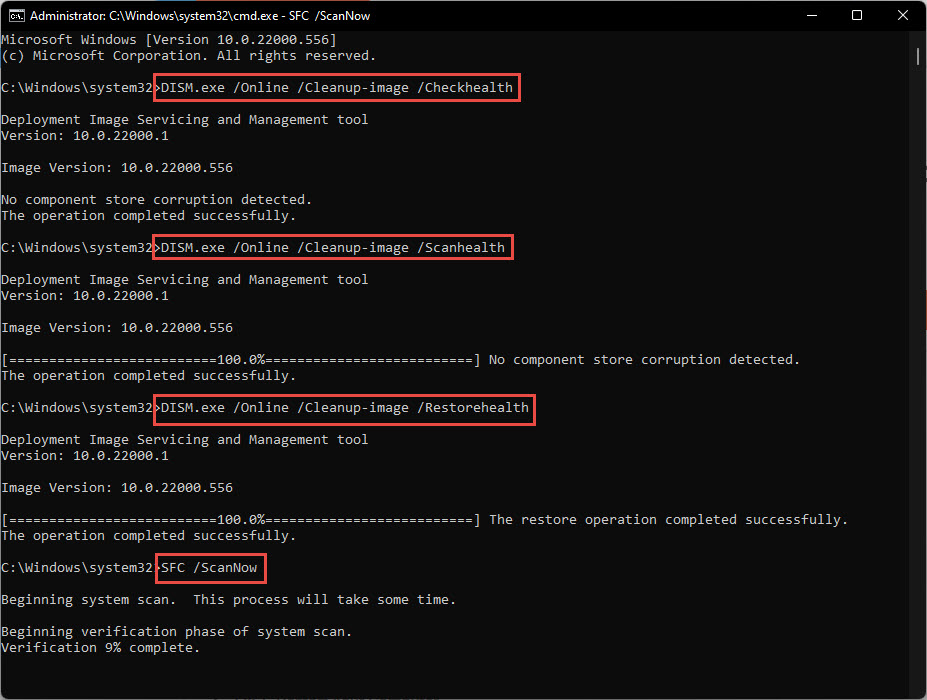
Fix 1 — Repair System Files (DISM and SFC)
1. Open Command Prompt as administrator.
2. Run: DISM /Online /Cleanup-Image /RestoreHealth
3. Then run: sfc /scannow
4. Restart the PC once both finish.
Fix 2 — Re-register DLL Files
1. Open Command Prompt as administrator.
2. Run this command to re-register all system DLLs: for %i in (%windir%\system32\*.dll) do regsvr32.exe /s %i
3. Wait for it to finish (it processes many files), then restart.
Note: Re-registering DLLs is a common fix when the error appears in File Explorer or across multiple apps.
Fix 3 — Repair or Reset the Faulty App
1. Open Settings > Apps > Installed apps.
2. Find the app showing the error, click the three dots, and choose Advanced options.
3. Click Repair first; if the error persists, click Reset.

Repair or reset the affected app from its advanced options.
Fix 4 — Reset Your User Profile
1. Create a new local user account (Settings > Accounts > Other users > Add account).
2. Sign in to the new account and test whether the error is gone.
3. If it works, your old profile was corrupted — move your files to the new account.
Fix 5 — Reset Internet Settings
1. Press Windows key + R, type inetcpl.cpl, and press Enter.
2. On the Advanced tab, click Reset (and Restore advanced settings).
3. Apply, then restart the PC.
Troubleshooting
Problem: The error only appears in File Explorer.
Solution: Re-register DLLs (Fix 2) and restart Explorer from Task Manager, then sign out and back in.
Problem: It happens with one specific app.
Solution: Use Repair then Reset on that app (Fix 3); if it persists, reinstall the app.
Problem: DISM cannot complete.
Solution: Ensure you are online so it can fetch repair files, or provide a source with the /Source switch, then re-run SFC.
Problem: Nothing works.
Solution: Test a new user profile (Fix 4); if the error is gone there, the old profile is corrupted and should be replaced.
Conclusion
The "No such interface supported" error is almost always a corruption issue. Repair system files with DISM and SFC, re-register DLLs, and reset the affected app — and fall back to a fresh user profile if the problem is profile-specific.
</w:pBdr><w:spacing w:before="220" w:after="40"/></w:pPr><w:r><w:rPr><w:b/><w:bCs/><w:color w:val="0B5394"/><w:sz w:val="21"/><w:szCs w:val="21"/><w:rFonts w:ascii="Calibri" w:cs="Calibri" w:eastAsia="Calibri" w:hAnsi="Calibri"/></w:rPr><w:t xml:space="preserve">About TechHub
This guide is part of the TechHub Knowledge Base. For more step-by-step IT guides and support, visit techhub.com.lk.