













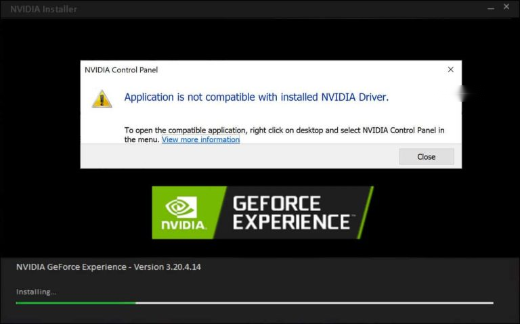
"NVIDIA Control Panel Is Not Compatible with the Installed NVIDIA Driver" එක Fix කරන්නේ කොහොමද
Control Panel එකයි driver එකයි official sources වලින් sync කරලා version-mismatch error එක විසඳගන්න.
Overview
මේ error එක එන්නේ NVIDIA Control Panel app එකයි install කරලා තියෙන GPU driver එකයි වෙනස් versions වුණාම — බොහෝවිට Store app එක වෙන එකක් expect කරද්දී Windows Update එකෙන් driver එකක් install කරාම. මේ guide එකෙන් ඒ mismatch එක fix කරනවා.
NVIDIA Control Panel compatibility error එක fix කරමින්.
Note: NVIDIA drivers download කරන්නේ NVIDIA ගේ official site එකෙන් විතරයි (හෝ GeForce Experience). Third-party driver sites වලින් වළකින්න.
Key Takeaways
- Control Panel app එකයි driver එකයි versions match වෙන්න ඕන.
- Microsoft Store එකෙන් NVIDIA Control Panel එක update කරන්න.
- NVIDIA ගේ official site එකෙන් matching driver එක reinstall කරන්න.
- Clean driver install එකක් stubborn cases විසඳනවා.
Fix 1: NVIDIA Control Panel App එක Update කරන්න
1. Microsoft Store > Library > Get updates open කරන්න.
2. "NVIDIA Control Panel" app එක update වෙන්න දෙන්න.
3. ආපහු open කරන්න; දැන් version එක driver එකට match වෙන්න ඕන.
Fix 2: Driver එක Update/Reinstall කරන්න
1. NVIDIA ගේ official Drivers page එකට යන්න (හෝ GeForce Experience open කරන්න).
2. ඔයාගේ GPU එකට latest driver එක download කරන්න.
3. "Custom" > "Perform a clean installation" තෝරලා install කරන්න.
4. Restart කරලා Control Panel එක open කරන්න.
Fix 3: Control Panel එක Reinstall කරන්න
1. Settings > Apps වලින් "NVIDIA Control Panel" uninstall කරන්න.
2. Microsoft Store එකෙන් ඒක reinstall කරන්න.
3. ඒක install කරලා තියෙන driver version එකට match වෙනවද බලන්න.
Fix 4: Clean Reinstall (DDU)
1. Display Driver Uninstaller (DDU) එක ඒකේ official source එකෙන් download කරන්න.
2. Safe Mode එකට boot වෙලා DDU එකෙන් NVIDIA drivers සම්පූර්ණයෙන් remove කරන්න.
3. Reboot කරලා NVIDIA ගේ official site එකෙන් latest driver එක install කරන්න.
4. මේකෙන් version conflicts සම්පූර්ණයෙන් clear වෙනවා.
Troubleshooting
Problem: Store එකෙන් app එක update වෙන්නේ නෑ.
Solution: Store troubleshooter එක run කරන්න, sign in වෙන්න, සහ Windows updates check කරන්න; ඊට පස්සේ app එක reinstall කරන්න.
Problem: Windows එක නිතරම පරණ driver එකක් install කරනවා.
Solution: NVIDIA එකෙන් අලුත්ම driver එක install කරලා Windows driver updates ටිකකට pause කරන්න.
Problem: Control Panel එක තාමත් open වෙන්නේ නෑ.
Solution: Driver එකේ DDU clean reinstall එකක් කරලා, ඊට පස්සේ Control Panel app එක reinstall කරන්න.
Problem: මොන driver version එකද?
Solution: Control Panel app එක driver එකට match කරන්න; දෙකෙම latest එක official sources වලින් පාවිච්චි කරන එක තමයි ආරක්ෂිතම.
Conclusion
මේ error එක කියන්නේ NVIDIA Control Panel app එකයි driver එකයි අතර version mismatch එකක්. Microsoft Store එකෙන් app එක update කරලා NVIDIA ගේ official site එකෙන් matching driver එක install කරන්න — නැත්නම් conflicts සම්පූර්ණයෙන් විසඳන්න DDU clean reinstall එකක් කරන්න.





