













Overview
The "Microsoft Outlook requires an update before it can start" error appears when Microsoft has blocked your specific, outdated Outlook build (usually for security reasons). The fix is to update Office. This guide shows how to update automatically, install the update manually, and use safe mode to get in.
Outlook can refuse to start until you install a required update.
Key Takeaways
- The error means your Office/Outlook build was blocked and needs updating.
- Update Office via File > Account > Update Options > Update Now.
- For Office 2016/2013, you can download the update manually from Microsoft.
- Safe mode can let you open Outlook long enough to update.
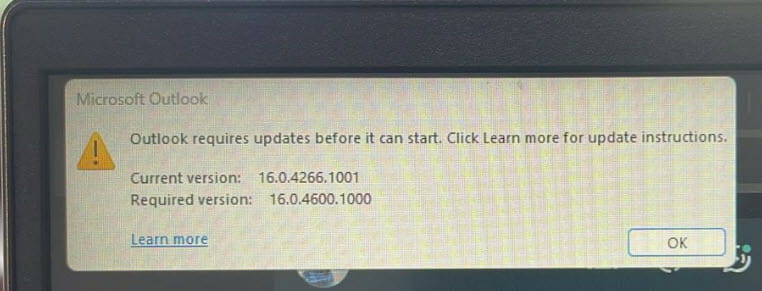
The "Outlook requires updates before it can start" message.
Method 1 — Update Office From Within an Office App
1. Open another Office app that still works, such as Word or Excel.
2. Go to File > Account (or Office Account).
3. Click Update Options > Update Now.
4. Let the update install, then reopen Outlook.
Method 2 — Update via the Microsoft 365 / Office Installer
1. If no Office app opens, repair Office: Settings > Apps > Installed apps > Microsoft 365/Office > Modify > Quick Repair (then Online Repair).
2. This updates and repairs the installation.
3. Reopen Outlook after the repair completes.
Method 3 — Install Updates Manually (Office 2016/2013)
1. Identify your Office version and bitness (32/64-bit) from another Office app’s Account page.
2. Download the latest cumulative update for your Office version from the Microsoft Update Catalog or Office update page.
3. Run the update installer and restart, then open Outlook.
Method 4 — Open Outlook in Safe Mode
1. Press Windows key + R, type outlook /safe, and press Enter.
2. If Outlook opens in safe mode, use File > Office Account > Update Options > Update Now.
3. Restart Outlook normally after updating.
Troubleshooting
Problem: Update Now is missing or greyed out.
Solution: Your Office may be managed by your organisation. Contact IT, or use Quick/Online Repair to update the installation.
Problem: Outlook still will not start after updating.
Solution: Run Online Repair on Office, and check Windows Update for pending Office updates.
Problem: You have a volume-licensed Office 2016/2013.
Solution: Install the latest cumulative update manually from the Microsoft Update Catalog for your exact version and bitness.
Problem: Safe mode also fails.
Solution: Repair Office (Online Repair), or uninstall and reinstall the current version of Office/Microsoft 365.
Conclusion
This error simply means Outlook needs a newer build. Update Office through any working Office app, repair the installation, or install the update manually — then Outlook will start normally again.
</w:pBdr><w:spacing w:before="220" w:after="40"/></w:pPr><w:r><w:rPr><w:b/><w:bCs/><w:color w:val="0B5394"/><w:sz w:val="21"/><w:szCs w:val="21"/><w:rFonts w:ascii="Calibri" w:cs="Calibri" w:eastAsia="Calibri" w:hAnsi="Calibri"/></w:rPr><w:t xml:space="preserve">About TechHub
This guide is part of the TechHub Knowledge Base. For more step-by-step IT guides and support, visit techhub.com.lk.





