Overview
When the Remove button under PIN (Windows Hello) is greyed out, it is almost always because Windows is set to require Windows Hello sign-in for Microsoft accounts. This guide shows how to turn that setting off so you can remove the PIN, plus how to reset it via "I forgot my PIN".
The greyed-out Remove PIN option is usually caused by a sign-in requirement.
Key Takeaways
- The Remove option greys out when "Require Windows Hello sign-in" is on.
- Turn that toggle off in Sign-in options to enable Remove.
- You can also reset the PIN with "I forgot my PIN" if needed.
- A PIN is more secure than a password for local sign-in — consider keeping it.
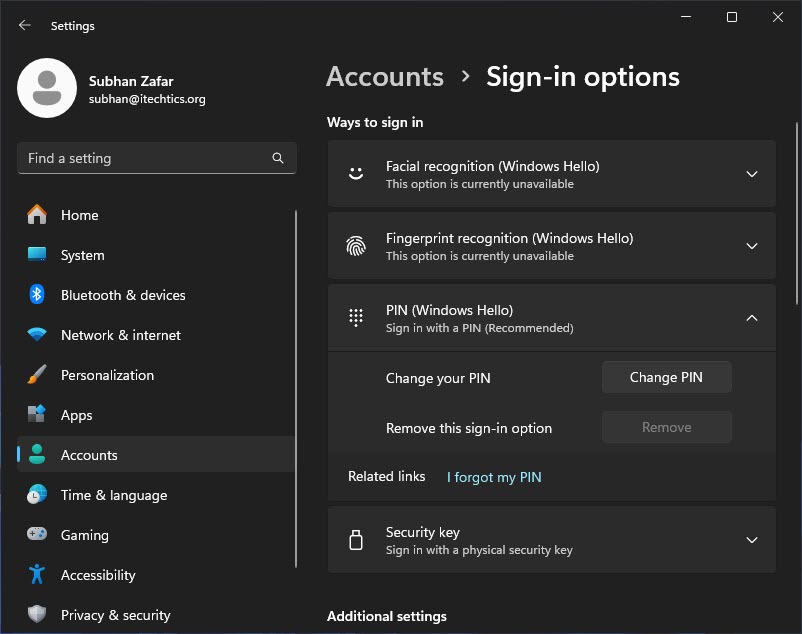
The Remove PIN option appears greyed out.
Why Is It Greyed Out?
Windows has a setting, "For improved security, only allow Windows Hello sign-in for Microsoft accounts on this device." While it is on, you cannot remove the PIN, because Windows Hello (the PIN) is required to sign in. Turning it off restores the Remove option.
Method 1 — Disable the Windows Hello Requirement
1. Open Settings > Accounts > Sign-in options.
2. Find "For improved security, only allow Windows Hello sign-in for Microsoft accounts on this device".
3. Turn this toggle Off.
4. Go back to PIN (Windows Hello) — the Remove button is now available. Click Remove and confirm.
Method 2 — Reset the PIN With "I Forgot My PIN"
1. Open Settings > Accounts > Sign-in options > PIN (Windows Hello).
2. Click "I forgot my PIN".
3. Verify your identity (Microsoft account password or other method).
4. Set a new PIN — or after resetting, remove it once the Windows Hello requirement is off.

You can set up or reset the PIN after fixing the option.
Troubleshooting
Problem: The toggle is missing.
Solution: Check whether you are using a Microsoft or local account (Settings > Accounts > Your info). The toggle mainly applies to Microsoft accounts.
Problem: Remove is still greyed out after turning the toggle off.
Solution: Restart the PC and try again, and ensure no organisation policy is enforcing Windows Hello on managed devices.
Problem: A work or school account blocks it.
Solution: Your organisation may require a PIN via policy. Contact your IT administrator.
Problem: You want to keep secure sign-in.
Solution: A PIN is device-specific and more secure than a password. Consider resetting it rather than removing it entirely.
Conclusion
The greyed-out Remove PIN button is fixed by turning off the Windows Hello sign-in requirement in Sign-in options. After that you can remove or reset your PIN — though for everyday security a PIN is often the better choice.
</w:pBdr><w:spacing w:before="220" w:after="40"/></w:pPr><w:r><w:rPr><w:b/><w:bCs/><w:color w:val="0B5394"/><w:sz w:val="21"/><w:szCs w:val="21"/><w:rFonts w:ascii="Calibri" w:cs="Calibri" w:eastAsia="Calibri" w:hAnsi="Calibri"/></w:rPr><w:t xml:space="preserve">About TechHub
This guide is part of the TechHub Knowledge Base. For more step-by-step IT guides and support, visit techhub.com.lk.