Overview
When Windows or an app crashes, Windows records the event in its logs. Reading those logs helps you pinpoint the cause. This guide explains Windows Event Logs and shows how to view crashes and errors with Event Viewer and the friendlier Reliability Monitor.
Windows logs crashes and errors you can review to find the cause.
Key Takeaways
- Event Viewer (eventvwr.msc) is the main tool for detailed logs.
- Logs are categorized (Application, System, Security) and graded by level.
- Reliability Monitor gives a simple timeline of crashes and failures.
- The event source and Event ID help you search for a specific fix.
Event Log Levels
- Information — normal operations.
- Warning — a potential issue that is not yet a failure.
- Error — a problem such as a service or app failure.
- Critical — a serious failure, often a crash or unexpected shutdown.
Log Categories
- Application — events logged by installed programs.
- System — events from Windows components and drivers.
- Security — audit events such as logins (requires admin).
View Logs With Event Viewer
1. Press Windows key + R, type eventvwr.msc, and press Enter.
2. Expand Windows Logs and select Application or System.
3. Sort by Level and look for Error and Critical entries around the time of the crash.
4. Click an entry to read the Source, Event ID, and description in the lower pane.
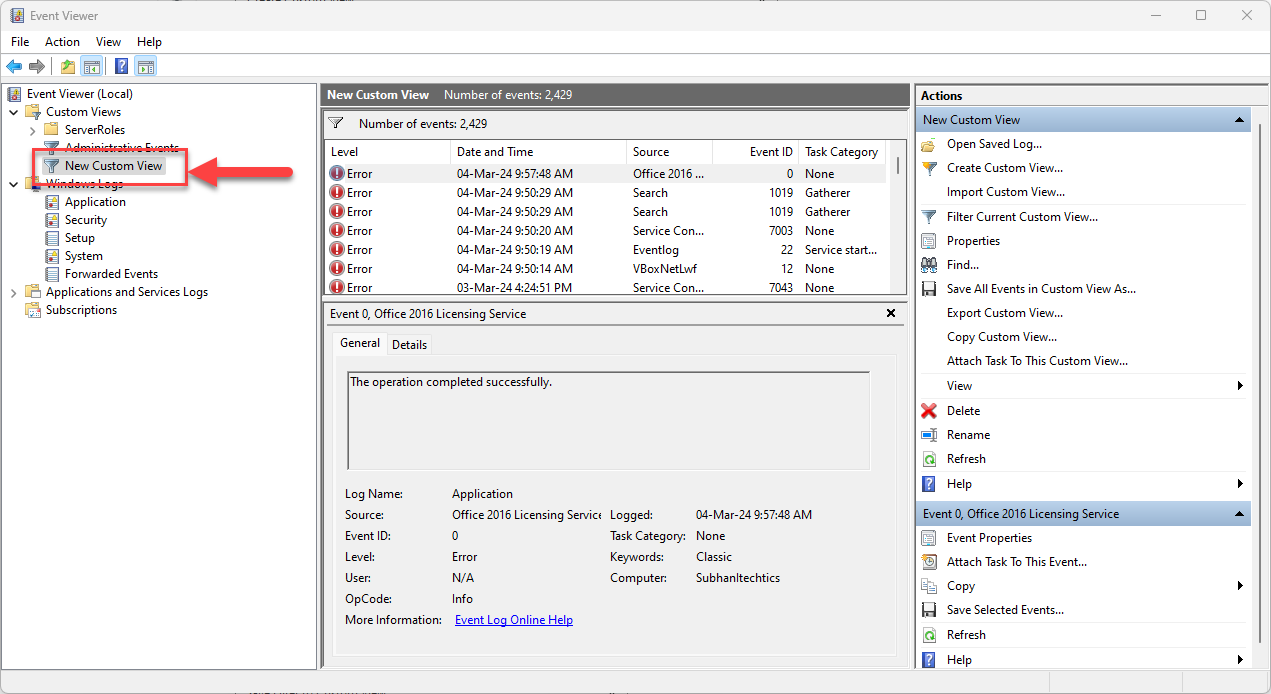
Filter Event Viewer to a custom category or level.
Tip: Right-click a log and choose "Filter Current Log" to show only Errors and Critical events, making problems easier to spot.
View Crashes With Reliability Monitor
1. Press Windows key + R, type perfmon /rel, and press Enter (or search "Reliability history").
2. Review the timeline — red X marks indicate crashes and failures.
3. Click a day to see the events, then "View technical details" for the source and error codes.
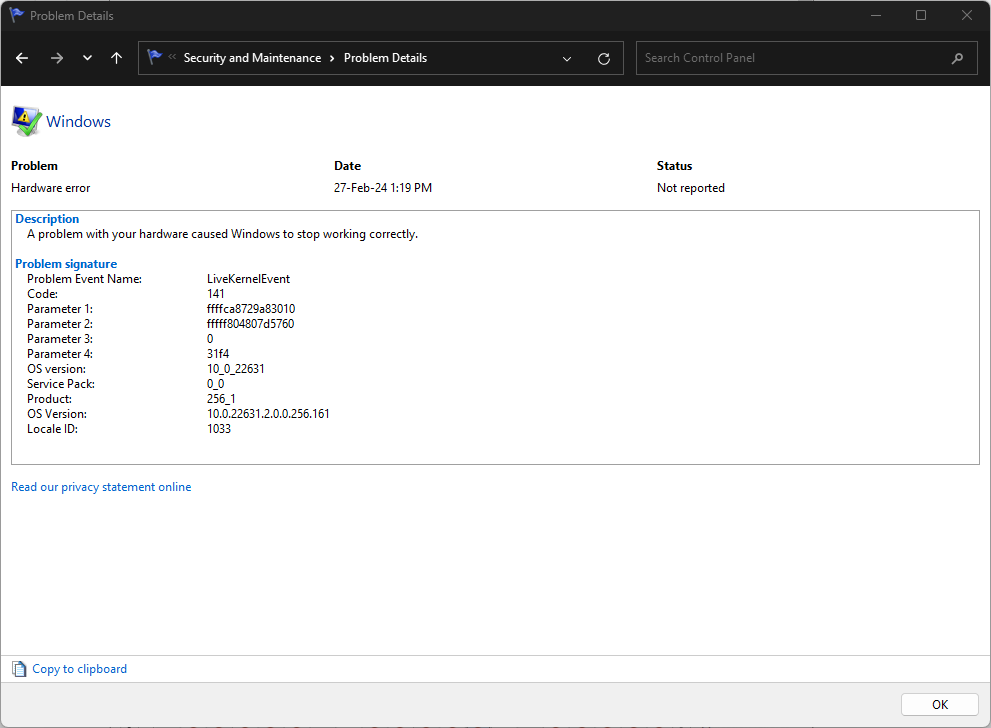
Reliability Monitor shows a simple timeline of failures.
Troubleshooting
Problem: Too many events to read.
Solution: Filter the log to Error and Critical levels and narrow the time range to around when the problem occurred.
Problem: You found an Event ID but not the cause.
Solution: Search the Source name and Event ID online (and in Microsoft docs) for known fixes.
Problem: A repeated error appears.
Solution: Note the source — it often points to a specific driver, service, or app to update, repair, or reinstall.
Problem: Need crash dump details.
Solution: For blue screens, analyze the memory dump in C:\Windows\Minidump with a tool like WinDbg or BlueScreenView.
Conclusion
Windows logs are your best clue when something crashes. Use Reliability Monitor for a quick timeline and Event Viewer for the detail — then search the source and Event ID to find the fix.
</w:pBdr><w:spacing w:before="220" w:after="40"/></w:pPr><w:r><w:rPr><w:b/><w:bCs/><w:color w:val="0B5394"/><w:sz w:val="21"/><w:szCs w:val="21"/><w:rFonts w:ascii="Calibri" w:cs="Calibri" w:eastAsia="Calibri" w:hAnsi="Calibri"/></w:rPr><w:t xml:space="preserve">About TechHub
This guide is part of the TechHub Knowledge Base. For more step-by-step IT guides and support, visit techhub.com.lk.