Overview
Chrome එකේ slow downloads settings, extensions, DNS, හෝ network limits වලින් එන්න පුළුවන්. මේ guide එකෙන් ඒවා වේගවත් කරන practical ක්රම, Chrome's parallel-downloading flag සහ DNS tweaks ඇතුළුව, cover කරනවා.
Google Chrome එකේ downloads වේගවත් කරන්න.
Key Takeaways
- Parallel downloading එකෙන් files multiple streams වලට split කරනවා.
- Faster DNS එකකින් connection setup වැඩිදියුණු කරන්න පුළුවන්.
- Extensions, cache, සහ tabs ගොඩක් downloads slow කරන්න පුළුවන්.
- Chrome updated තියාගන්න එකෙන් performance වැඩිදියුණු වෙනවා.
Fix 1: Parallel Downloading Enable කරන්න
1. chrome://flags වලට යන්න.
2. "Parallel downloading" search කරන්න.
3. Enabled කරන්න.
4. Chrome relaunch කරන්න — දැන් large files parts කිහිපයකින් download වෙනවා.
Fix 2: Faster DNS එකක් පාවිච්චි කරන්න
1. Settings > Network & Internet > ඔබේ adapter > DNS server assignment > Edit open කරන්න.
2. DNS එක Google (8.8.8.8 / 8.8.4.4) හෝ Cloudflare (1.1.1.1) වගේ fast resolver එකකට set කරන්න.
3. Save කරලා browser එක restart කරන්න.
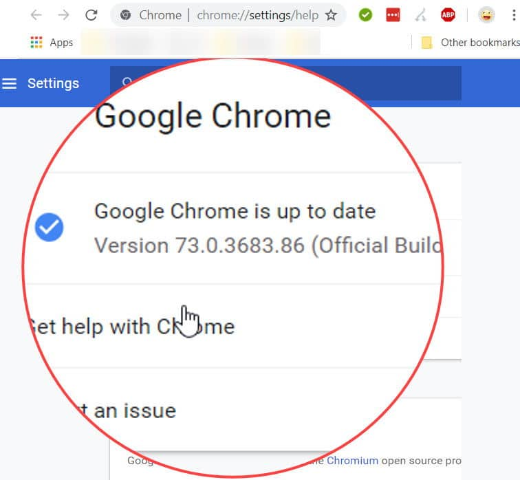
Fix 3: Chrome Update කරන්න
1. chrome://settings/help open කරන්න.
2. Chrome එකට updates check කරලා install කරන්න දෙන්න.
3. Apply කරන්න relaunch කරන්න.
Fix 4: Extensions Disable කරන්න
1. chrome://extensions open කරන්න.
2. Speed throttle කරන්න පුළුවන් VPNs, proxies, සහ download managers disable කරන්න.
3. ඔබේ download එක re-test කරන්න.
Fix 5: Cache Clear කරලා Tabs Close කරන්න
1. Ctrl + Shift + Delete press කරලා cached files සහ cookies clear කරන්න.
2. Bandwidth එකයි memory එකයි free කරන්න unused tabs close කරන්න.
3. Large transfers වෙලාවට වෙන downloads/streaming pause කරන්න.
Fix 6: Preloading Enable කරන්න
1. Settings > Performance (හෝ Privacy and security > Cookies) open කරන්න.
2. Faster browsing සහ connection setup වලට "Preload pages" enable කරන්න.
Troubleshooting
Problem: Parallel downloading එකෙන් උදව් වුණේ නෑ.
Solution: සමහර servers per-connection speed cap කරනවා; ඒක වැඩිපුරම උදව් වෙන්නේ fast servers වලින් large files වලට.
Problem: Downloads තවම හැම site එකකම slow.
Solution: Speed test එකක් run කරන්න — ඔබේ connection හෝ Wi-Fi bottleneck එක වෙන්න පුළුවන්; wired connection එකක් try කරන්න.
Problem: එක server එකක් slow.
Solution: ඒ host එක rate-limiting වෙන්න පුළුවන්; mirror එකක් හෝ වෙන වෙලාවක් try කරන්න.
Problem: Antivirus හැම file එකක්ම scan කරනවා.
Solution: Real-time download scanning එකෙන් slow කරන්න පුළුවන්; ඕන නම් AV settings adjust කරන්න.
Conclusion
Parallel downloading එකයි fast DNS එකයි enable කරලා, Chrome updated තියාගෙන, extensions සහ cache clear කරන එකෙන් ගොඩක් downloads වේගවත් වෙනවා. හැම දෙයක්ම slow නම්, limit එක බොහෝවිට Chrome නෙවෙයි ඔබේ internet connection එක.
About TechHub
මේ guide එක TechHub Knowledge Base එකේ කොටසක්. තව step-by-step IT guides සහ support වලට techhub.com.lk එකට යන්න.