Overview
ChromeOS is Google’s lightweight, browser-centric operating system. You can try it in a virtual machine without dedicated hardware. This guide covers importing a ChromeOS OVA image into VMware and Hyper-V, and notes Google’s official ChromeOS Flex as an alternative.
Key Takeaways
- An OVA file is a packaged VM you can import into VMware (and convert for Hyper-V).
- VMware imports OVA directly; Hyper-V needs the disk converted from VMDK to VHD.
- Google’s official ChromeOS Flex is the supported way to run a ChromeOS-like OS on a VM or old PC.
- Enable hardware virtualization in firmware for VMs to run.
What Is an OVA File?
An OVA (Open Virtual Appliance) is a single packaged file containing a virtual machine — its virtual disk and configuration. You import it into a hypervisor to get a ready-to-run VM.
Method 1 — Install ChromeOS on VMware
1. Install VMware Workstation Player (free for personal use).
2. Obtain a ChromeOS OVA image (or use ChromeOS Flex installation media).
3. In VMware, choose File > Open and select the OVA to import it.
4. Adjust RAM/CPU if needed, then power on the VM and complete ChromeOS setup.
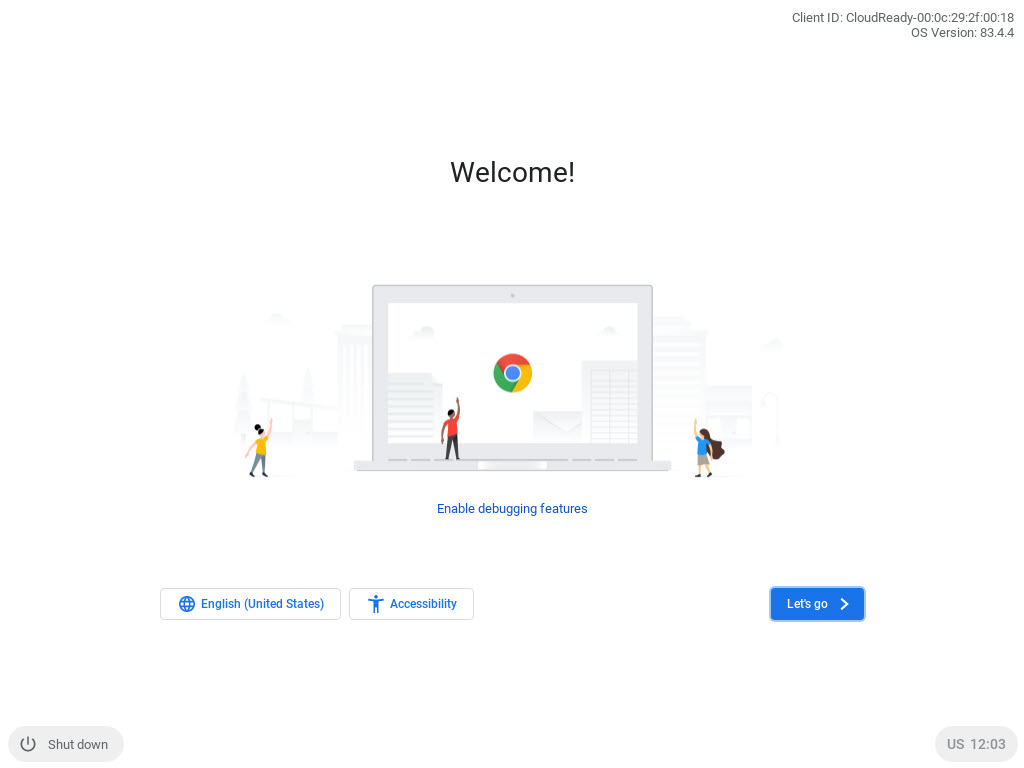
ChromeOS running and ready to use in a VM.
Method 2 — Install ChromeOS on Hyper-V
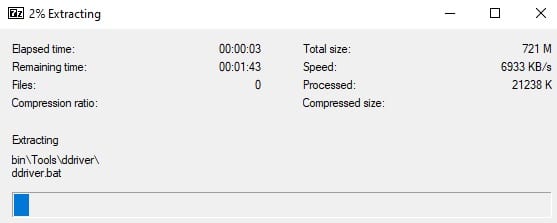
1. Extract the OVA (it is a TAR archive) to get the VMDK virtual disk.
2. Convert the VMDK to VHD using a tool such as StarWind V2V Converter or qemu-img.
3. In Hyper-V Manager, create a new Generation 1 VM and attach the converted VHD as its disk.
4. Start the VM and complete setup.
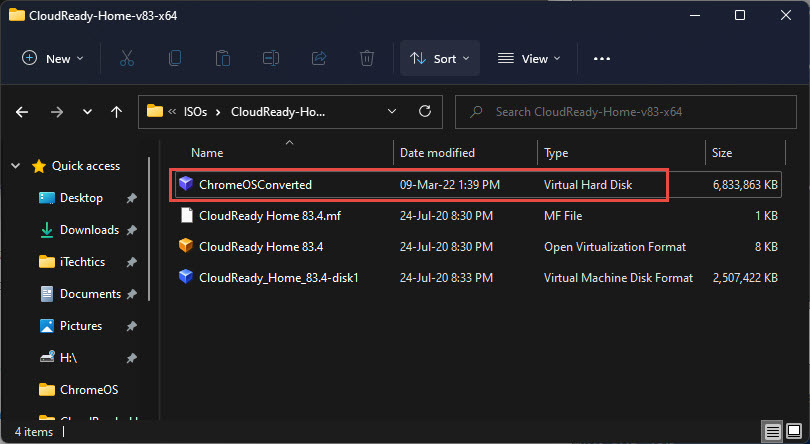
A VHD file converted from the OVA’s VMDK for Hyper-V.
Recommended — Use ChromeOS Flex
- ChromeOS Flex is Google’s official, free version designed for PCs and VMs.
- Download the ChromeOS Flex image from Google and install it into a new VM.
- It is supported and updated, unlike unofficial OVA images.
Troubleshooting
Problem: The VM will not boot.
Solution: Enable hardware virtualization (Intel VT-x / AMD-V) in firmware, and match the VM generation/firmware (BIOS vs UEFI) to the image.
Problem: Hyper-V cannot use the VMDK.
Solution: Convert it to VHD/VHDX first (StarWind V2V or qemu-img), then attach the converted disk.
Problem: No network or Google sign-in inside ChromeOS.
Solution: Ensure the VM’s network adapter is connected; unofficial images may lack Play Store/Google sign-in — ChromeOS Flex is more reliable.
Problem: Performance is poor.
Solution: Allocate more RAM and CPU cores and place the virtual disk on an SSD.
Conclusion
You can run ChromeOS in a VM by importing an OVA into VMware or converting it for Hyper-V. For a supported, updated experience, use Google’s official ChromeOS Flex image in your virtual machine.
</w:pBdr><w:spacing w:before="220" w:after="40"/></w:pPr><w:r><w:rPr><w:b/><w:bCs/><w:color w:val="0B5394"/><w:sz w:val="21"/><w:szCs w:val="21"/><w:rFonts w:ascii="Calibri" w:cs="Calibri" w:eastAsia="Calibri" w:hAnsi="Calibri"/></w:rPr><w:t xml:space="preserve">About TechHub
This guide is part of the TechHub Knowledge Base. For more step-by-step IT guides and support, visit techhub.com.lk.