Overview
Windows 11 වලට officially TPM 2.0 සහ Secure Boot ඕන. ඔබේ hardware එකේ මේවා නැතත් Windows 11 install කරගන්න ඕන නම්, checks bypass කරන reliable ක්රම 2ක් තියෙනවා: setup එකේදී Registry එක edit කරන එක, නැත්නම් Rufus එකෙන් installation USB එක හදනකොට requirements අයින් කරන එක. මේ guide එකෙන් දෙකම cover කරනවා.
පරණ hardware එකක Windows 11 install කරගන්න TPM සහ Secure Boot checks bypass කරන්න පුළුවන්.
Warning: Unsupported hardware එකක Windows 11 install කරන එක Microsoft recommend කරන්නේ නෑ. එවැනි PCs වලට හැම update එකම නොලැබෙන්න පුළුවන්, officially support කරන්නෙත් නෑ. ඔබේම අවදානමෙන් ඉදිරියට යන්න, කලින් data backup කරගන්න.
Key Takeaways
- Windows 11 වලට default විදිහට TPM 2.0 සහ Secure Boot ඕන.
- Setup එකේදී LabConfig registry keys වලින් දෙකම bypass කරන්න පුළුවන්.
- Rufus එකට requirements automatically අයින් කරන install media එකක් හදන්න පුළුවන්.
- Unsupported installs වැඩ කරනවා, ඒත් updates/support guarantee නෑ.
මුලින්ම, ඔබේ Hardware එක Check කරන්න
1. TPM check කරන්න: Windows key + R press කරලා tpm.msc type කරලා Enter කරන්න — TPM එකක් තියෙනවද, එහි version එක මොකක්ද කියලා බලන්න.
2. ගොඩක් PCs වල TPM එක firmware එකේ disable කරලා තියෙන්නේ — bypass කරන්න කලින් UEFI/BIOS එකේ enable කරන්න (බොහෝවිට TPM, PTT හෝ fTPM කියලා label කරලා).
3. Secure Boot check කරන්න: msinfo32 run කරලා "Secure Boot State" එක බලන්න. තියෙනවා නම් UEFI එකේ enable කරන්න.
Note: ඔබේ UEFI firmware එකේ TPM හෝ Secure Boot enable කරන්න පුළුවන් නම්, bypass කරනවා වෙනුවට ඒක කරන්න — ඒක තමයි supported route එක.
Method 1 — Setup එකේදී Registry එකෙන් Bypass කරන්න
1. Windows 11 installation USB එකෙන් boot වෙලා setup screen එක දක්වා යන්න.
2. Requirement error එකට ආවම (හෝ මුල් setup screen එකේදී), Shift + F10 press කරලා Command Prompt එක open කරන්න.
3. regedit type කරලා Enter කරන්න.
4. HKEY_LOCAL_MACHINE\SYSTEM\Setup එකට ගිහින් LabConfig නමින් අලුත් key එකක් හදන්න.
5. LabConfig ඇතුළේ, DWORD (32-bit) values හදන්න: BypassTPMCheck = 1, BypassSecureBootCheck = 1 (ඕන නම් BypassRAMCheck = 1 එකතු කරන්න).
6. Editor එකයි Command Prompt එකයි close කරලා, installation එක continue කරන්න.
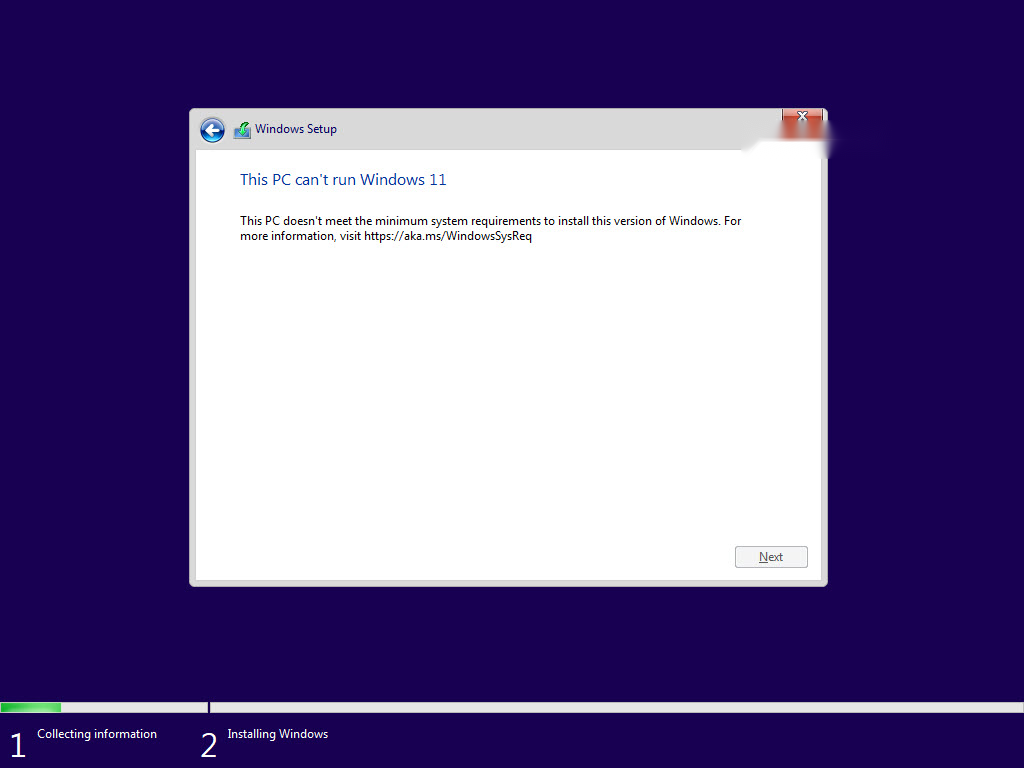
Bypass එක නැතුව Windows 11 setup එක requirement check එකේ fail වෙනවා.
Method 2 — Rufus එකෙන් Bypass කරන්න
1. Rufus (official) එකයි Microsoft වෙතින් Windows 11 ISO එකයි download කරන්න.
2. Rufus open කරලා, ඔබේ USB drive එකයි Windows 11 ISO එකයි select කරන්න.
3. Start click කරන්න; options dialog එකේ "Remove requirement for 4GB+ RAM, Secure Boot and TPM 2.0" tick කරන්න.
4. Rufus එකට media එක හදන්න දෙන්න, ඊට පස්සේ ඒකෙන් boot වෙලා checks නැතුව install කරන්න.
Tip: Rufus method එක තමයි ලේසිම — USB එක හදනකොටම requirements automatically අයින් කරනවා, setup එකේදී registry editing එකක් ඕන නෑ.
Troubleshooting
Problem: Setup එක තාමත් කියනවා PC එක requirements meet කරන්නේ නෑ කියලා.
Solution: LabConfig keys හරියටම spell වෙලා 1 ට set වෙලාද confirm කරන්න, නැත්නම් Rufus bypass option එක enable කරලා USB එක නැවත හදන්න.
Problem: Bypass කරන්න කැමති නෑ.
Solution: ඔබේ UEFI firmware එකේ TPM (PTT/fTPM) සහ Secure Boot enable කරන්න — ගොඩක් systems ඒවා support කරනවා, ඒත් disable කරලා ship වෙන්නේ.
Problem: Install කළාට පස්සේ updates fail වෙනවා.
Solution: Unsupported devices වලට හැම update එකම නොලැබෙන්න පුළුවන්. Backups තියාගන්න, critical machines වලට supported OS එකක ඉන්න එක සලකා බලන්න.
Problem: Shift + F10 එකෙන් මුකුත් වෙන්නේ නෑ.
Solution: Language-selection හෝ "Install now" screen එකේදී try කරන්න, key-filtering software එකක් active නැති බව confirm කරන්න.
Conclusion
Registry එකෙන් හෝ Rufus එකෙන් TPM සහ Secure Boot checks bypass කරලා පරණ hardware එකක Windows 11 install කරගන්න පුළුවන්. පුළුවන් නම් firmware එකේ features enable කරන්න; නැත්නම් backups තියාගෙන, දැනුවත්ව මේ methods පාවිච්චි කරන්න — unsupported installs වලට officially updates guarantee නෑ.
About TechHub
මේ guide එක TechHub Knowledge Base එකේ කොටසක්. තව step-by-step IT guides සහ support වලට techhub.com.lk එකට යන්න.