Overview
Intel Graphics Driver version 30.0.100.9955 කියන්නේ Intel integrated graphics වලට GPU driver update එකක්. ඒක hardware video-encode support එකතු කරලා games කිහිපයක minor graphical glitches resolve කරනවා. මේ guide එකෙන් changes summarize කරලා, driver එක හරියට download කරලා install කරන ආකාරය පෙන්නනවා.
Windows 11 සහ Windows 10 වලට Intel Graphics Driver 30.0.100.9955.
Key Takeaways
- 10th Gen Intel Core (Iris Plus) සහ ඊට අලුත් ඒවා වලට Windows 11 එකේ H.264 සහ HEVC DirectX 12 video encode support එකතු කරනවා.
- Games කිහිපයක minor graphical anomalies fix කරනවා.
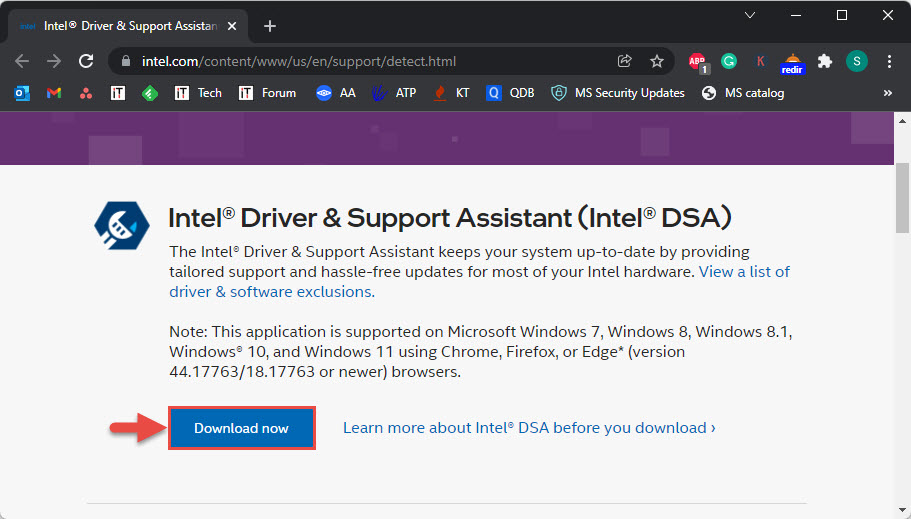
- Intel Driver & Support Assistant එකෙන් හෝ Intel's official site එකෙන් download කරලා install කරන්න.
- හොඳම stability එකට graphics විතරක් නෙවෙයි system drivers ඔක්කොම updated තියාගන්න.
මේ Release එකේ අලුත් දේ
- Iris Plus graphics සහ ඉහළ ඒවා තියෙන 10th Gen Intel Core processors වලට Windows 11 එකේ H.264 සහ HEVC DX12 video encode support එකතු කරලා.
- Cyberpunk 2077, Hitman 2, සහ Wolfenstein: Youngblood වල minor graphic anomalies fix කරනවා.
- Monster Jam Steel Titans 2 සහ Ark: Survival Evolved වල 11th Gen Iris Xe graphics වල minor anomalies fix කරනවා.
Note: මේ release එකෙන් known issues කිහිපයක්ද list කරනවා; specific game හෝ app එකක problems තියෙනවා නම් Intel's release notes බලන්න.
Driver එක Download කරන්නේ කොහොමද
1. Intel's official Download Center (intel.com) එක හෝ Intel Driver & Support Assistant එක open කරන්න.
2. ඔබේ graphics model එක search කරන්න හෝ assistant එකට automatically detect කරන්න දෙන්න.
3. Version 30.0.100.9955 හොයලා installer package එක download කරන්න.
4. File එක save කරලා install කරන්න කලින් download එක complete වුණාද confirm කරන්න.
Warning: Intel drivers download කරන්නේ Intel's official site එකෙන් හෝ Intel Driver & Support Assistant එකෙන් විතරයි. Third-party driver sites avoid කරන්න.
Driver එක Install කරන්නේ කොහොමද
1. Download කරපු installer එක run කරලා licence agreement එක accept කරන්න.
2. Offer කරනවා නම්, පරණ driver remnants remove කරන්න clean installation එකක් තෝරන්න.
3. Installer එක complete වෙන්න දෙන්න — installation එකේදී screen එක flicker වෙන්න පුළුවන්.
4. Prompt වුණොත් PC එක restart කරලා, Device Manager > Display adapters > Properties > Driver එකේ version එක verify කරන්න.
Tip: ඔබේ laptop maker එක customised version එකක් දෙනවා නම් manufacturer's (OEM) driver එක prefer කරන්න — ඒකේ device-specific tweaks තියෙන්න පුළුවන්.
Troubleshooting
Problem: Installer කියනවා driver එක ඔබේ computer එකට validated නෑ කියලා.
Solution: ඔබේ laptop OEM එක graphics drivers control කරන්න පුළුවන්. ඔබේ PC manufacturer එකෙන් matching driver එක ගන්න, නැත්නම් supported නම් විතරයි generic Intel driver එක install කරන්න.
Problem: Update කළාට පස්සේ display issues.
Solution: Device Manager > Display adapters > Properties > Driver > Roll Back Driver එකෙන් roll back කරන්න, නැත්නම් clean installation එකකින් reinstall කරන්න.
Problem: Game එකක තවම graphical glitches පෙන්නනවා.
Solution: ඔබේ processor generation එක fix එකෙන් cover වෙනවා කියලා confirm කරලා, game එක update කරලා, මේ release එකට Intel's known issues බලන්න.
Problem: Installation fail වෙනවා.
Solution: Running apps close කරලා, antivirus තාවකාලිකව disable කරලා, installer එක administrator විදිහට run කරන්න.
Conclusion
Driver 30.0.100.9955 එකෙන් Intel graphics users ලාට useful video-encode support එකයි game fixes එකයි ගේනවා. Intel's official channels එකෙන් clean installation එකකින් install කරලා, issue එකක් ආවොත් ලේසියෙන් roll back කරන්න.
About TechHub
මේ guide එක TechHub Knowledge Base එකේ කොටසක්. තව step-by-step IT guides සහ support වලට techhub.com.lk එකට යන්න.