Overview
The Command Prompt gives you fast, precise control over browsing the contents of any folder. The DIR command lists files and directories, and its switches let you recurse into subfolders, show only folders, filter by file type, reveal hidden items, and more. This guide walks through the most useful DIR commands with practical examples.
Key Takeaways
- DIR lists the files and folders in the current directory.
- DIR /S extends the listing into all subdirectories.
- DIR /AD shows only folders, while DIR /A-D shows only files.
- You can filter by extension (for example, DIR *.pdf) and export any listing to a text file.
Opening Command Prompt in the Right Folder
1. Open File Explorer and navigate to the folder you want to inspect.
2. Click the address bar, type cmd, and press Enter to open Command Prompt already pointed at that folder.
3. Alternatively, open Command Prompt and use the CD command (for example, cd C:\Users\Public\Documents) to change to the target directory.
List Files and Folders in the Current Directory
The basic command lists everything in the folder you are currently in.
1. Type DIR and press Enter.
2. The output shows each item's date, whether it is a <DIR> (folder) or a file, its size, and its name.
Listing files and folders in the current directory with DIR.
List Files and Folders Recursively
To include everything inside subfolders as well, add the /S switch.
1. Type DIR /S and press Enter.
2. Command Prompt walks through the current folder and every subfolder beneath it, listing all contents.
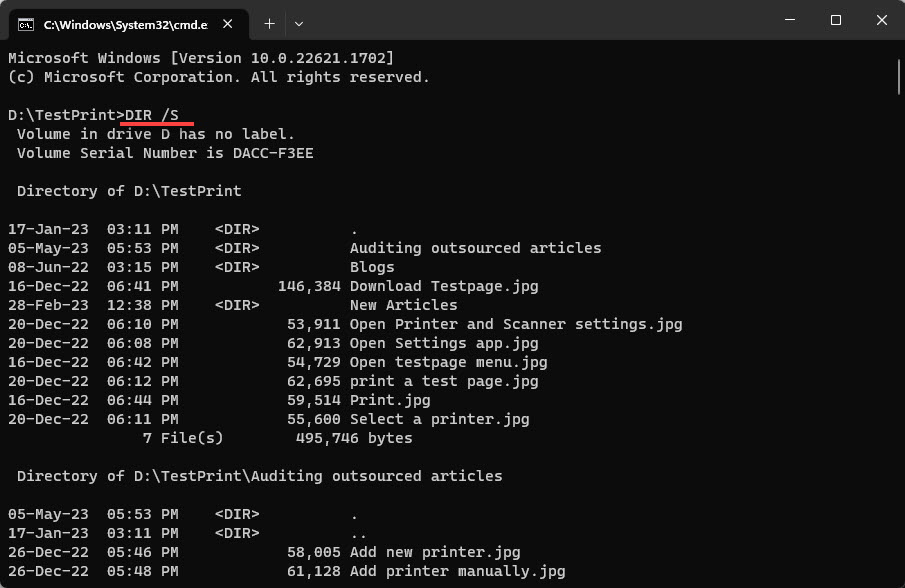
Recursively listing all files and folders with DIR /S.
List Only Folders
The /AD switch (attribute: directory) filters the listing to folders only.
1. Type DIR /AD to list only folders in the current directory.
2. Add /S to include subdirectories: DIR /AD /S.
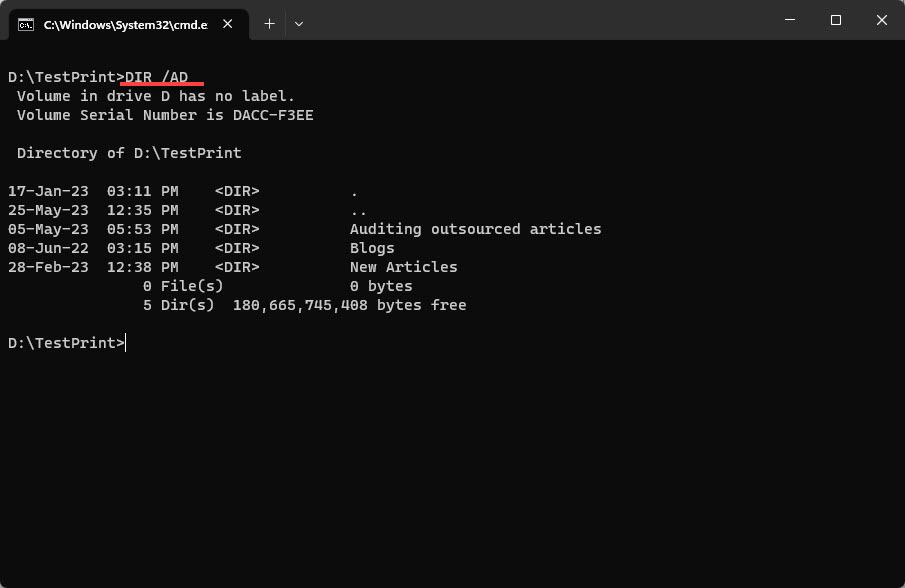
Showing only folders with the DIR /AD switch.
List Only Files (Exclude Folders)
Use /A-D (attribute: not directory) to hide folders and list files only.
1. Type DIR /A-D and press Enter to list files while excluding folders.
2. Combine with /S to do the same across subdirectories.
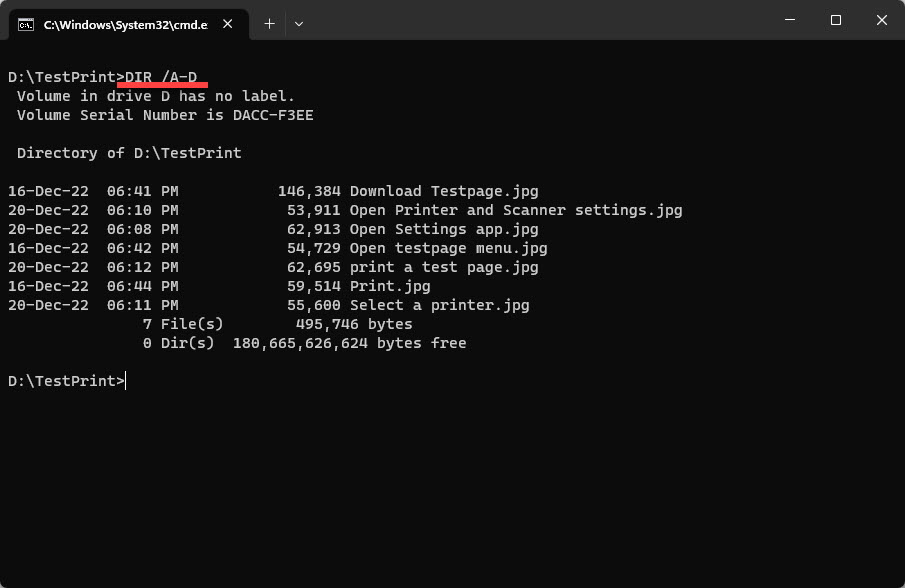
Listing files while excluding folders using DIR /A-D.
Show Hidden and System Files
By default, hidden and system files are omitted. The /AH and /AS switches reveal them.
1. Type DIR /AH to list hidden files in the current directory.
2. Type DIR /AS to list system files.
3. Use /A on its own (DIR /A) to display every item regardless of attributes.
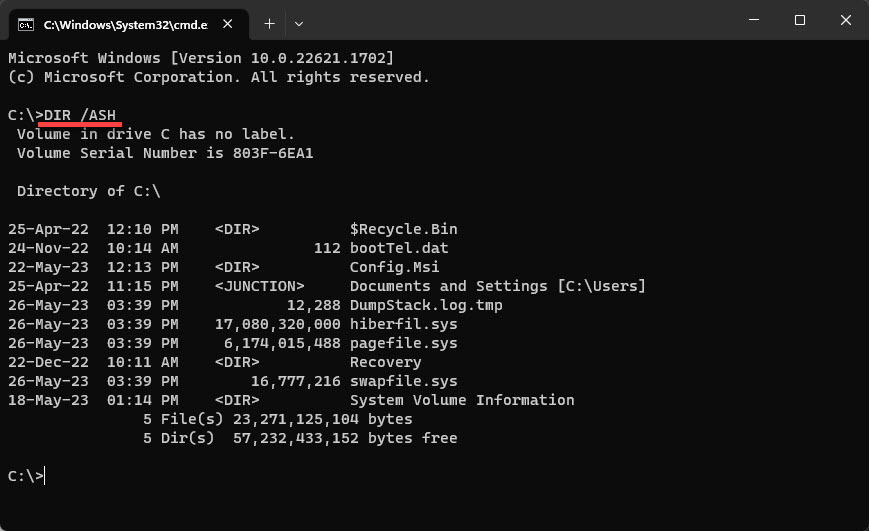
Revealing hidden system files with the appropriate DIR switches.
Filter by File Type
Add a wildcard pattern to list only files of a certain type.
1. Type DIR *.pdf to list only PDF files in the current directory.
2. List several types at once: DIR *.pdf *.docx *.xlsx.
3. Combine with /S to search subdirectories: DIR *.jpg /S.
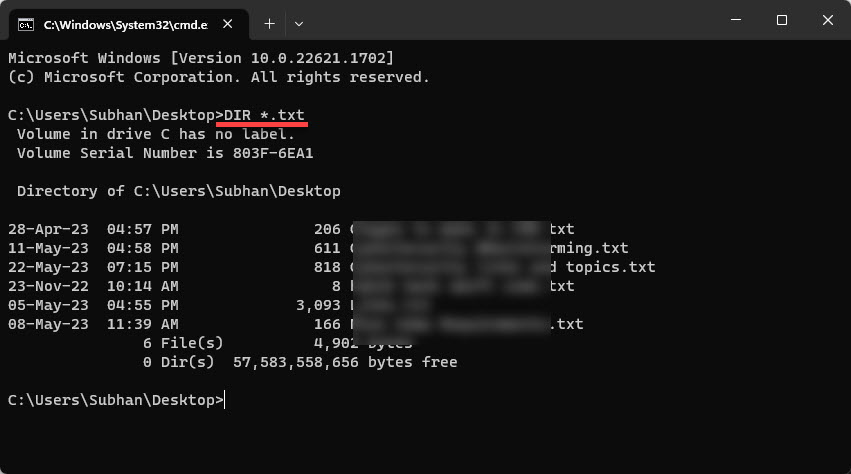
Listing only files of a specific type with a wildcard pattern.
Export the Listing to a Text File
You can redirect any DIR output to a file for records or sharing.
1. Append > filelist.txt to any command, for example: DIR /S > filelist.txt
2. The output is written to filelist.txt in the current folder instead of the screen.
3. Open the text file to review or share the complete listing.
Tip: Run DIR /? at any time to see the full list of switches, including /O to sort the output (for example, DIR /O:N sorts by name and DIR /O:-S sorts by size, largest first).
Troubleshooting
Problem: DIR shows "File Not Found" when filtering by type.
Solution: No files match your pattern in the current directory. Confirm you are in the right folder with the CD command, and add /S to search subfolders.
Problem: The listing scrolls past too fast to read.
Solution: Add the /P switch (DIR /P) to pause after each screen, or pipe the output to more: DIR | more.
Problem: Hidden files are not appearing.
Solution: Use DIR /A to include all attributes, or DIR /AH for hidden files specifically — the default DIR hides system and hidden items.
Problem: The exported text file is empty.
Solution: Ensure the command produced output on screen first, and that you have write permission in the current folder; try exporting to a path you own, such as your Documents folder.
Conclusion
The DIR command and its switches turn the Command Prompt into a powerful file browser. Once you are comfortable combining /S, /AD, /A-D, and wildcard filters, you can list exactly what you need and export it in seconds — a handy skill for scripting, audits, and everyday file management.
About TechHub
This guide is part of the TechHub Knowledge Base. For more step-by-step IT guides and support, visit techhub.com.lk.