Overview
By default, Windows applies UAC remote restrictions so that a local administrator connecting over the network gets only a standard-user token. This can cause "access denied" for remote management. Setting LocalAccountTokenFilterPolicy removes that restriction — but it weakens security. This guide explains when and how.
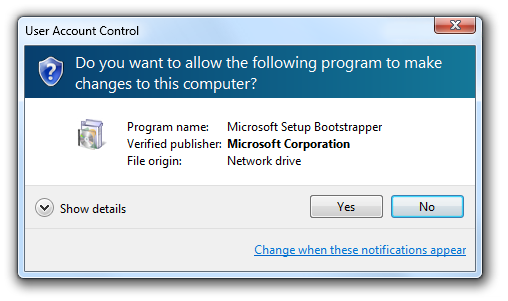
UAC remote restrictions can block remote administrative access.
Warning: Disabling UAC remote restrictions lets local admin accounts act with full rights over the network, increasing the attack surface. Only do this on trusted, well-secured networks, and prefer domain accounts where possible.
Key Takeaways
- UAC remote restrictions give remote local admins only a filtered (standard) token.
- LocalAccountTokenFilterPolicy = 1 removes that restriction.
- It fixes remote "access denied" for tasks like remote WMI, admin shares, and registry.
- It reduces security — use cautiously and revert when done.
What Is LocalAccountTokenFilterPolicy?
It is a registry value that controls UAC token filtering for local accounts over the network. When set to 1, local administrator accounts receive a full administrator token remotely instead of a filtered one.
When to Disable Remote Restrictions
- Remote administrative shares (C$, ADMIN$) return access denied.
- Remote WMI, registry, or management tools fail with insufficient privileges.
- You manage workgroup (non-domain) PCs with local admin accounts.
Method 1 — Registry Editor
Warning: Back up the registry first.
1. Open Registry Editor and go to HKEY_LOCAL_MACHINE\SOFTWARE\Microsoft\Windows\CurrentVersion\Policies\System.
2. Create a DWORD (32-bit) value named LocalAccountTokenFilterPolicy.
3. Set it to 1 to disable UAC remote restrictions (0 or delete to restore).
4. Restart the PC.
Method 2 — Command Line
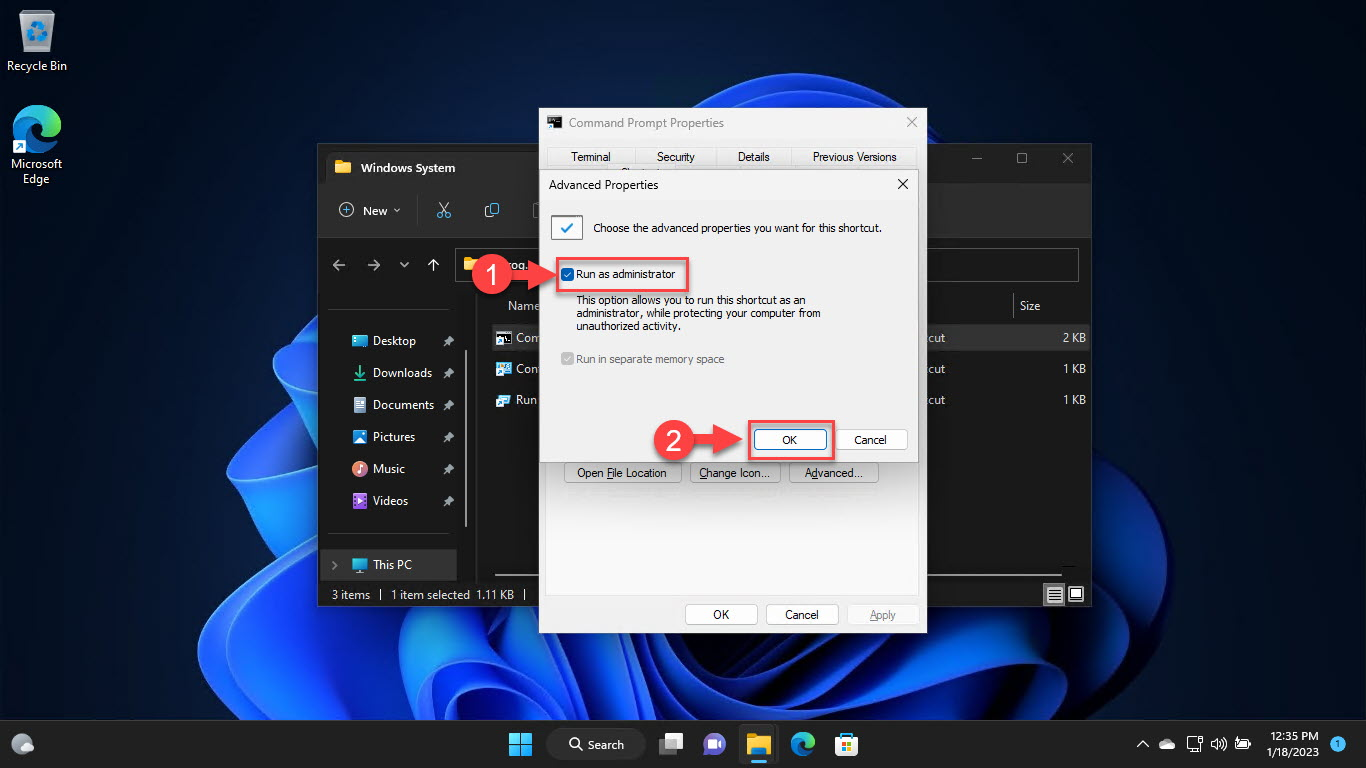
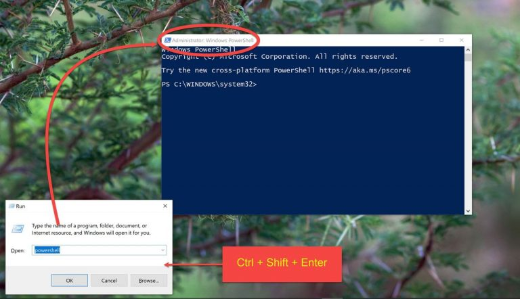
1. Open Command Prompt as administrator.
2. Run: reg add HKLM\SOFTWARE\Microsoft\Windows\CurrentVersion\Policies\System /v LocalAccountTokenFilterPolicy /t REG_DWORD /d 1 /f
3. Restart to apply. To revert, set /d 0 (or delete the value).
Method 3 — Group Policy / Registry Deployment
1. For multiple PCs, deploy the same registry value via Group Policy Preferences.
2. Target only the machines that genuinely need remote local-admin access.
3. Document the change so it can be reverted.
Troubleshooting
Problem: Still access denied after setting it.
Solution: Restart the PC, confirm the value is a DWORD set to 1 under the correct key, and that the firewall allows the remote service.
Problem: Worried about security.
Solution: Prefer domain accounts (which are not affected by this filter) and revert LocalAccountTokenFilterPolicy to 0 when finished.
Problem: Need it on many machines.
Solution: Deploy via Group Policy Preferences, scoped to only the systems that require it.
Problem: Remote tools still fail.
Solution: Check that the relevant services (WMI, Remote Registry, File and Printer Sharing) and firewall rules are enabled on the target.
Conclusion
LocalAccountTokenFilterPolicy removes UAC remote restrictions for local admins, fixing remote "access denied" issues. Because it lowers security, apply it only to trusted machines that need it, prefer domain accounts, and revert it when no longer required.
</w:pBdr><w:spacing w:before="220" w:after="40"/></w:pPr><w:r><w:rPr><w:b/><w:bCs/><w:color w:val="0B5394"/><w:sz w:val="21"/><w:szCs w:val="21"/><w:rFonts w:ascii="Calibri" w:cs="Calibri" w:eastAsia="Calibri" w:hAnsi="Calibri"/></w:rPr><w:t xml:space="preserve">About TechHub
This guide is part of the TechHub Knowledge Base. For more step-by-step IT guides and support, visit techhub.com.lk.