Overview
NVIDIA Low Latency Mode reduces the delay between your input and what appears on screen by limiting the render queue. This guide explains what it does, its limits, and how to enable it (plus NVIDIA Reflex) for a snappier gaming feel.
NVIDIA Low Latency Mode.
Key Takeaways
- Low Latency Mode limits queued frames to cut input lag.
- It helps most in GPU-bound games.
- "Ultra" pushes latency lower than "On".
- NVIDIA Reflex offers even lower latency in supported games.
What Low Latency Mode Does
Normally the CPU queues frames ahead of the GPU. Low Latency Mode reduces or eliminates this queue so frames render just in time, lowering input latency at a small potential cost to peak frame rate.
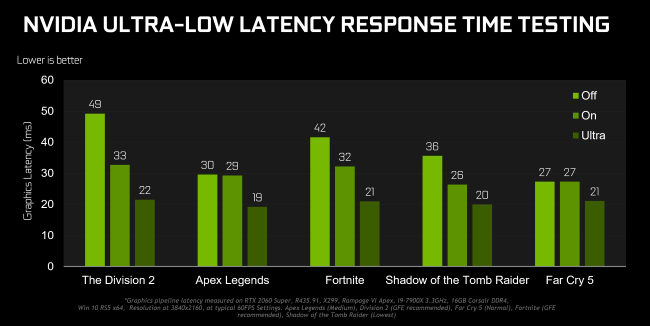
Low Latency Mode improves response time.
Limitations
- Only affects DirectX 9–11 titles (not DX12/Vulkan, which manage their own queues).
- Benefits are largest when the GPU is the bottleneck.
- May slightly reduce maximum FPS in some scenarios.
Enable It in the NVIDIA Control Panel
1. Right-click the desktop and open the NVIDIA Control Panel.
2. Go to Manage 3D settings.
3. Find "Low Latency Mode".
4. Set it to On or Ultra (globally, or per-game under Program Settings).
5. Click Apply.
Use NVIDIA Reflex (If Supported)
1. In supported games, open the video/graphics settings.
2. Enable "NVIDIA Reflex Low Latency" (On or On + Boost).
3. Reflex dynamically reduces latency and often beats the driver setting.
Troubleshooting
Problem: No change in a DX12/Vulkan game.
Solution: Low Latency Mode only affects DX9–11; use in-game NVIDIA Reflex for DX12/Vulkan titles.
Problem: FPS dropped after enabling Ultra.
Solution: Switch from Ultra to On, which is a gentler setting with less potential FPS impact.
Problem: The setting is greyed out.
Solution: Update your GPU driver from NVIDIA’s official site; older drivers may lack the option.
Problem: No latency improvement.
Solution: If you’re CPU-bound (low GPU usage), the setting helps little — it targets GPU-bound scenarios.
Conclusion
Low Latency Mode is a quick way to trim input lag in DX9–11 games from the NVIDIA Control Panel, while NVIDIA Reflex delivers the lowest latency in supported titles. Try "On" first, and reserve "Ultra" or Reflex for competitive play.
</w:pBdr><w:spacing w:before="220" w:after="40"/></w:pPr><w:r><w:rPr><w:b/><w:bCs/><w:color w:val="0B5394"/><w:sz w:val="21"/><w:szCs w:val="21"/><w:rFonts w:ascii="Calibri" w:cs="Calibri" w:eastAsia="Calibri" w:hAnsi="Calibri"/></w:rPr><w:t xml:space="preserve">About TechHub
This guide is part of the TechHub Knowledge Base. For more step-by-step IT guides and support, visit techhub.com.lk.