Overview
NVIDIA Low Latency Mode එකෙන් render queue එක limit කරලා ඔබේ input එකයි screen එකේ පෙන්නන දේයි අතර delay එක අඩු කරනවා. මේ guide එකෙන් ඒක මොකද කරන්නේ, ඒකේ limits, සහ snappier gaming feel එකකට ඒක (එක්කම NVIDIA Reflex) enable කරන ආකාරය පැහැදිලි කරනවා.
NVIDIA Low Latency Mode.
Key Takeaways
- Low Latency Mode එකෙන් queued frames limit කරලා input lag කපනවා.
- ඒක වැඩිපුරම උදව් වෙන්නේ GPU-bound games වල.
- "Ultra" එකෙන් "On" එකට වඩා latency අඩු කරනවා.
- Supported games වල NVIDIA Reflex එකෙන් ඊටත් අඩු latency දෙනවා.
Low Latency Mode මොකද කරන්නේ
සාමාන්යයෙන් CPU එක GPU එකට කලින් frames queue කරනවා. Low Latency Mode එකෙන් මේ queue එක අඩු කරනවා හෝ අයින් කරනවා, එතකොට frames just in time render වෙනවා — peak frame rate එකට කුඩා potential cost එකකින් input latency අඩු කරමින්.
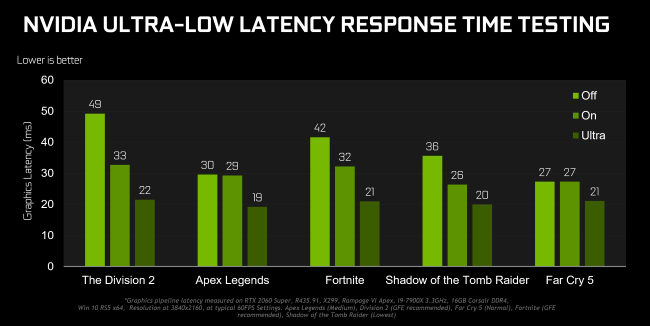
Low Latency Mode එකෙන් response time වැඩිදියුණු කරනවා.
Limitations
- DirectX 9–11 titles වලට විතරයි බලපාන්නේ (DX12/Vulkan නෙවෙයි — ඒවා ඒවායේම queues manage කරනවා).
- Benefits වැඩිම වෙන්නේ GPU එක bottleneck එක වෙනකොට.
- සමහර scenarios වල maximum FPS ටිකක් අඩු කරන්න පුළුවන්.
NVIDIA Control Panel එකේ Enable කරන්න
1. Desktop එක right-click කරලා NVIDIA Control Panel open කරන්න.
2. Manage 3D settings වලට යන්න.
3. "Low Latency Mode" හොයන්න.
4. On හෝ Ultra කරන්න (globally, හෝ Program Settings යටතේ per-game).
5. Apply click කරන්න.
NVIDIA Reflex පාවිච්චි කරන්න (Supported නම්)
1. Supported games වල, video/graphics settings open කරන්න.
2. "NVIDIA Reflex Low Latency" (On හෝ On + Boost) enable කරන්න.
3. Reflex එකෙන් dynamically latency අඩු කරලා බොහෝවිට driver setting එකට වඩා හොඳයි.
Troubleshooting
Problem: DX12/Vulkan game එකක වෙනසක් නෑ.
Solution: Low Latency Mode බලපාන්නේ DX9–11 වලට විතරයි; DX12/Vulkan titles වලට in-game NVIDIA Reflex පාවිච්චි කරන්න.
Problem: Ultra enable කළාට පස්සේ FPS drop වුණා.
Solution: Ultra එකෙන් On එකට switch කරන්න — ඒක අඩු potential FPS impact එකක් තියෙන gentler setting එකක්.
Problem: Setting එක greyed out.
Solution: NVIDIA's official site එකෙන් GPU driver එක update කරන්න; පරණ drivers වල option එක නැති වෙන්න පුළුවන්.
Problem: Latency improvement එකක් නෑ.
Solution: ඔබ CPU-bound නම් (low GPU usage), setting එකෙන් අඩුවෙන් උදව්; ඒක target කරන්නේ GPU-bound scenarios.
Conclusion
Low Latency Mode කියන්නේ NVIDIA Control Panel එකෙන් DX9–11 games වල input lag trim කරන්න quick ක්රමයක්, NVIDIA Reflex එකෙන් supported titles වල අඩුම latency දෙනවා. මුලින්ම "On" try කරලා, "Ultra" හෝ Reflex competitive play වලට තියාගන්න.
About TechHub
මේ guide එක TechHub Knowledge Base එකේ කොටසක්. තව step-by-step IT guides සහ support වලට techhub.com.lk එකට යන්න.