Overview
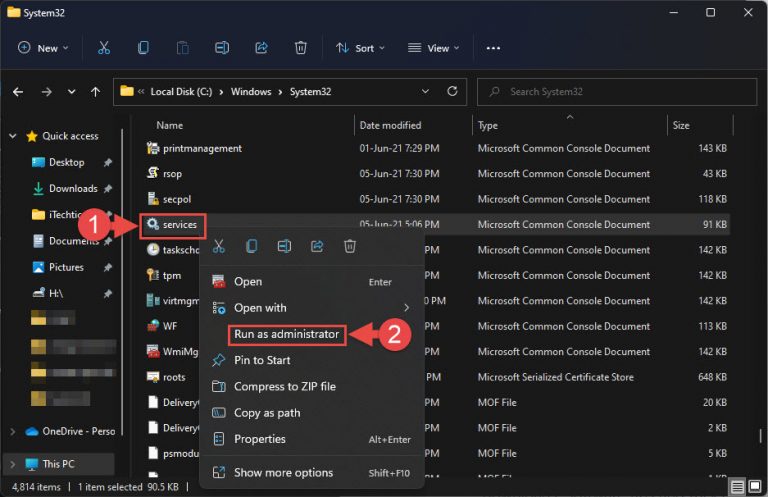
Files ending in .msc are Microsoft Saved Console files. Each one opens a management snap-in inside the Microsoft Management Console (MMC) — a graphical tool for configuring and monitoring a specific part of Windows, such as Disk Management, Services, or the Group Policy Editor. Windows stores most built-in .msc files in the C:\Windows\System32 folder, and you can launch any of them by name without hunting through menus.
Key Takeaways
- .MSC files are console snap-ins that open inside the Microsoft Management Console (MMC).
- Windows ships with roughly two dozen built-in consoles covering services, disks, users, policies, and more.
- The quickest way to open one is to type its name in the Run dialog and press Enter.
- You can also build a custom console that combines several snap-ins and share it with others.
Common Built-in .MSC Consoles
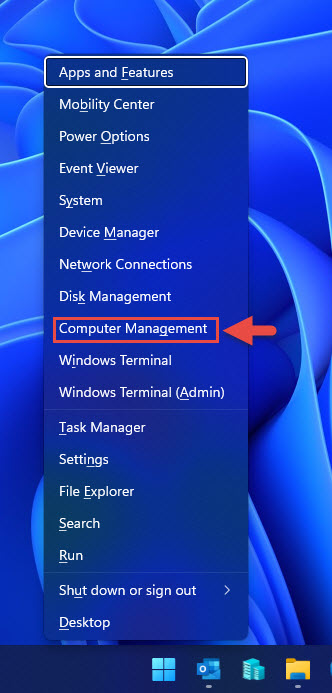
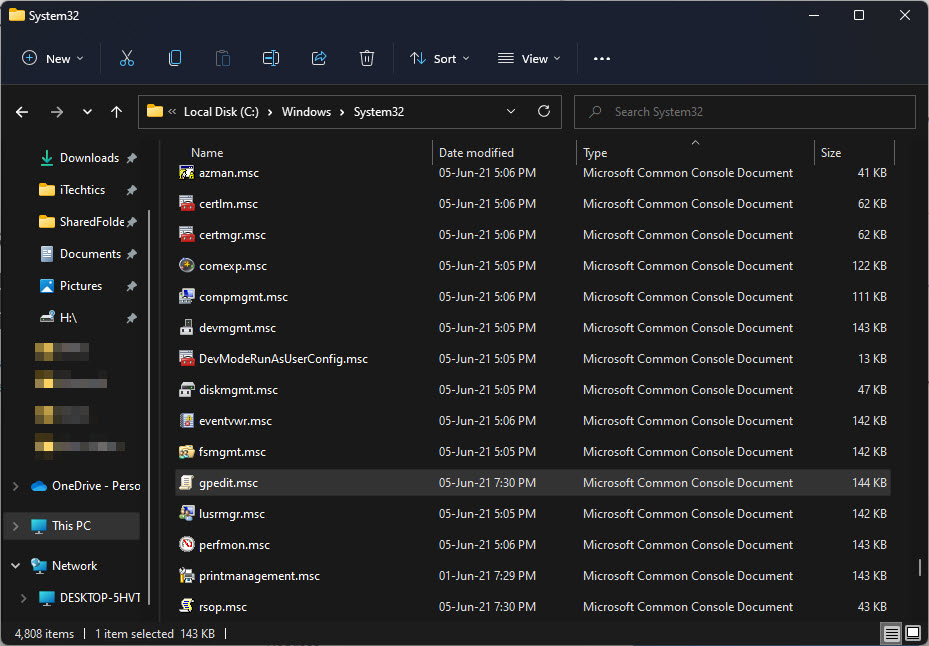
A few of the consoles you will use most often are: services.msc (Windows Services), devmgmt.msc (Device Manager), diskmgmt.msc (Disk Management), gpedit.msc (Local Group Policy Editor), lusrmgr.msc (Local Users and Groups), eventvwr.msc (Event Viewer), taskschd.msc (Task Scheduler), compmgmt.msc (Computer Management), and perfmon.msc (Performance Monitor).
Built-in .MSC files live in the C:\Windows\System32 folder.
Method 1: Open a .MSC File Using the Run Dialog
1. Press Win + R to open the Run dialog.
2. Type the console name, for example services.msc, and press Enter.
3. The corresponding management console opens immediately.
TIP: You do not need the full path — Windows finds System32 consoles automatically, so the file name alone is enough.
Method 2: Open a .MSC File from File Explorer
1. Open File Explorer and browse to C:\Windows\System32.
2. Type the console name in the address bar or search box to filter the list.
3. Double-click the .msc file to launch it.
Method 3: Build a Custom Console with MMC
1. Press Win + R, type mmc, and press Enter to open an empty Microsoft Management Console.
2. Go to File > Add/Remove Snap-in.
3. Select the snap-ins you want (for example Services and Device Manager) and click Add, then OK.
4. Choose File > Save As and store the console as a .msc file so you can reopen or share it later.
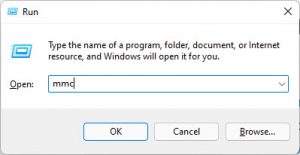
An empty MMC window ready for you to add snap-ins.
NOTE: Some consoles, such as gpedit.msc, are only available in Pro, Enterprise, and Education editions of Windows.
Troubleshooting
Problem: Windows shows "cannot find gpedit.msc" when you try to open it.
Solution: The Local Group Policy Editor is not included in Home editions. Upgrade to Pro, or use the Registry Editor to change the equivalent settings.
Problem: A .msc file opens with an "MMC could not create the snap-in" error.
Solution: This usually points to a corrupted or missing snap-in registration. Run sfc /scannow in an elevated Command Prompt to repair system files, then try again.
Problem: Double-clicking a .msc file does nothing.
Solution: Confirm the file association is set to Microsoft Management Console (mmc.exe). You can also launch it explicitly by running mmc "C:\path\to\file.msc".
Problem: You need administrator rights to change a setting inside a console.
Solution: Close the console, then reopen it as administrator — for example, right-click Command Prompt, choose Run as administrator, and launch the console from there.
Conclusion
Learning a handful of .msc console names turns multi-click navigation into a two-second task. Keep services.msc, devmgmt.msc, and diskmgmt.msc in mind, and use the MMC to assemble your own console when you routinely manage several areas of Windows at once.
About TechHub
This guide is part of the TechHub Knowledge Base. For more step-by-step IT guides and support, visit techhub.com.lk.