Overview
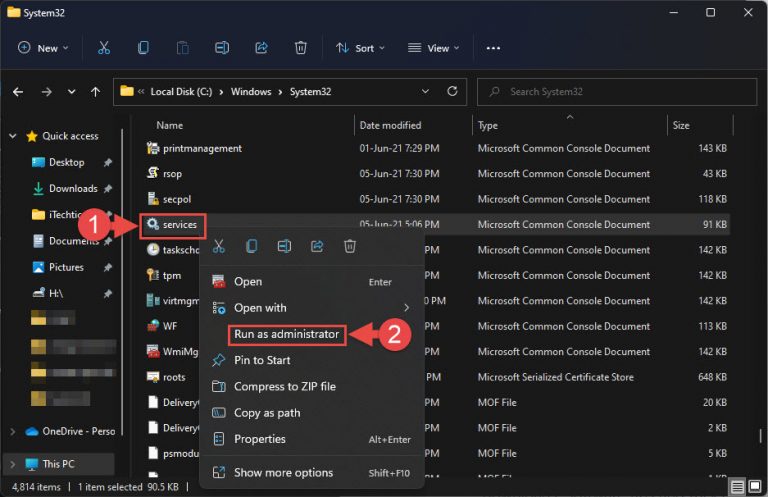
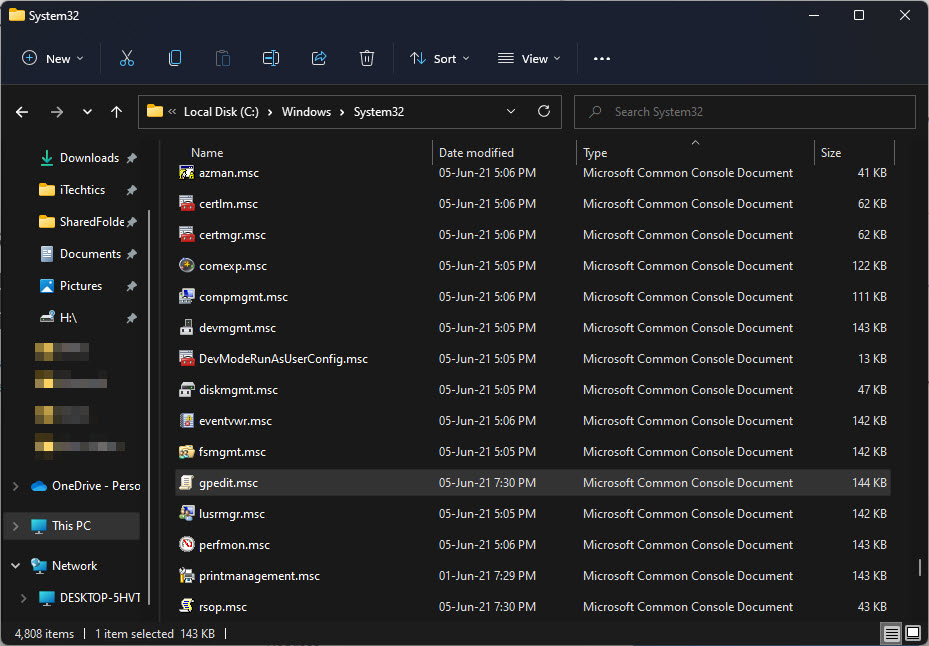
.msc වලින් අවසන් වෙන files කියන්නේ Microsoft Saved Console files. හැම එකක්ම Microsoft Management Console (MMC) එක ඇතුළේ management snap-in එකක් open කරනවා — Disk Management, Services, හෝ Group Policy Editor වගේ Windows එකේ නිශ්චිත කොටසක් configure කරන්නයි monitor කරන්නයි පාවිච්චි කරන graphical tool එකක්. Windows එකෙන් built-in .msc files වලින් වැඩිපුරම C:\Windows\System32 folder එකේ store කරනවා, ඔයාට ඒවා ඕනෑම එකක් menus හරහා හොයන්නේ නැතුව name එකෙන්ම launch කරන්න පුළුවන්.
Key Takeaways
- .MSC files කියන්නේ Microsoft Management Console (MMC) එක ඇතුළේ open වෙන console snap-ins.
- Windows එක services, disks, users, policies, ඇතුළු තව දේවල් cover කරන built-in consoles දෙ ඩසන් හතරක් විතර සමඟ එනවා.
- එකක් open කරන්න ඉක්මන්ම විදිහ තමයි Run dialog එකේ එකේ name එක type කරලා Enter press කරන එක.
- ඔයාට snap-ins කිහිපයක් එකට combine කරන custom console එකක් හදලා අනිත් අයත් එක්ක share කරන්නත් පුළුවන්.
Common Built-in .MSC Consoles
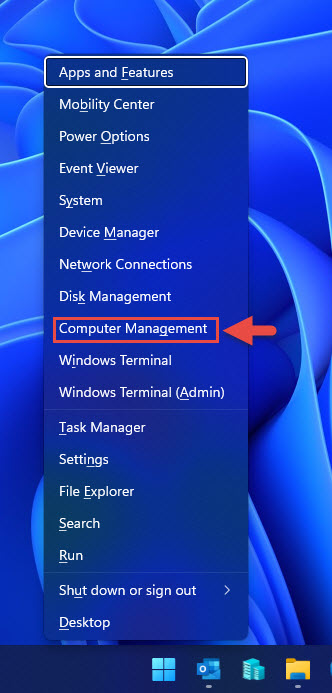
ඔයා වැඩිපුරම පාවිච්චි කරන consoles කිහිපයක් තමයි: services.msc (Windows Services), devmgmt.msc (Device Manager), diskmgmt.msc (Disk Management), gpedit.msc (Local Group Policy Editor), lusrmgr.msc (Local Users and Groups), eventvwr.msc (Event Viewer), taskschd.msc (Task Scheduler), compmgmt.msc (Computer Management), සහ perfmon.msc (Performance Monitor).
Built-in .MSC files C:\Windows\System32 folder එකේ තියෙනවා.
Method 1: Open a .MSC File Using the Run Dialog
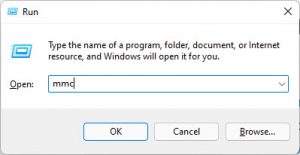
1. Run dialog එක open කරන්න Win + R press කරන්න.
2. Console name එක, උදාහරණයකට services.msc, type කරලා Enter press කරන්න.
3. ඊට අදාළ management console එක වහාම open වෙනවා.
TIP: ඔයාට full path එක ඕනෑ නෑ — Windows එකෙන් System32 consoles ඉබේම හොයාගන්නවා, ඒ නිසා file name එක විතරක් ඇති.
Method 2: Open a .MSC File from File Explorer
1. File Explorer එක open කරලා C:\Windows\System32 වෙත browse කරන්න.
2. List එක filter කරන්න address bar එකේ හෝ search box එකේ console name එක type කරන්න.
3. .msc file එක Double-click කරලා launch කරන්න.
Method 3: Build a Custom Console with MMC
1. හිස් Microsoft Management Console එකක් open කරන්න Win + R press කරලා, mmc type කරලා, Enter press කරන්න.
2. File > Add/Remove Snap-in වෙත යන්න.
3. ඔයාට ඕන snap-ins (උදාහරණයකට Services සහ Device Manager) select කරලා Add, ඊට පස්සේ OK click කරන්න.
4. File > Save As තෝරලා console එක .msc file එකක් විදිහට store කරන්න, එතකොට පස්සේ reopen හෝ share කරන්න පුළුවන්.
Snap-ins add කරන්න ඔයාට ready වෙච්ච හිස් MMC window එකක්.
NOTE: සමහර consoles, gpedit.msc වගේ, Windows එකේ Pro, Enterprise, සහ Education editions වල විතරයි available.
Troubleshooting
Problem: gpedit.msc open කරන්න යනකොට Windows එකෙන් "cannot find gpedit.msc" පෙන්නනවා.
Solution: Local Group Policy Editor එක Home editions වල නෑ. Pro එකට upgrade කරන්න, නැත්නම් අදාළ settings වෙනස් කරන්න Registry Editor එක use කරන්න.
Problem: .msc file එකක් "MMC could not create the snap-in" error එකක් සමඟ open වෙනවා.
Solution: මේකෙන් සාමාන්යයෙන් corrupt වෙච්ච හෝ missing වෙච්ච snap-in registration එකක් පෙන්නනවා. System files repair කරන්න elevated Command Prompt එකක sfc /scannow run කරලා, ආපහු try කරන්න.
Problem: .msc file එකක් Double-click කරාම කිසිම දෙයක් වෙන්නේ නෑ.
Solution: File association එක Microsoft Management Console (mmc.exe) එකට set කරලා ද කියලා confirm කරන්න. ඔයාට mmc "C:\path\to\file.msc" run කරලා explicit විදිහටත් launch කරන්න පුළුවන්.
Problem: Console එකක් ඇතුළේ setting එකක් වෙනස් කරන්න ඔයාට administrator rights ඕන.
Solution: Console එක close කරලා, ආපහු administrator විදිහට reopen කරන්න — උදාහරණයකට, Command Prompt එක right-click කරලා, Run as administrator තෝරලා, එතනින් console එක launch කරන්න.
Conclusion
.msc console names අතළොස්සක් ඉගෙනගැනීමෙන් multi-click navigation එක තත්පර දෙකේ වැඩක් බවට හැරෙනවා. services.msc, devmgmt.msc, සහ diskmgmt.msc මතක තියාගන්න, ඔයා නිතරම Windows එකේ ප්රදේශ කිහිපයක් එකවර manage කරනවා නම් ඔයාගේම console එකක් assemble කරන්න MMC එක use කරන්න.
About TechHub
මේ guide එක TechHub Knowledge Base එකේ කොටසක්. තව step-by-step IT guides සහ support වලට techhub.com.lk එකට යන්න.