Overview
Devices ගොඩක් check කරන්න ඕන වෙනකොට එකින් එක ping කරන එක හෙමයි. Command Prompt loop එකක්, PowerShell හෝ multi-ping tool එකකින් මුළු list එකකට හෝ subnet එකකට එකවර connectivity test කරන්න පුළුවන්. මේ guide එකෙන් හැම method එකක්ම පෙන්නනවා.
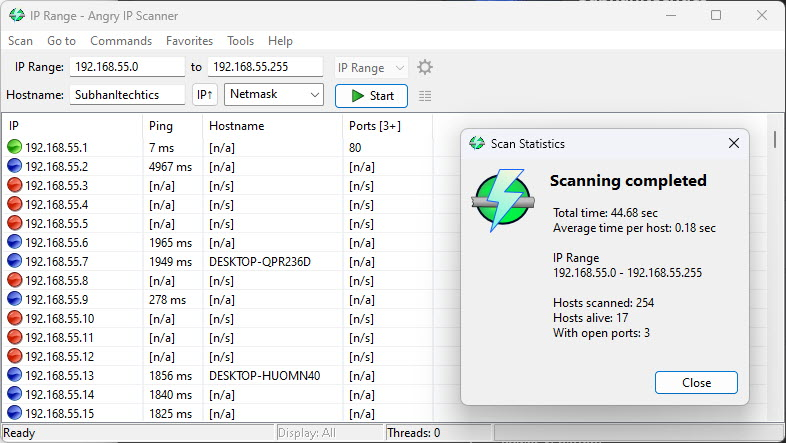
Hosts ගොඩක් හෝ මුළු subnet එකක් එක operation එකකින් ping කරන්න.
Key Takeaways
- Command Prompt FOR loop එකකින් මුළු subnet එකක් ඉක්මනට ping කරන්න පුළුවන්.
- PowerShell ගේ Test-Connection එකට hosts කිහිපයක් accept කරලා parallel run කරන්න පුළුවන්.
- NirSoft PingInfoView වගේ tools hosts ගොඩකට continuous results පෙන්නනවා.
- ඔබේ network එකේ online devices මොනවද කියලා map කරන්න මේවා පාවිච්චි කරන්න.
Method 1 — Command Prompt (FOR Loop)
1. Command Prompt open කරන්න.
2. Range එකක් ping කරන්න, උදා: 192.168.1.1–254: for /L %i in (1,1,254) do @ping -n 1 -w 200 192.168.1.%i | find "Reply"
3. මේකෙන් reply දෙන addresses විතරයි list වෙන්නේ.
4. Fixed list එකක් ping කරන්න, IPs loop එකක දාන්න: for %i in (host1 host2 host3) do @ping -n 1 %i
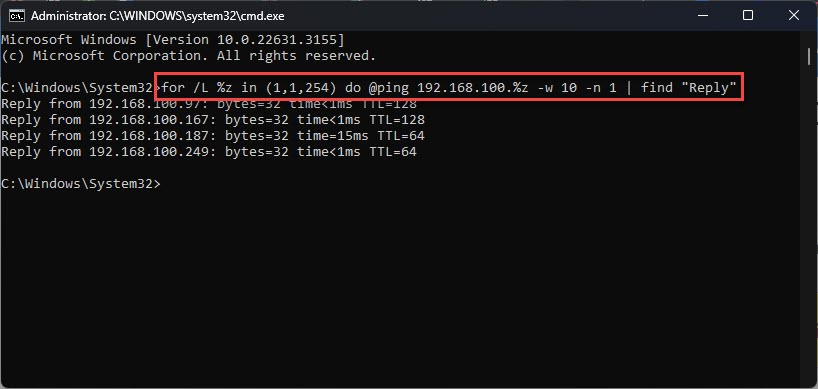
Command Prompt එකෙන් loop එකකින් hosts කිහිපයක් ping කරන්න.
Note: .bat file එකක percent signs double කරන්න (%i වෙනුවට %%i).
Method 2 — PowerShell
1. PowerShell open කරන්න.
2. Hosts කිහිපයක් ping කරන්න: Test-Connection -ComputerName host1,host2,8.8.8.8 -Count 1
3. Subnet එකක් ping කරන්න: 1..254 | ForEach-Object { Test-Connection -Count 1 -Quiet -ComputerName "192.168.1.$_" }
4. එකින් එකට simple True/False results ගන්න -Quiet පාවිච්චි කරන්න.
PowerShell වලින් devices කිහිපයක් ping කරන්න.
Method 3 — NirSoft PingInfoView
1. NirSoft (official) එකෙන් PingInfoView download කරලා run කරන්න.
2. ඔබේ hostnames/IP addresses list එක paste කරන්න.
3. Ping interval එක set කරලා start කරන්න — hosts ඔක්කොටම එකවර live status, response time සහ success rate පෙන්නනවා.
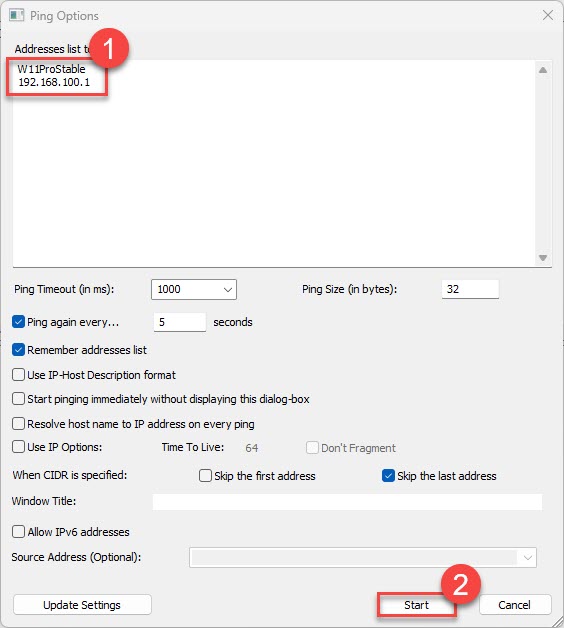
PingInfoView එකෙන් live table එකකින් devices ගොඩක් එකවර ping කරනවා.
Troubleshooting
Problem: Device එකක් online වුණත් reply දෙන්නේ නෑ.
Solution: ගොඩක් devices firewall එකෙන් ICMP (ping) block කරනවා. Reply එකක් නැති එකෙන් හැමවිටම offline කියලා නෙවෙයි — වෙන port එකක් හෝ service එකක් test කරන්න.
Problem: Loop එක ගොඩක් slow.
Solution: Timeout එක අඩු කරන්න (ping එකේ -w 200) සහ -n 1 පාවිච්චි කරන්න, නැත්නම් parallel run කරන්න පුළුවන් PowerShell පාවිච්චි කරන්න.
Problem: Unreachable hosts වලට PowerShell Test-Connection error දෙනවා.
Solution: -Quiet එකතු කරන්න (True/False දෙනවා), නැත්නම් timeouts handle කරන්න try/catch එකකින් wrap කරන්න.
Problem: Batch file එකක percent variable error.
Solution: .bat/.cmd files ඇතුළේ %i වෙනුවට %%i පාවිච්චි කරන්න.
Conclusion
Devices ගොඩක් ඉක්මනට check කරන්න — ඉක්මන් subnet sweep එකකට Command Prompt loop එකක්, scripting වලට PowerShell ගේ Test-Connection එක, live multi-host dashboard එකකට PingInfoView පාවිච්චි කරන්න — සමහර devices ping එකට උත්තර දෙන්නේ නෑ කියන එකත් මතක තියාගෙන.
About TechHub
මේ guide එක TechHub Knowledge Base එකේ කොටසක්. තව step-by-step IT guides සහ support වලට techhub.com.lk එකට යන්න.