Overview
When DISM /RestoreHealth or a Feature on Demand install fails because it cannot reach Windows Update, you can supply the repair files yourself from an alternate source — a Windows ISO/WIM, the SxS folder, or another installation. This guide shows how.
Supply DISM with an alternate source when Windows Update is unavailable.
Key Takeaways
- DISM normally pulls repair files from Windows Update; you can override this with /Source.
- Use a matching Windows ISO (install.wim/esd) as the source.
- Features on Demand can install from the installation media’s sources\sxs folder.
- Group Policy can force DISM to use Windows Update instead of WSUS.
Which Sources Can You Use?
- A mounted Windows ISO of the same version/edition (install.wim or install.esd).
- Another working Windows installation of the same build.
- The sources\sxs folder from installation media (for Features on Demand like .NET 3.5).
- Windows Update directly (bypassing WSUS).
Repair Using a WIM/ESD File
1. Mount a matching Windows ISO (double-click it) — note its drive letter, e.g. E:.
2. Open Command Prompt as administrator.
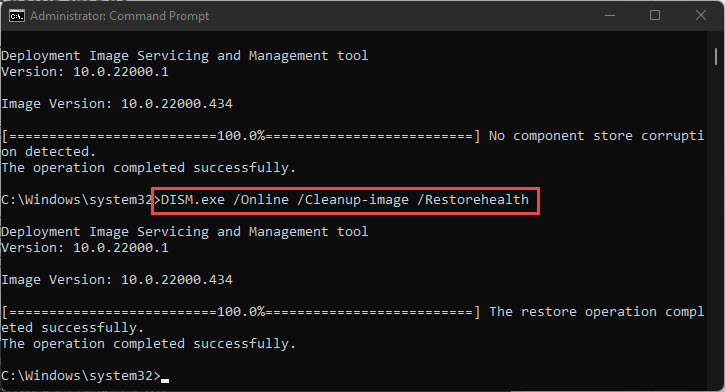
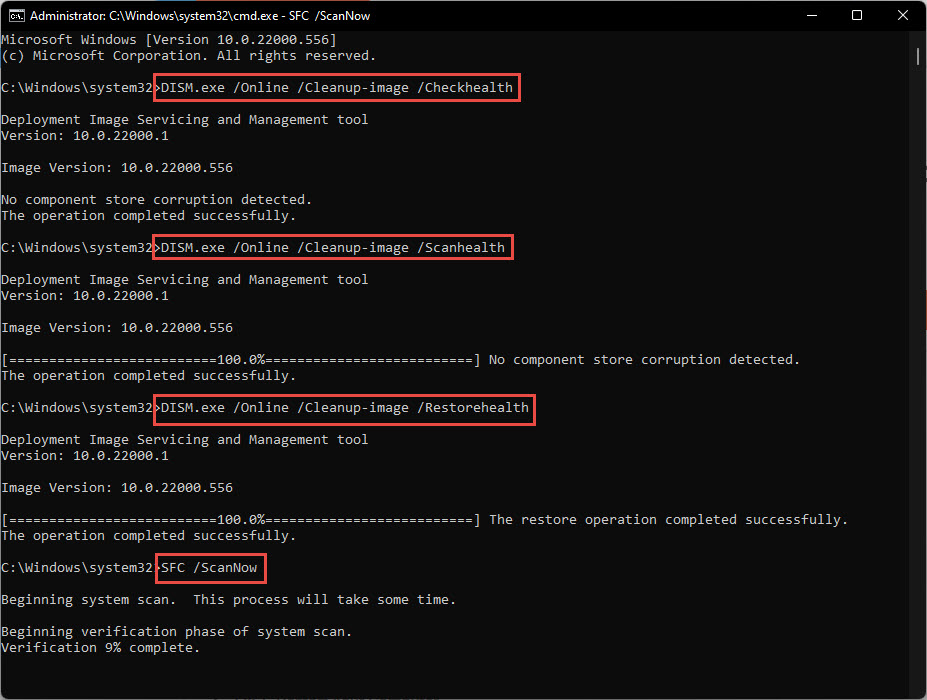
3. Run: DISM /Online /Cleanup-Image /RestoreHealth /Source:wim:E:\sources\install.wim:1 /LimitAccess
4. (For an ESD, use /Source:esd:E:\sources\install.esd:1 /LimitAccess.)
5. Then run sfc /scannow.
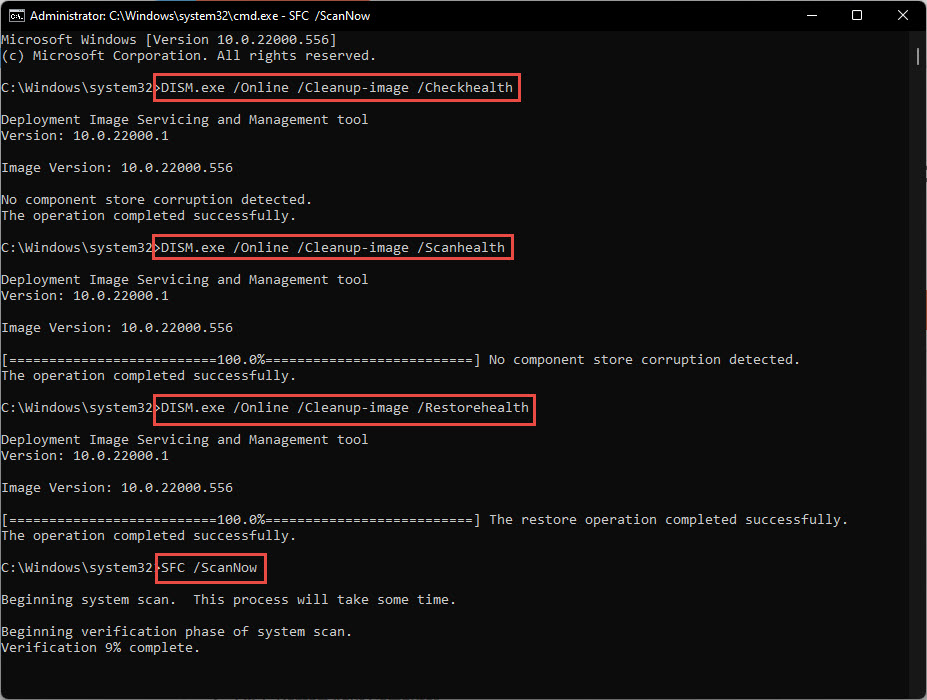
Repair the Windows image using a WIM file as the source.
Note: /LimitAccess tells DISM to use only your source and not contact Windows Update.
Install Features on Demand From SxS
1. Mount the matching Windows ISO (e.g. E:).
2. Run: DISM /Online /Enable-Feature /FeatureName:NetFx3 /All /Source:E:\sources\sxs /LimitAccess
3. This installs .NET 3.5 (or another feature) from the media instead of Windows Update.
Install a Feature on Demand from the SxS folder.
Force DISM to Use Windows Update Instead of WSUS
1. Open Group Policy Editor (gpedit.msc).
2. Go to Computer Configuration > Administrative Templates > System.
3. Enable "Specify settings for optional component installation and component repair" and tick "Download repair content … directly from Windows Update instead of WSUS".
4. Apply, then retry the DISM command online.
Troubleshooting
Problem: DISM says the source files could not be found.
Solution: Ensure the ISO matches your exact Windows version/edition, and point to the correct install.wim/esd index (use DISM /Get-WimInfo to list indexes).
Problem: DISM keeps trying Windows Update.
Solution: Add /LimitAccess to force it to use only your specified source.
Problem: .NET 3.5 still will not install.
Solution: Use the SxS source from media with /LimitAccess, and ensure the media build matches your installed Windows.
Problem: On a WSUS-managed PC it fails.
Solution: Enable the Group Policy to download repair content directly from Windows Update, or supply a local source.
Conclusion
When Windows Update cannot repair your system, DISM with a /Source pointing at matching media is the reliable fallback. Mount an ISO, point DISM at install.wim or the SxS folder, and add /LimitAccess to repair Windows or add features offline.
</w:pBdr><w:spacing w:before="220" w:after="40"/></w:pPr><w:r><w:rPr><w:b/><w:bCs/><w:color w:val="0B5394"/><w:sz w:val="21"/><w:szCs w:val="21"/><w:rFonts w:ascii="Calibri" w:cs="Calibri" w:eastAsia="Calibri" w:hAnsi="Calibri"/></w:rPr><w:t xml:space="preserve">About TechHub
This guide is part of the TechHub Knowledge Base. For more step-by-step IT guides and support, visit techhub.com.lk.