Overview
When sound stops working correctly — wrong default device, distorted output, or settings you can no longer untangle — resetting your audio configuration to its defaults is often the fastest fix. This guide covers every way to reset audio in Windows, from a one-click volume reset to restarting the audio service and restoring system sounds. The steps apply to Windows 10 and Windows 11.
Resetting audio settings restores Windows sound to its default configuration.
Key Takeaways
- The Volume mixer has a one-click Reset that restores all app and device volumes to defaults.
- You can restore advanced properties for a single playback device without affecting others.
- Restarting the audio driver or the Windows Audio service clears many temporary sound glitches.
- Restoring the default sound scheme returns system notification sounds to normal.
Why Reset Audio Settings?
Resetting returns your audio configuration to factory defaults, undoing changes that may be causing problems. It is a convenient way to fix issues you cannot pinpoint or correct manually — especially when an enhancement, format, or per-app volume change has broken playback.
Method 1 — Reset All Audio From Sound Settings
This is the easiest way to reset volume levels across all apps and devices.
1. Press Windows key + I to open the Settings app.
2. Click Sound (under System).
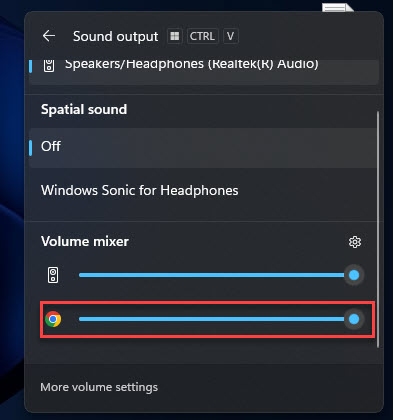
3. In the Advanced section, click Volume mixer.
4. In the Apps section, click Reset.
Note: Clicking Reset instantly restores all audio volumes and app sound settings to their default values.
Method 2 — Reset an Individual Device’s Audio Settings
1. Press Windows key + I, then click Sound.
2. In the Advanced section, click More sound settings to open the classic Sound window.
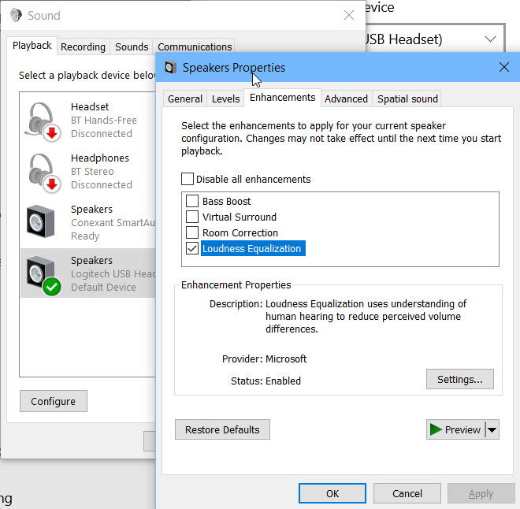
3. On the Playback tab, select the device and click Properties.
4. Switch to the Advanced tab and click Restore Defaults.
5. Switch to the Spatial sound tab and click Restore Defaults.
6. If present, open the Enhancements tab and disable or reset the enhancements, then click OK.
Method 3 — Restart the Audio Driver
1. Right-click the Start button and choose Device Manager.
2. Expand Sound, video and game controllers.
3. Right-click your audio device and choose Disable device, confirm, then right-click again and choose Enable device.
4. Alternatively, choose Update driver to reinstall the current driver.
Method 4 — Restart the Windows Audio Service
1. Press Windows key + R, type services.msc, and press Enter.
2. Locate the Windows Audio service in the list.
3. Right-click it and choose Restart.
4. Also restart Windows Audio Endpoint Builder if sound is still not working.
Tip: Set both audio services to Startup type: Automatic so they always run after a restart.
Method 5 — Reset System Sounds
1. Press Windows key + R, type mmsys.cpl, and press Enter to open the Sound window.
2. Switch to the Sounds tab.
3. In the Sound Scheme drop-down, select Windows Default.
4. Click Apply and then OK.
Troubleshooting
Problem: There is no sound at all after resetting.
Solution: Open Settings > Sound and confirm the correct Output device is selected, then check the device is not muted and the volume is up.
Problem: The Reset button does nothing.
Solution: Restart the Windows Audio service (Method 4) and try again, or restart the PC to apply the reset.
Problem: Audio still distorted after restoring defaults.
Solution: Update or reinstall the audio driver from Device Manager, or download the latest driver from your PC or sound card manufacturer.
Problem: A specific app is too quiet or too loud.
Solution: Open Volume mixer and adjust that app’s level individually, or click Reset to return all app volumes to default.
Conclusion
Whether the problem is a single device or your whole sound setup, Windows gives you several quick ways to reset audio to its defaults. Start with the Volume mixer Reset, then move on to restarting the audio service or driver if issues persist.
</w:pBdr><w:spacing w:before="220" w:after="40"/></w:pPr><w:r><w:rPr><w:b/><w:bCs/><w:color w:val="0B5394"/><w:sz w:val="21"/><w:szCs w:val="21"/><w:rFonts w:ascii="Calibri" w:cs="Calibri" w:eastAsia="Calibri" w:hAnsi="Calibri"/></w:rPr><w:t xml:space="preserve">About TechHub
This guide is part of the TechHub Knowledge Base. For more step-by-step IT guides and support, visit techhub.com.lk.