Overview
Sound හරියට වැඩ නොකරනකොට — වැරදි default device එකක්, distorted output, නැත්නම් untangle කරන්න බැරි settings — audio configuration එක defaults වලට reset කරන එක බොහෝවිට වේගවත්ම fix එක. මේ guide එකෙන් Windows එකේ audio reset කරන හැම ක්රමයක්ම cover කරනවා — one-click volume reset එකේ ඉඳලා audio service එක restart කරන එක සහ system sounds restore කරන එක දක්වා. Steps Windows 10 සහ Windows 11 වලට apply වෙනවා.
Audio settings reset කරන එකෙන් Windows sound එක default configuration එකට restore වෙනවා.
Key Takeaways
- Volume mixer එකේ one-click Reset එකකින් app/device volumes ඔක්කොම defaults වලට restore කරනවා.
- අනිත් ඒවාට බලපෑමක් නැතුව එක playback device එකක advanced properties restore කරන්න පුළුවන්.
- Audio driver එක හෝ Windows Audio service එක restart කරන එකෙන් temporary sound glitches ගොඩක් clear වෙනවා.
- Default sound scheme එක restore කරන එකෙන් system notification sounds normal වෙනවා.
ඇයි Audio Settings Reset කරන්නේ?
Reset කරන එකෙන් audio configuration එක factory defaults වලට ගෙනියනවා, problems ඇති කරන්න පුළුවන් changes undo කරනවා. Manually pinpoint කරන්න හෝ correct කරන්න බැරි issues fix කරන්න පහසු ක්රමයක් — විශේෂයෙන් enhancement එකක්, format එකක්, හෝ per-app volume change එකක් playback break කරලා තියෙනකොට.
Method 1 — Sound Settings එකෙන් Audio ඔක්කොම Reset කරන්න
Apps සහ devices ඔක්කොම volume levels reset කරන්න ලේසිම ක්රමය මේක.
1. Settings app එක open කරන්න Windows key + I press කරන්න.
2. Sound (System යටතේ) click කරන්න.
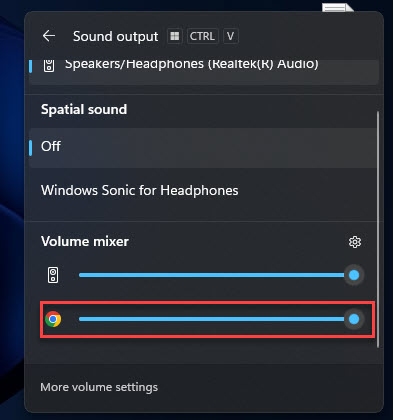
3. Advanced section එකේ Volume mixer click කරන්න.
4. Apps section එකේ Reset click කරන්න.
Note: Reset click කළ ගමන්ම audio volumes සහ app sound settings ඔක්කොම default values වලට restore වෙනවා.
Method 2 — එක Device එකක Audio Settings Reset කරන්න
1. Windows key + I press කරලා Sound click කරන්න.
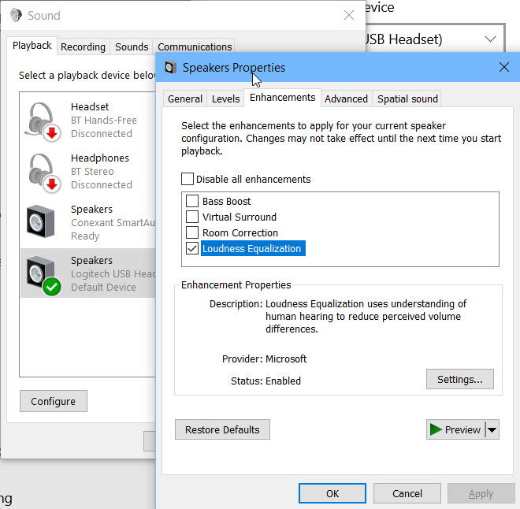
2. Advanced section එකේ More sound settings click කරලා classic Sound window එක open කරන්න.
3. Playback tab එකේ device එක select කරලා Properties click කරන්න.
4. Advanced tab එකට මාරු වෙලා Restore Defaults click කරන්න.
5. Spatial sound tab එකට මාරු වෙලා Restore Defaults click කරන්න.
6. තියෙනවා නම්, Enhancements tab එක open කරලා enhancements disable/reset කරලා OK click කරන්න.
Method 3 — Audio Driver එක Restart කරන්න
1. Start button එක right-click කරලා Device Manager තෝරන්න.
2. Sound, video and game controllers expand කරන්න.
3. Audio device එක right-click කරලා Disable device තෝරලා confirm කරලා, ආපහු right-click කරලා Enable device තෝරන්න.
4. නැත්නම් current driver එක reinstall කරන්න Update driver තෝරන්න.
Method 4 — Windows Audio Service එක Restart කරන්න
1. Windows key + R press කරලා services.msc type කරලා Enter කරන්න.
2. ලැයිස්තුවේ Windows Audio service එක හොයන්න.
3. Right-click කරලා Restart තෝරන්න.
4. තවම sound නෑ නම්, Windows Audio Endpoint Builder එකත් restart කරන්න.
Tip: Restart එකකට පස්සේ හැමවෙලේම run වෙන්න audio services දෙකම Startup type: Automatic කරන්න.
Method 5 — System Sounds Reset කරන්න
1. Windows key + R press කරලා mmsys.cpl type කරලා Enter කරලා Sound window එක open කරන්න.
2. Sounds tab එකට මාරු වෙන්න.
3. Sound Scheme drop-down එකේ Windows Default තෝරන්න.
4. Apply කරලා OK click කරන්න.
Troubleshooting
Problem: Reset කළාට පස්සේ sound එකක්ම නෑ.
Solution: Settings > Sound open කරලා හරි Output device එක select වෙලාද බලලා, device එක mute නෑ, volume up කියලා confirm කරන්න.
Problem: Reset button එකෙන් මුකුත් වෙන්නේ නෑ.
Solution: Windows Audio service එක restart කරලා (Method 4) ආපහු try කරන්න, නැත්නම් reset එක apply වෙන්න PC එක restart කරන්න.
Problem: Defaults restore කළාට පස්සෙත් audio distorted.
Solution: Device Manager එකෙන් audio driver එක update/reinstall කරන්න, නැත්නම් PC/sound card manufacturer එකෙන් latest driver එක download කරන්න.
Problem: Specific app එකක් හරි හෙමිනුයි නැත්නම් හරි හයියෙනුයි.
Solution: Volume mixer open කරලා ඒ app එකේ level එක individually adjust කරන්න, නැත්නම් app volumes ඔක්කොම default වලට ගේන්න Reset click කරන්න.
Conclusion
Problem එක එක device එකක් වුණත් මුළු sound setup එක වුණත්, Windows එකෙන් audio defaults වලට reset කරන්න ක්රම කිහිපයක් දෙනවා. Volume mixer Reset එකෙන් පටන්ගෙන, issues තියෙනවා නම් audio service එක හෝ driver එක restart කරන එකට යන්න.
About TechHub
මේ guide එක TechHub Knowledge Base එකේ කොටසක්. තව step-by-step IT guides සහ support වලට techhub.com.lk එකට යන්න.