Overview
Windows sign-in password එක අමතක වීම සාමාන්ය, විසඳගන්න පුළුවන් ප්රශ්නයක්. මේ guide එකෙන් ඔබ සතු device එකක password එක reset කරගන්නේ කොහොමද කියලා කවර් කරනවා — ලේසිම official options (security questions සහ Microsoft account reset) වලින් පටන්ගෙන, local account එකක advanced recovery-console method එකෙන් අවසන් වෙනවා.
අමතක වූ password එක reset කරලා ඔබේම Windows PC එකට නැවත access ලබාගන්න.
Warning: මේ ක්රම පාවිච්චි කරන්න ඕන ඔබ සතු හෝ ඔබට administer කරන්න අවසර ඇති device එකක විතරයි. ඔබට access කරන්න අයිතියක් නැති password එකක් reset කිරීම අවසර නෑ.
Key Takeaways
- Local-account passwords third-party software නැතුව reset කරන්න පුළුවන්.
- Microsoft-account passwords වෙනත් device එකකින් online reset කරනවා.
- Security questions එක්ක හදපු local accounts lock screen එකෙන්ම reset කරන්න පුළුවන්.
- Recovery-console method එක අමතක වූ local password එකකට advanced last resort එකක්.
Method 1 — Security Questions (Local Account)
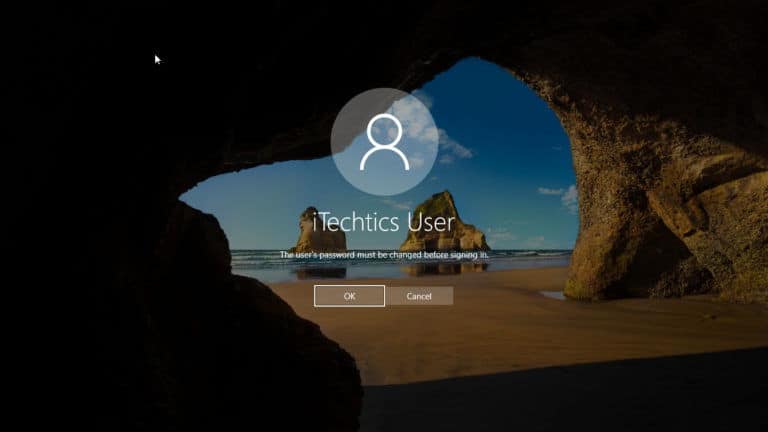
1. Lock screen එකේදී, failure එක trigger කරන්න ඕනෑම password එකක් enter කරලා, Reset password click කරන්න.
2. Local account එක හදනකොට set කරපු security questions වලට උත්තර දෙන්න.
3. අලුත් password එකක් enter කරලා confirm කරලා sign in කරන්න.
Method 2 — Reset a Microsoft Account Password
1. වෙනත් device එකකින් හෝ phone එකකින්, Microsoft ගේ account recovery page එකට යන්න (account.live.com/password/reset).
2. Email, phone, හෝ authenticator app එකෙන් ඔබේ identity verify කරන්න.
3. අලුත් password එකක් set කරන්න.
4. ආපහු ඔබේ PC එකට ඇවිත්, අලුත් password එකෙන් sign in කරන්න (internet connection එකක් අවශ්ය වෙන්න පුළුවන්).
Method 3 — Use a Password Reset Disk
1. ඔබ කලින් password reset USB එකක් හදලා තියෙනවා නම්, failed attempt එකකට පස්සේ lock screen එකේ Reset password click කරන්න.
2. Reset disk එක insert කරලා Password Reset Wizard එක follow කරන්න.
3. අලුත් password එකක් set කරලා sign in කරන්න.
Method 4 — Recovery Console (Advanced, Local Account)
Warning: මේ advanced method එක තියෙන්නේ ඔබ සතු, lock වෙලා තියෙන device එකකට. එයට Windows installation media සහ physical access අවශ්යයි.
1. Windows installation media එකෙන් boot කරලා පළවෙනි screen එකේදී Shift + F10 press කරලා Command Prompt open කරන්න.
2. ඔබේම device එකට Microsoft community guides වල documented කරලා තියෙන විදිහට, lock screen එකේ elevated Command Prompt එකක් open කරන්න utility-manager swap technique එක පාවිච්චි කරන්න.
3. Run කරන්න: net user කියලා accounts list කරන්න, ඊට පස්සේ: net user "YourAccount" NewPassword කියලා අලුත් password එකක් set කරන්න.
4. ඔබ කරපු වෙනස්කම් reverse කරලා, reboot කරලා, අලුත් password එකෙන් sign in කරන්න.
Note: ආපහු access ලැබුණාට පස්සේ, ඉදිරි resets ලේසි කරගන්න Microsoft account එකකට switch වෙන්න හෝ security questions add කරගන්න.
Troubleshooting
Problem: Reset password / security questions option එකක් පේන්නේ නෑ.
Solution: Account එකට security questions set කරලා නැති වෙන්න පුළුවන්, නැත්නම් එය Microsoft account එකක්. ඒ වෙනුවට online Microsoft account reset එක පාවිච්චි කරන්න.
Problem: Microsoft reset එකෙන් ඔබව verify වෙන්නේ නෑ.
Solution: Alternate recovery email/phone එකක් පාවිච්චි කරන්න, නැත්නම් හැකි තරම් විස්තර එක්ක Microsoft ගේ account recovery form එක complete කරන්න.
Problem: ඔබට තියෙන්නේ PIN problem එකක් විතරයි.
Solution: Sign-in එකේදී, Sign-in options තෝරලා ඔබේ password එක පාවිච්චි කරන්න; ඊට පස්සේ Settings > Accounts > Sign-in options වලින් PIN එක reset කරන්න.
Problem: Recovery set up එකක් නැතුව ඔබ lock වෙලා.
Solution: Security questions නැති local account එකකට, ඔබේම device එකේ recovery-console method එක තමයි ඉතුරු option එක; ඊට පස්සේ ආපහු මෙහෙම වෙන එක වළක්වන්න recovery set up කරගන්න.
Conclusion
ඔබේ account එකට ගැලපෙන ලේසිම option එකෙන් පටන්ගන්න: local accounts වලට security questions හෝ password reset disk එකක්, නැත්නම් Microsoft accounts වලට online reset එක. අමතක වූ password එකක් clicks කිහිපයකින් fix කරගන්න පුළුවන් වෙන්න recovery options configure කරලා තියාගන්න.
About TechHub
මේ guide එක TechHub Knowledge Base එකේ කොටසක්. තව step-by-step IT guides සහ support වලට techhub.com.lk එකට යන්න.