Overview
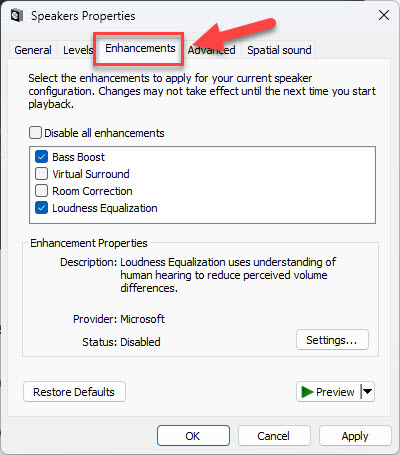
The Enhancements tab in a playback device’s properties gives access to audio effects like bass boost, virtual surround, and loudness equalization. If it is missing, it usually means your current audio driver does not expose it. This guide explains why it disappears and how to bring it back.
Key Takeaways
- The Enhancements tab depends on the audio driver in use.
- Some third-party drivers (e.g. certain Realtek versions) hide or replace it.
- Switching to the generic Microsoft audio driver often restores the tab.
- Reinstalling or updating the audio driver can also bring it back.
Why Is the Enhancements Tab Missing?
The tab is provided by the audio driver. When a manufacturer driver (such as some Realtek packages) is installed, it may use its own audio console instead of the standard Enhancements tab. Reverting to the Microsoft High Definition Audio driver typically restores the familiar tab.
Fix 1 — Switch to the Microsoft Audio Driver
1. Right-click Start and open Device Manager.
2. Expand Sound, video and game controllers.
3. Right-click your audio device (e.g. Realtek) and choose Update driver.
4. Select Browse my computer > Let me pick from a list.
5. Choose High Definition Audio Device (the Microsoft driver) and click Next, then restart.
Switching to the Microsoft audio driver restores the Enhancements tab.
Fix 2 — Run the Audio Troubleshooter
1. Open Settings > System > Troubleshoot > Other troubleshooters.
2. Run the Playing Audio troubleshooter.
3. Apply any recommended fixes and recheck the Sound device properties.
Fix 3 — Reinstall the Audio Driver
1. In Device Manager, right-click your audio device and choose Uninstall device.
2. Tick "Delete the driver software for this device" if shown, then confirm.
3. Restart the PC — Windows reinstalls a default audio driver.
4. Open the playback device Properties to check for the Enhancements tab.
Note: After switching drivers, open Settings > Sound > device properties (or the classic Sound window) and check the playback device’s Properties for the Enhancements tab.
Troubleshooting
Problem: The tab is still missing after switching drivers.
Solution: Some systems use a separate audio app (e.g. Realtek Audio Console) for effects instead of the Enhancements tab. Use that app, or try the Microsoft driver again after a restart.
Problem: Switching to the Microsoft driver reduces sound quality.
Solution: Reinstall the manufacturer driver if you prefer its features, accepting that effects live in its own console rather than the Enhancements tab.
Problem: No audio after changing drivers.
Solution: Set the correct Output device in Sound settings, and reinstall the driver if needed.
Problem: Enhancements cause audio problems.
Solution: You can disable individual enhancements or tick "Disable all enhancements" on the tab if effects cause distortion.
Conclusion
A missing Enhancements tab is almost always a driver matter. Switching to the Microsoft High Definition Audio driver usually brings it straight back, giving you access to Windows’ built-in audio effects again.
</w:pBdr><w:spacing w:before="220" w:after="40"/></w:pPr><w:r><w:rPr><w:b/><w:bCs/><w:color w:val="0B5394"/><w:sz w:val="21"/><w:szCs w:val="21"/><w:rFonts w:ascii="Calibri" w:cs="Calibri" w:eastAsia="Calibri" w:hAnsi="Calibri"/></w:rPr><w:t xml:space="preserve">About TechHub
This guide is part of the TechHub Knowledge Base. For more step-by-step IT guides and support, visit techhub.com.lk.