Overview
Sleep option එකෙන් ඔබේ PC එකට low-power state එකකට යන්න පුළුවන් වෙනවා, ඒ අතරෙම ඔබේ session එක memory එකේ තියාගෙන ඉක්මනට resume කරන්න පුළුවන් වෙනවා. Start menu එකේ power button එකෙන් Sleep එක අතුරුදන් වුණොත්, ඒක සාමාන්යයෙන් display driver, power configuration, නැත්නම් Group Policy issue එකක්. මේ guide එකෙන් option එක අතුරුදන් වෙන්නේ ඇයි කියලා සහ ඒක restore කරන්නේ කොහොමද කියලා පැහැදිලි කරනවා.
Key Takeaways
- Sleep එකෙන් ඔබේ session එක memory එකේ save කරලා ඉක්මනට resume කරනවා; hibernation එකෙන් ඒක disk එකට save කරනවා.
- Sleep option එකක් නැති වෙන්නේ බොහෝ විට display drivers නැත්නම් power settings නිසා.
- Sleep එක Control Panel, Group Policy, නැත්නම් default power settings restore කරලා ආයෙත් enable කරන්න පුළුවන්.
- display driver එක update කරාම බොහෝ විට option එක ආයෙත් එනවා.
Sleep vs Hibernation
Sleep එකෙන් ඔබේ open apps RAM එකේ තියාගෙන near-instant resume එකකට පොඩි power ප්රමාණයක් පාවිච්චි කරනවා. Hibernation එකෙන් ඔබේ session එක hard drive එකට write කරලා power කිසිවක් පාවිච්චි කරන්නේ නැහැ, ඒත් resume වෙන්න වෙලා යනවා. දෙකම එකම හේතු නිසා අතුරුදන් වෙන්න පුළුවන්, සහ පහත fixes Sleep එක restore කරන්න apply වෙනවා.
Why Is the Sleep Option Missing?
සුලභ හේතු අතරට sleep support එක report නොකරන display adapter driver එකක්, Sleep disable කරලා තියෙන power plan එකක්, option එක hide කරන Group Policy එකක්, නැත්නම් update එකකට පස්සේ corrupt වුණ power settings අයත් වෙනවා.
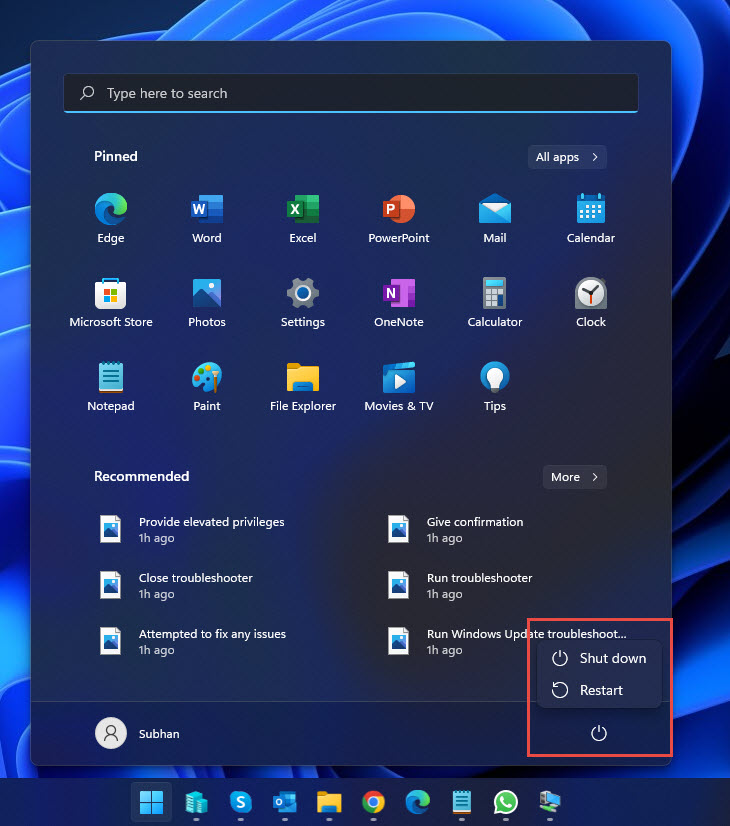
Power options එකෙන් Sleep option එක අතුරුදන් වෙලා.
Fix 1: Enable Sleep From Control Panel
1. Windows + R press කරලා, control type කරලා, Control Panel එක open කරන්න Enter press කරන්න.
2. Hardware and Sound > Power Options එකට ගිහින්, "Choose what the power buttons do" click කරන්න.
3. "Change settings that are currently unavailable" click කරන්න.
4. Shutdown settings යටතේ, Sleep box එක tick කරන්න.
5. Save changes click කරන්න. Start menu එකේ Sleep option එක ආයෙත් පෙන්නන්න ඕන.
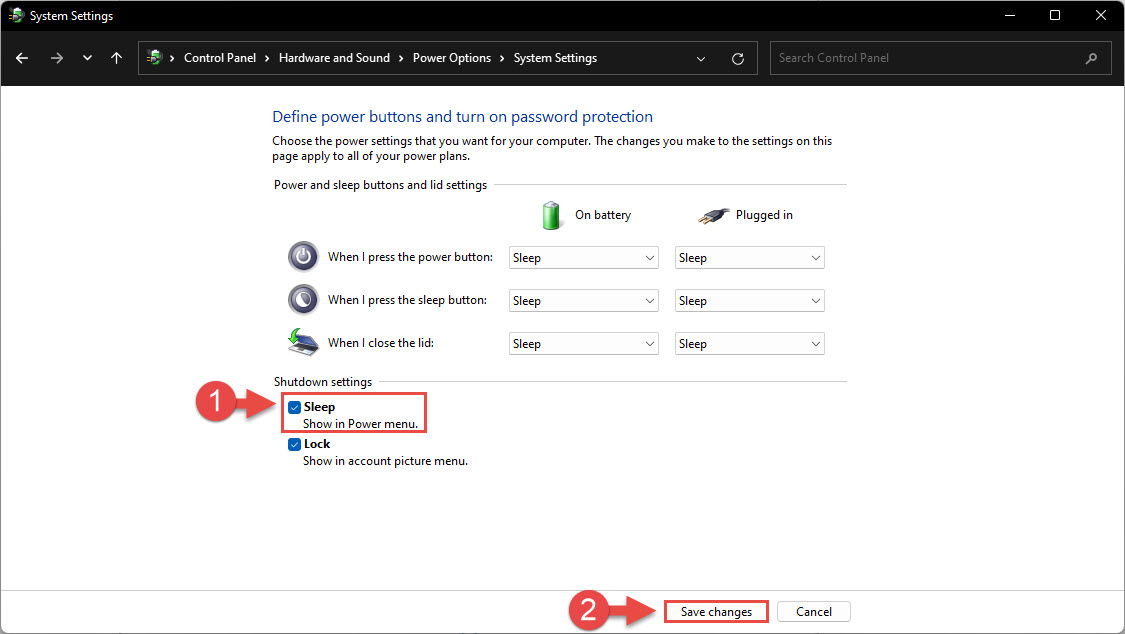
shutdown settings වල Sleep option එක enable කරනවා.
Fix 2: Enable Sleep From Group Policy
Windows Pro, Enterprise, සහ Education editions වල, policy එකක් Sleep option එක hide කරන්න පුළුවන්.
1. Windows + R press කරලා, gpedit.msc type කරලා, Enter press කරන්න.
2. Computer Configuration > Administrative Templates > Windows Components > File Explorer එකට යන්න.
3. "Show sleep in the power options menu" හොයාගෙන ඒක double-click කරන්න.
4. Enabled තෝරලා, Apply සහ OK click කරන්න.
5. වෙනස apply කරන්න elevated command prompt එකක gpupdate /force run කරන්න.
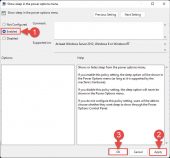
Group Policy එකේ Sleep policy එක enable කරනවා.
Fix 3: Restore Default Power Settings
corrupt වුණ power configuration එකක් Sleep එක hide කරන්න පුළුවන්. power plans ඒවගේ defaults වලට reset කරාම බොහෝ විට ඒක හදනවා.
1. Start click කරලා, "cmd" type කරලා, Command Prompt right-click කරලා, Run as administrator තෝරන්න.
2. මේ command එක run කරන්න: powercfg -restoredefaultschemes
3. prompt එක close කරලා Start menu power button එකේ Sleep option එක තියෙනවද කියලා බලන්න.
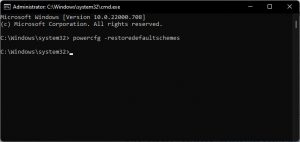
default power schemes restore කරනවා.
Fix 4: Update the Display Driver
sleep support එක advertise නොකරන display driver එකක් option එක සම්පූර්ණයෙන් අයින් කරන්න පුළුවන්.
1. Windows + X press කරලා Device Manager තෝරන්න.
2. Display adapters expand කරලා, ඔබේ graphics device එක right-click කරලා, Update driver තෝරන්න.
3. Search automatically for drivers තෝරන්න, නැත්නම් GPU maker ගේ official site එකෙන් (Intel, NVIDIA, නැත්නම් AMD) අලුත්ම driver එක download කරන්න.
4. update කරලා PC එක restart කරලා power menu එක බලන්න.
Tip: Settings > System > Troubleshoot > Other troubleshooters වලින් built-in Power troubleshooter එකත් run කරන්න පුළුවන්, ඒකෙන් සුලභ power configuration problems automatically detect කරලා හදන්න පුළුවන්.
Troubleshooting
Problem: Control Panel එකේ Sleep checkbox එක greyed out වෙලා.
Solution: මුලින්ම "Change settings that are currently unavailable" click කරන්න, ඒකෙන් Shutdown settings unlock වෙලා Sleep tick කරන්න පුළුවන්.
Problem: enable කරාට පස්සෙත් Sleep එක නැහැ.
Solution: display driver එක update නැත්නම් reinstall කරන්න, මොකද sleep support නැති driver එකක් අනිත් settings මොනවා තිබ්බත් option එක අයින් කරනවා.
Problem: gpedit.msc නැහැ.
Solution: Group Policy Editor එක Windows Home වල නැහැ. ඒ වෙනුවට Control Panel සහ powercfg methods පාවිච්චි කරන්න.
Problem: sleep වුණ ගමන්ම PC එක wake වෙනවා.
Solution: Device Manager එකේ, ඔබේ mouse, keyboard, සහ network adapter එකේ power management tab එක open කරලා PC එක wake කරන්න මොන devices වලට ඉඩ දෙනවද කියලා adjust කරන්න.
Conclusion
අතුරුදන් වුණ Sleep option එකක් හැම විටම පාහේ හදන්න පුළුවන්. මුලින්ම Control Panel power settings වල Sleep enable කරලා, ඊට පස්සේ Group Policy එක බලලා, powercfg එකෙන් power schemes reset කරලා, display driver එක update කරන්න. මේ steps වලින් එකක් Sleep option එක restore කරලා ඔබේ PC එකට ආයෙත් හරියට විවේක ගන්න ඉඩ දෙයි.
About TechHub
මේ guide එක TechHub Knowledge Base එකේ කොටසක්. තව step-by-step IT guides සහ support වලට techhub.com.lk එකට යන්න.