Overview
“Previous Versions” lets you restore an earlier copy of a file or folder from a point in the past — invaluable after an accidental change, overwrite, or deletion. It relies on shadow copies created by Windows features such as File History, System Protection (restore points), or a scheduled task. This guide shows how to turn the feature on and how to recover an earlier version when you need it.
Previous Versions lets you roll a file or folder back to an earlier copy.
Key Takeaways
- Previous Versions depends on shadow copies; you must enable a source for them first.
- You can enable it from File History, Task Scheduler, or System Properties (System Protection).
- Recover a version by right-clicking the file or folder and opening the Previous Versions tab.
- Set this up before you need it — versions can only be restored if copies already exist.
How It Works
Previous Versions is not a standalone feature — it surfaces earlier copies that Windows has stored as shadow copies (volume snapshots). Those copies are produced by File History, by System Protection restore points, or by a scheduled snapshot task. Once any of these is active, earlier versions become available to restore.
Method 1 — Enable From File History
1. Connect an external or secondary drive to store the history.
2. Open Control Panel > System and Security > File History.
3. Click Select drive and choose the drive to use.
4. Click Turn on to start protecting your libraries, desktop, contacts, and favourites.
5. Optionally click Advanced settings to set how often copies are saved and how long they are kept.
Method 2 — Enable From System Properties (System Protection)
1. Press Windows key + R, type SystemPropertiesProtection, and press Enter.
2. Select the drive you want to protect and click Configure.
3. Choose Turn on system protection and set the maximum disk space to use, then click OK.
4. Restore points (and the shadow copies they create) will now be generated for that drive.
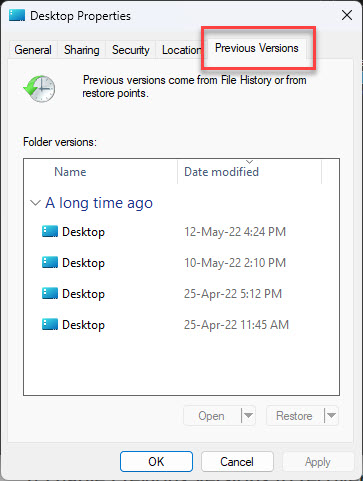
The Previous Versions tab in a folder’s Properties window.
Method 3 — Enable From Task Scheduler
You can schedule shadow copies of a volume so versions are captured at regular intervals.
1. Press Windows key + R, type taskschd.msc, and press Enter to open Task Scheduler.
2. Create a new task that runs the volume shadow copy command on a schedule (for example daily).
3. Set the trigger frequency and save the task with the highest privileges.
Scheduling shadow copies through Task Scheduler.
How to Recover a Previous Version
1. Right-click the file or folder you want to recover and choose Properties (or Restore previous versions).
2. Open the Previous Versions tab.
3. Select the version from the date you want from the list.
4. Click Open to preview it, Copy to save it elsewhere, or Restore to replace the current version.
Warning: Restore overwrites the current file with the older version. Use Copy if you want to keep both the current and the previous copies.
Troubleshooting
Problem: The Previous Versions tab is empty.
Solution: No shadow copies exist yet. Enable File History or System Protection, then wait for at least one snapshot or restore point to be created.
Problem: System Protection is greyed out or off.
Solution: Open SystemPropertiesProtection, select the drive, click Configure, and turn on protection with enough allocated disk space.
Problem: Versions disappear over time.
Solution: Older copies are removed as the allocated space fills. Increase the disk space for File History or System Protection to keep more versions.
Problem: You need to recover a deleted file, not an edited one.
Solution: Right-click the parent folder, open Previous Versions, open the older folder snapshot, and copy the deleted file out of it.
Conclusion
Previous Versions is a simple safety net once it is switched on. Enable File History or System Protection today so that earlier copies of your important files are always a couple of clicks away.
</w:pBdr><w:spacing w:before="220" w:after="40"/></w:pPr><w:r><w:rPr><w:b/><w:bCs/><w:color w:val="0B5394"/><w:sz w:val="21"/><w:szCs w:val="21"/><w:rFonts w:ascii="Calibri" w:cs="Calibri" w:eastAsia="Calibri" w:hAnsi="Calibri"/></w:rPr><w:t xml:space="preserve">About TechHub
This guide is part of the TechHub Knowledge Base. For more step-by-step IT guides and support, visit techhub.com.lk.