Overview
"Previous Versions" එකෙන් file එකක හෝ folder එකක අතීතයේ තිබුණ පරණ copy එකක් restore කරන්න පුළුවන් — accidental change එකක්, overwrite එකක්, හෝ deletion එකකට පස්සේ ගොඩක් වටිනවා. ඒක depend වෙන්නේ File History, System Protection (restore points), හෝ scheduled task එකක් වගේ Windows features වලින් හදන shadow copies මත. මේ guide එකෙන් feature එක on කරන ආකාරය සහ ඕන වුණාම පරණ version එකක් recover කරන ආකාරය පෙන්නනවා.
Previous Versions එකෙන් file එකක් හෝ folder එකක් පරණ copy එකකට roll back කරන්න පුළුවන්.
Key Takeaways
- Previous Versions shadow copies මත depend වෙනවා; මුලින්ම ඒවාට source එකක් enable කරන්න ඕන.
- File History, Task Scheduler, හෝ System Properties (System Protection) එකෙන් enable කරන්න පුළුවන්.
- File එක හෝ folder එක right-click කරලා Previous Versions tab එක open කරලා version එකක් recover කරන්න.
- ඕන වෙන්න කලින් මේක set කරන්න — copies දැනටමත් තියෙනවා නම් විතරයි versions restore කරන්න පුළුවන්.
මේක වැඩ කරන්නේ කොහොමද
Previous Versions කියන්නේ standalone feature එකක් නෙවෙයි — ඒක Windows shadow copies (volume snapshots) විදිහට store කරපු පරණ copies surface කරනවා. ඒ copies හැදෙන්නේ File History එකෙන්, System Protection restore points වලින්, හෝ scheduled snapshot task එකකින්. මේවායින් එකක් active වුණාම, පරණ versions restore කරන්න available වෙනවා.
Method 1 — File History එකෙන් Enable කරන්න
1. History store කරන්න external හෝ secondary drive එකක් connect කරන්න.
2. Control Panel > System and Security > File History open කරන්න.
3. Select drive click කරලා පාවිච්චි කරන්න drive එක තෝරන්න.
4. ඔබේ libraries, desktop, contacts, සහ favourites protect කරන්න පටන්ගන්න Turn on click කරන්න.
5. ඕන නම් Advanced settings click කරලා copies කොපමණ වෙලාවකට වරක් save කරනවද, කොච්චර කල් තියාගන්නවද කියලා set කරන්න.
Method 2 — System Properties (System Protection) එකෙන් Enable කරන්න
1. Windows key + R press කරලා SystemPropertiesProtection type කරලා Enter කරන්න.
2. Protect කරන්න ඕන drive එක select කරලා Configure click කරන්න.
3. Turn on system protection තෝරලා පාවිච්චි කරන්න maximum disk space එක set කරලා OK click කරන්න.
4. දැන් ඒ drive එකට restore points (සහ ඒවා හදන shadow copies) generate වෙනවා.
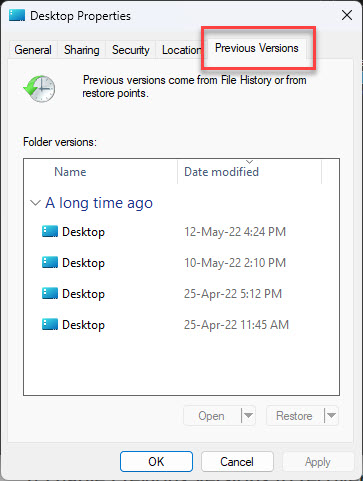
Folder එකක Properties window එකේ Previous Versions tab එක.
Method 3 — Task Scheduler එකෙන් Enable කරන්න
Volume එකක shadow copies schedule කරලා versions නිතර නිතර capture කරගන්න පුළුවන්.
1. Windows key + R press කරලා taskschd.msc type කරලා Enter කරලා Task Scheduler open කරන්න.
2. Schedule එකකට (උදාහරණයක් daily) volume shadow copy command එක run කරන අලුත් task එකක් හදන්න.
3. Trigger frequency එක set කරලා highest privileges එක්ක task එක save කරන්න.
Previous Version එකක් Recover කරන්නේ කොහොමද
1. Recover කරන්න ඕන file එක හෝ folder එක right-click කරලා Properties (හෝ Restore previous versions) තෝරන්න.
2. Previous Versions tab එක open කරන්න.
3. List එකෙන් ඔබට ඕන date එකේ version එක select කරන්න.
4. Preview කරන්න Open, වෙන තැනක save කරන්න Copy, නැත්නම් current version එක replace කරන්න Restore click කරන්න.
Warning: Restore එකෙන් current file එක පරණ version එකෙන් overwrite කරනවා. Current සහ previous copies දෙකම තියාගන්න ඕන නම් Copy පාවිච්චි කරන්න.
Troubleshooting
Problem: Previous Versions tab එක හිස්.
Solution: තවම shadow copies නෑ. File History හෝ System Protection enable කරලා, අඩුම එක snapshot එකක් හෝ restore point එකක් හැදෙනකම් ඉන්න.
Problem: System Protection greyed out හෝ off.
Solution: SystemPropertiesProtection open කරලා, drive එක select කරලා, Configure click කරලා, ප්රමාණවත් disk space එකක් එක්ක protection on කරන්න.
Problem: Versions කාලයත් එක්ක නැති වෙනවා.
Solution: Allocated space පිරෙනකොට පරණ copies remove වෙනවා. වැඩිය versions තියාගන්න File History හෝ System Protection වලට disk space වැඩි කරන්න.
Problem: Edit කරපු එකක් නෙවෙයි, delete කරපු file එකක් recover කරන්න ඕන.
Solution: Parent folder එක right-click කරලා, Previous Versions open කරලා, පරණ folder snapshot එක open කරලා, delete වුණ file එක ඒකෙන් copy කරන්න.
Conclusion
Previous Versions කියන්නේ on කළාට පස්සේ සරල safety net එකක්. වැදගත් files වල පරණ copies හැමවෙලේම clicks දෙකක් දුරින් තියෙන්න අදම File History හෝ System Protection enable කරන්න.
About TechHub
මේ guide එක TechHub Knowledge Base එකේ කොටසක්. තව step-by-step IT guides සහ support වලට techhub.com.lk එකට යන්න.