How to Run SFC /scannow to Repair Windows System Files
Use System File Checker to find and fix corrupt system files, and what to do when it fails.
Overview
System File Checker (SFC) scans protected Windows system files and repairs corrupt ones from a cached copy. This guide shows how to run it, read the results, and fix cases where SFC itself fails.
Running SFC /scannow.
Key Takeaways
- SFC /scannow repairs corrupt protected system files.
- Run it from an elevated Command Prompt.
- If SFC can’t fix files, run DISM first, then SFC again.
- Offline SFC (from WinRE) helps when Windows won’t boot.
Run a Basic SFC Scan
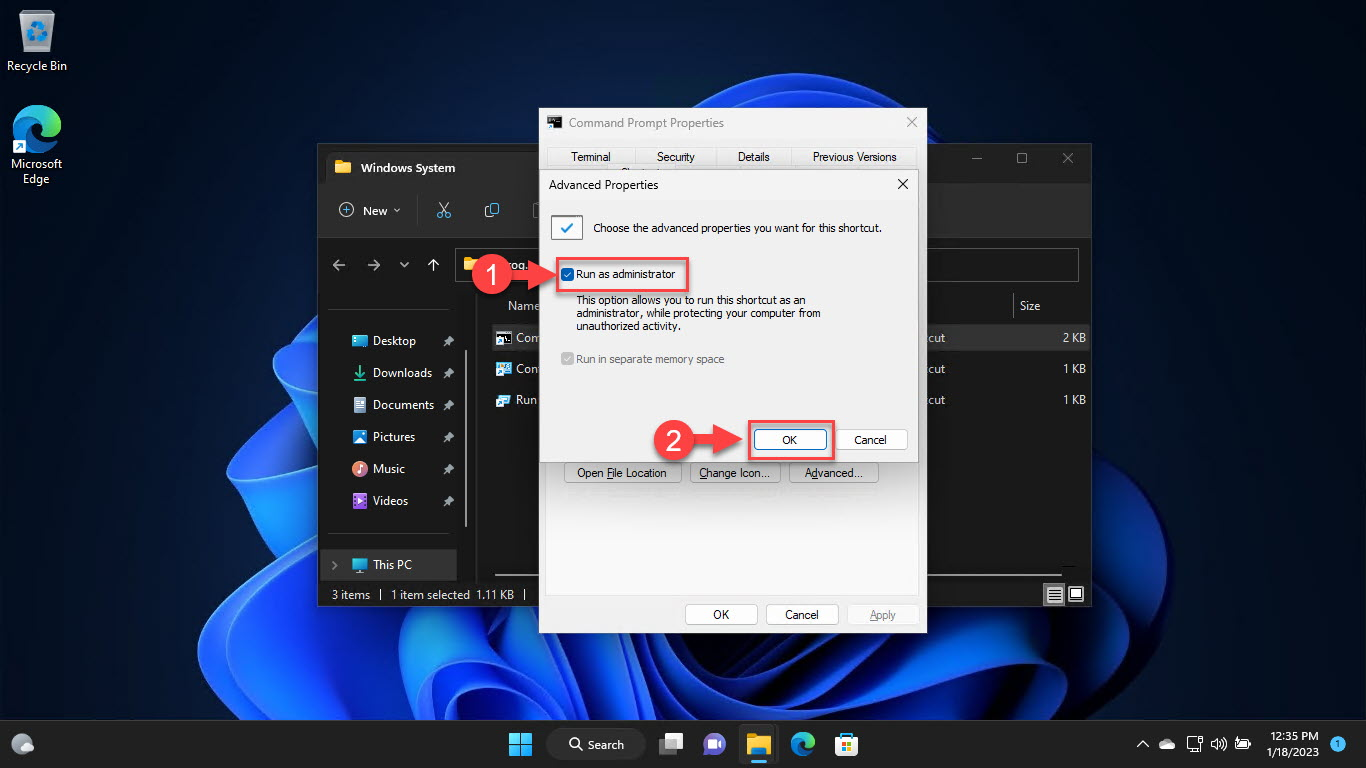
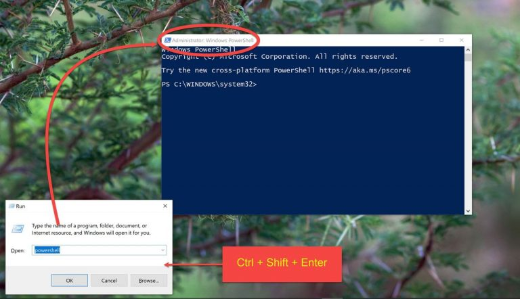
1. Open Command Prompt as administrator.
2. Run: sfc /scannow
3. Wait for it to reach 100% verification.
4. Read the result message (see below).
Understanding the Results
- "Did not find any integrity violations" — files are healthy.
- "Found corrupt files and successfully repaired them" — fixed.
- "Found corrupt files but was unable to fix some" — run DISM, then SFC again.
- Details are logged in CBS.Log.
When SFC Fails: Run DISM First
1. In an elevated prompt, run: DISM /Online /Cleanup-Image /RestoreHealth
2. This repairs the component store SFC pulls healthy files from.
3. Then run sfc /scannow again.
4. Restart and re-check.
Run SFC Offline (from WinRE)
1. Boot into WinRE > Troubleshoot > Advanced options > Command Prompt.
2. Identify the Windows drive letter (it may differ from C: in WinRE).
3. Run: sfc /scannow /offbootdir=D:\ /offwindir=D:\Windows (adjust letters).
4. Use this when Windows won’t start normally.
Fix "Windows Resource Protection could not start the repair service"
1. Ensure the "Windows Modules Installer" (TrustedInstaller) service is enabled and set to Manual.
2. Start it: net start trustedinstaller.
3. Reboot into Safe Mode and run SFC again if it persists.
Troubleshooting
Problem: SFC can’t repair some files.
Solution: Run DISM /RestoreHealth to fix the source store, then run SFC again.
Problem: "Repair service" won’t start.
Solution: Enable/start the TrustedInstaller (Windows Modules Installer) service, then retry.
Problem: SFC hangs at a percentage.
Solution: Give it time; if truly stuck, reboot and run it in Safe Mode.
Problem: Errors persist after SFC+DISM.
Solution: Check the disk with chkdsk; consider an in-place repair install if corruption is widespread.
Conclusion
SFC /scannow is a first-line repair for corrupt Windows system files. Run it elevated; if it can’t fix everything, run DISM /RestoreHealth and then SFC again. For an unbootable PC, run SFC offline from the Recovery Environment.