Overview
A2DP Sink lets your Windows PC act as a Bluetooth audio receiver, so audio played on your phone comes out of your computer's speakers. This is handy when your PC has better speakers than your phone or you simply want to route phone audio through your desktop. This guide explains what A2DP Sink is and how to set it up.
Key Takeaways
- A2DP (Advanced Audio Distribution Profile) Sink turns your PC into a Bluetooth speaker.
- You pair your phone with the PC over Bluetooth, then route audio to it.
- Windows does not include a full A2DP Sink receiver by default, so a small helper app is used.
- Both devices need working Bluetooth with audio support.
What Is A2DP Sink?
A2DP is the Bluetooth profile that streams high-quality stereo audio between devices. The "Sink" role is the receiver — the device that plays the sound. Phones normally act as the source and headphones or speakers as the sink. Configuring your PC as an A2DP Sink lets it receive and play audio sent from your phone.
Step 1: Pair Your Phone With the PC
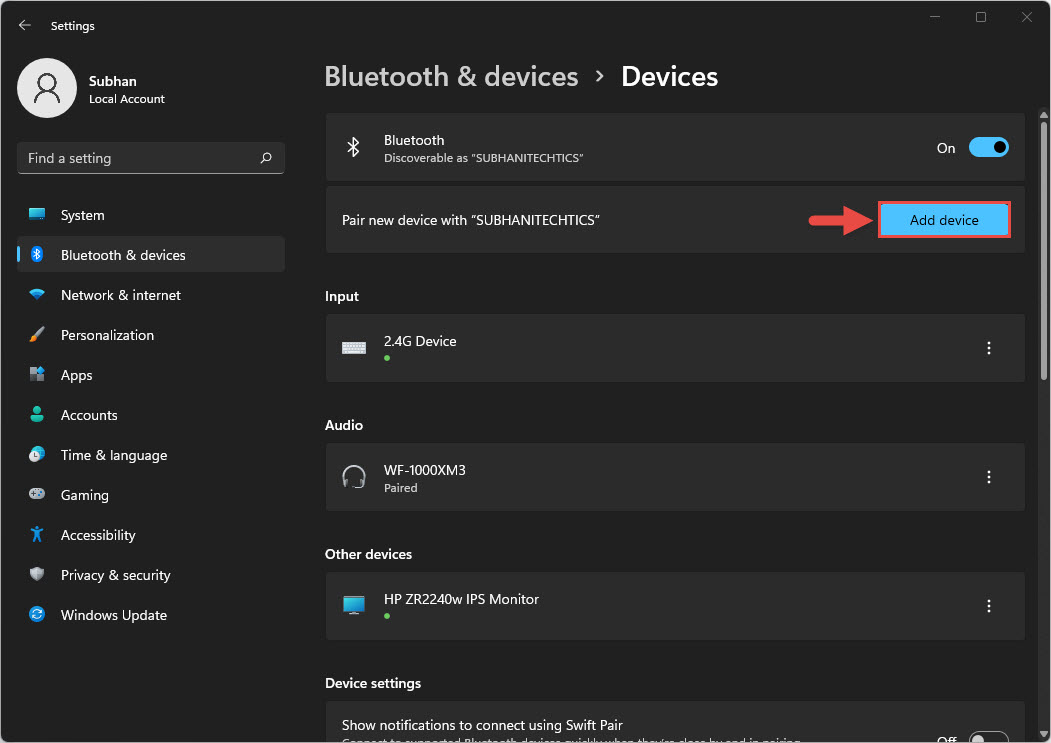
1. On your PC, open Settings > Bluetooth & devices and turn Bluetooth on.
2. Click Add device, then choose Bluetooth.
3. On your phone, open Bluetooth settings and make it discoverable.
4. Select your phone from the list on the PC and confirm the matching pairing code on both devices.
5. Complete the pairing so the two devices are connected.
Adding a new Bluetooth device on the PC.
Step 2: Install a Bluetooth Audio Receiver
Windows can pair with a phone but does not fully act as an audio sink on its own. A lightweight Bluetooth audio receiver application enables the PC to receive and play the incoming stream.
1. Download a reputable Bluetooth audio receiver application from its official source.
2. Install and launch it, granting Bluetooth access if prompted.
3. Select your paired phone as the connected source device.
4. Play audio on your phone — it should now come out of your PC speakers.
Note: Only download helper applications from their official websites. Verify the publisher before installing any third-party tool that accesses your Bluetooth hardware.
Step 3: Play and Control Audio
With the connection active, start music, a video, or a call on your phone. The audio streams to your PC and plays through its speakers. Adjust volume on either device. To disconnect, turn off Bluetooth on the phone or close the receiver app.
Tip: For the best quality, keep the phone and PC within a few meters and avoid physical obstructions that weaken the Bluetooth signal.
Troubleshooting
Problem: The phone pairs but no audio plays on the PC.
Solution: Windows alone does not fully support the A2DP Sink role. Install a Bluetooth audio receiver app and select the phone as the source.
Problem: The PC does not appear on my phone's Bluetooth list.
Solution: Make sure the PC is discoverable, Bluetooth is on, and the adapter drivers are up to date in Device Manager.
Problem: Audio is choppy or delayed.
Solution: Reduce the distance between devices, remove obstructions, and close other bandwidth-heavy Bluetooth connections.
Problem: The devices keep disconnecting.
Solution: Remove the pairing and pair again, and update your PC's Bluetooth drivers from the manufacturer's official site.
Conclusion
With A2DP Sink, your Windows PC becomes a convenient Bluetooth speaker for your phone. Pair the two devices, add a trusted Bluetooth audio receiver app, and you can enjoy phone audio through your computer's speakers. Keep drivers current and devices close for the smoothest playback.
About TechHub
This guide is part of the TechHub Knowledge Base. For more step-by-step IT guides and support, visit techhub.com.lk.