Overview
Microsoft Defender Antivirus කියන්නේ Windows එකේ built-in protection එක. සමහරවිට ඒක තාවකාලිකව disable කරන්න ඕන වෙන්න පුළුවන් — උදාහරණයක් ඒක වැරදියට block කරන trusted software install කරන්න, හෝ වෙන security product එකක් test කරන්න. මේ guide එකෙන් Defender off කරන ක්රම කිහිපයක්, එතරම්ම වැදගත් — ආපහු on කරන ආකාරය පෙන්නනවා. මේ methods responsibly පාවිච්චි කරන්න.
Warning: Defender disable කරන එකෙන් ඔබේ PC එක unprotected තියෙනවා. තාවකාලිකව, specific හේතුවකට විතරයි කරන්න, පුළුවන් නම් PC එක offline තියන්න, ඉවර වුණ ගමන් protection ආපහු enable කරන්න (හෝ alternative antivirus එකක් install කරන්න).
Changes කරන්න කලින් Microsoft Defender දැනට running ද කියලා බලන්න.
Key Takeaways
- Windows Security app එකෙන් Defender disable කරන්නේ තාවකාලිකව විතරයි — restart එකකට පස්සේ ඒක තමන්ම ආපහු enable වෙනවා.
- මුලින් Tamper Protection off කරන්න, නැත්නම් registry සහ Group Policy methods automatically revert වෙනවා.
- Permanent methods (Group Policy, Registry) තවදුරටත් ඕන නැති වුණාම reverse කරන්න.
- Defender ආපහු enable කරන එක disable කරන එක තරම්ම වැදගත් — PC එක unprotected තියන්න එපා.
පටන්ගන්න කලින්: Tamper Protection Disable කරන්න
1. Windows Security > Virus & threat protection open කරන්න.
2. Virus & threat protection settings යටතේ, Manage settings click කරන්න.
3. Tamper Protection off කරන්න (මේකෙන් වෙන methods effect වෙන්න දෙනවා).
Method 1 — Windows Security එකේ Temporarily Disable කරන්න
1. Start menu එකෙන් Windows Security open කරන්න.
2. Virus & threat protection > Manage settings වලට යන්න.
3. Real-time protection off කරන්න.
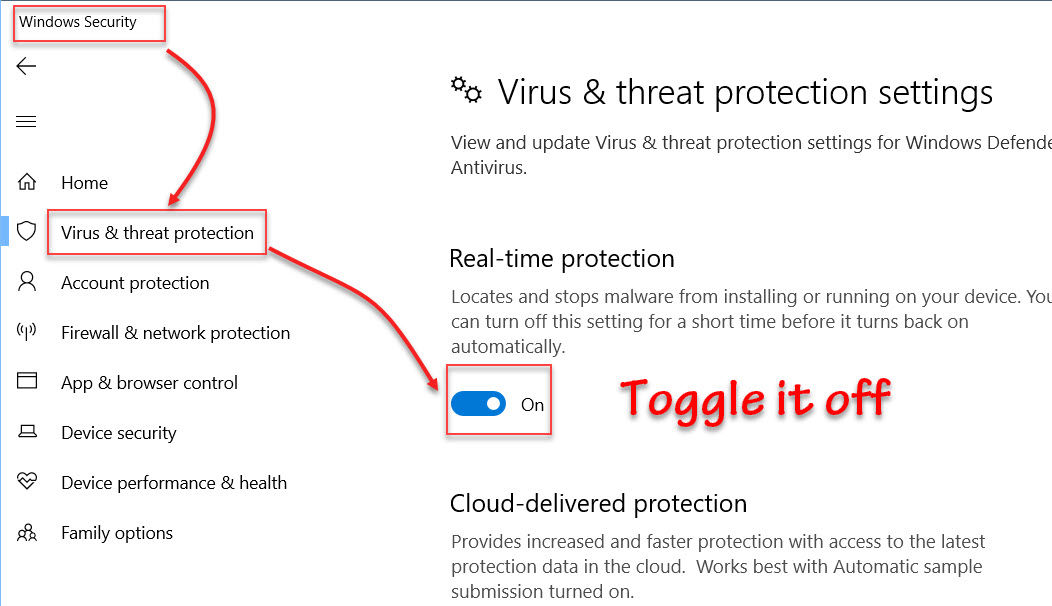
Windows Security එකේ real-time protection off කරනවා.
Note: මේ තාවකාලික — Windows restart එකකට පස්සේ real-time protection automatically ආපහු on කරනවා, ඒක safest option එක.
Method 2 — PowerShell එකෙන් Real-Time Protection Disable කරන්න
1. Start එක right-click කරලා Windows PowerShell (Admin) හෝ Terminal (Admin) තෝරන්න.
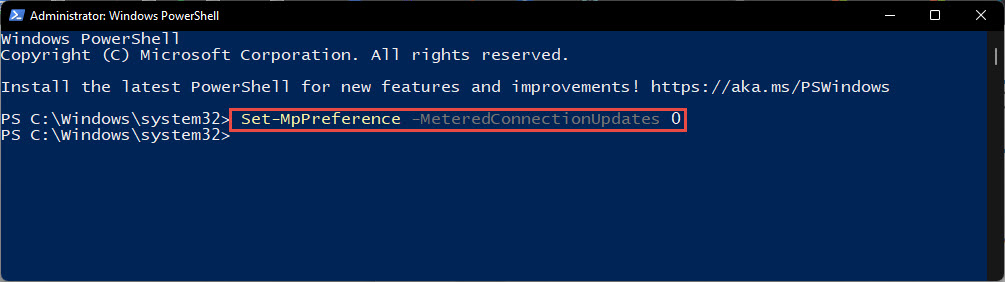
2. Run: Set-MpPreference -DisableRealtimeMonitoring $true
3. පස්සේ ආපහු enable කරන්න: Set-MpPreference -DisableRealtimeMonitoring $false
Method 3 — Group Policy එකෙන් Disable කරන්න
1. Windows key + R press කරලා gpedit.msc type කරලා Enter කරන්න (Pro/Enterprise editions වල available).
2. Computer Configuration > Administrative Templates > Windows Components > Microsoft Defender Antivirus වලට යන්න.
3. "Turn off Microsoft Defender Antivirus" open කරලා Enabled කරලා OK click කරන්න.
4. PC එක restart කරන්න. Reverse කරන්න, එම policy එක ආපහු Not Configured කරන්න.
Method 4 — Registry එකෙන් Disable කරන්න
Warning: Registry එක වැරදියට edit කරන එකෙන් problems ඇති වෙන්න පුළුවන්. Changes කරන්න කලින් මුලින් registry එක backup කරන්න (File > Export).
1. Windows key + R press කරලා regedit type කරලා Enter කරන්න.
2. HKEY_LOCAL_MACHINE\SOFTWARE\Policies\Microsoft\Windows Defender වලට යන්න.
3. DisableAntiSpyware කියන DWORD (32-bit) value එකක් හදලා 1 කරන්න.
4. PC එක restart කරන්න. Defender ආපහු enable කරන්න, value එක ආපහු 0 කරන්න හෝ delete කරන්න.
Firewall එක විතරයි හෝ Antivirus එක විතරයි Off කරන්න
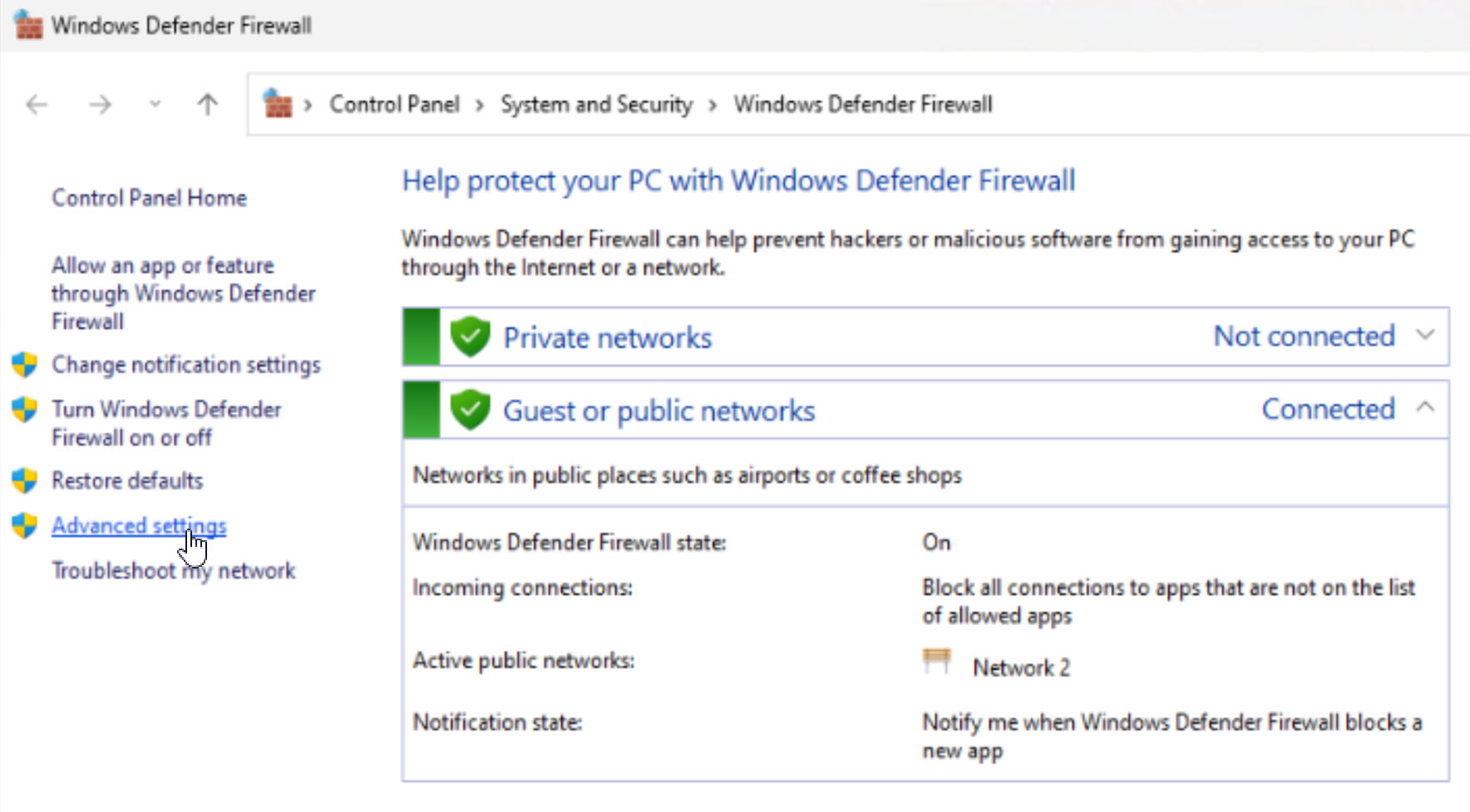
- Firewall only — Windows Security > Firewall & network protection open කරලා, active network එක තෝරලා, Microsoft Defender Firewall off toggle කරන්න.
- Antivirus only — firewall on තියාගෙන real-time protection off කරන්න Method 1 පාවිච්චි කරන්න.
Windows Defender ආපහු Enable කරන්නේ කොහොමද
1. ඔබ පාවිච්චි කළ method එක reverse කරන්න (policies/registry values ආපහු set කරන්න, හෝ PowerShell re-enable command එක run කරන්න).
2. Windows Security > Virus & threat protection open කරලා Real-time protection ආපහු on කරන්න.
3. Defender changes වලින් protect කරන්න Tamper Protection ආපහු on කරන්න.
4. Defender active සහ healthy කියලා confirm කරන්න quick scan එකක් run කරන්න.
Troubleshooting
Problem: Defender තමන්ම ආපහු on වෙනවා.
Solution: Windows Security toggle එක design එකෙන්ම temporary. Lasting change එකකට, මුලින් Tamper Protection off කරලා, Group Policy හෝ Registry method එක පාවිච්චි කරන්න.
Problem: Registry/Group Policy change එකට effect එකක් නෑ.
Solution: Tamper Protection තවම on, නැත්නම් වෙන antivirus එකක් setting එක manage කරනවා. Tamper Protection off කරලා restart කරන්න.
Problem: Protection ආපහු on කරන්න බෑ.
Solution: Changes ඔක්කොම reverse කරලා (registry value 0, policy Not Configured), restart කරලා, Windows Security එකේ real-time protection enable කරන්න.
Problem: වෙන antivirus එකක් install කළා.
Solution: Compatible third-party antivirus එකක් install වෙලා active වුණාම Defender automatically පැත්තකට යනවා — සාමාන්යයෙන් manually disable කරන්න ඕන නෑ.
Conclusion
Microsoft Defender ක්රම කිහිපයකින් disable කරන්න පුළුවන් — quick temporary toggle එකේ ඉඳලා permanent policy changes දක්වා. කුමක් තෝරාගත්තත්, ඒක short-term විදිහට සලකන්න: PC එක safe තියාගන්න protection ආපහු enable කරන්න හෝ alternative antivirus එකක් වහාම install කරන්න.
About TechHub
මේ guide එක TechHub Knowledge Base එකේ කොටසක්. තව step-by-step IT guides සහ support වලට techhub.com.lk එකට යන්න.