Overview
AcroTray (AcroTray.exe) is a background helper installed with Adobe Acrobat that assists with PDF conversion tasks. It’s legitimate but not essential to keep running constantly. This guide explains what it is and several safe ways to disable it.
What AcroTray is and how to disable it.
Key Takeaways
- AcroTray is an Adobe Acrobat helper for PDF conversion.
- It runs in the background and at startup.
- You can stop it via Task Manager, Services, or the Registry.
- Disabling it won’t break core Acrobat functionality.
What AcroTray Is
AcroTray supports features like "print to PDF" and conversions in Adobe Acrobat. The genuine file lives in Adobe’s install folder (e.g., C:\Program Files (x86)\Adobe\Acrobat\...). Copies elsewhere could be suspicious.
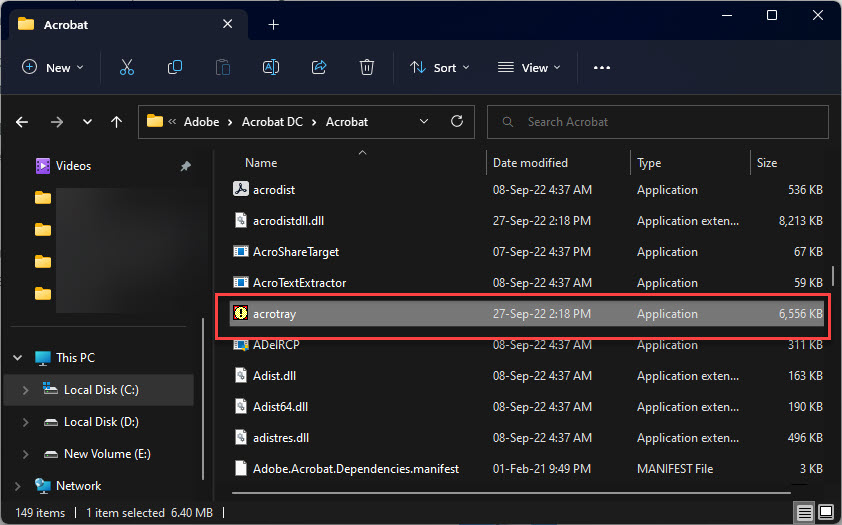
AcroTray.exe’s install location.
Method 1: Task Manager (Startup)
1. Open Task Manager (Ctrl + Shift + Esc).
2. Go to the Startup apps tab.
3. Select AcroTray and click Disable.
4. It will no longer launch at boot.
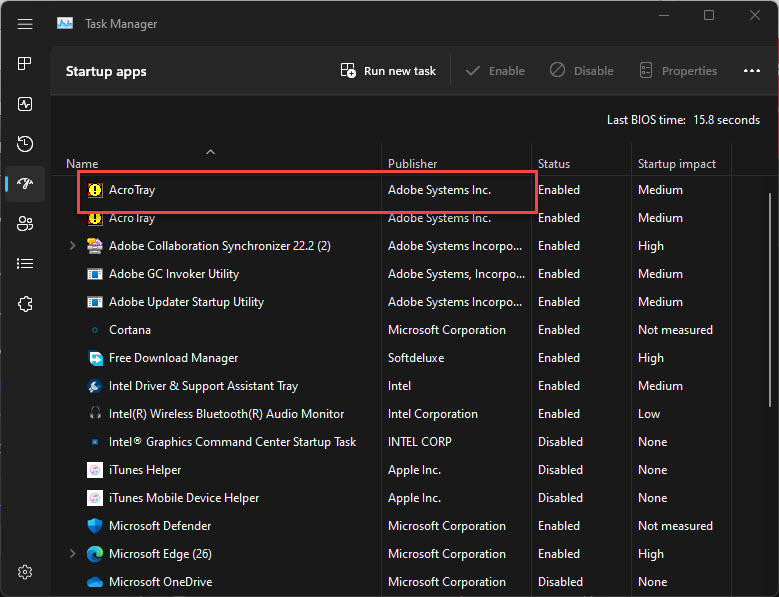
AcroTray listed in Startup apps.
Method 2: End the Process
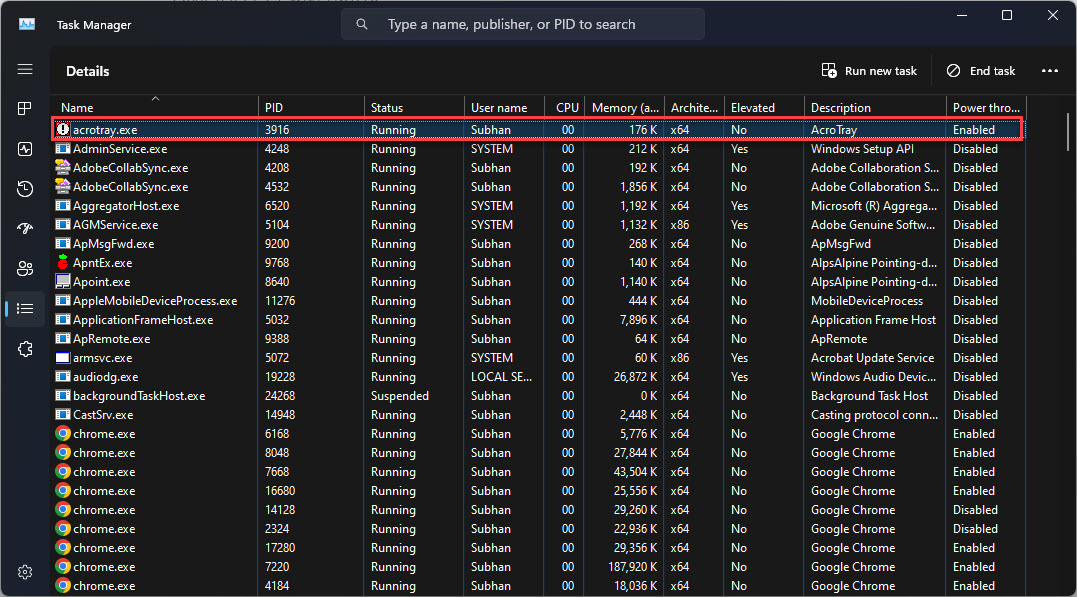
1. In Task Manager > Processes, find AcroTray.
2. Right-click it and choose End task to stop it for the current session.
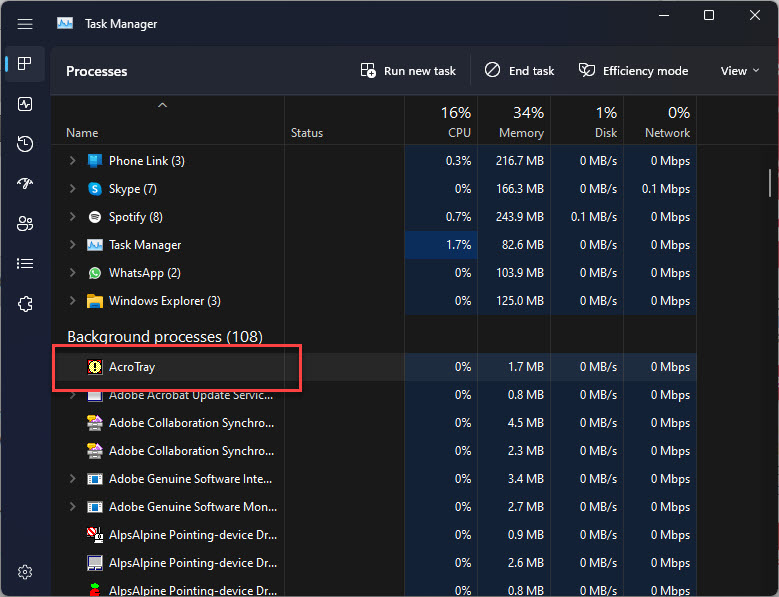
AcroTray running in the background.
Method 3: Services
1. Open services.msc.
2. Look for related Adobe Acrobat services.
3. Set the relevant service’s Startup type to Manual if you don’t need it automatic.
Method 4: Registry (Advanced)
Warning: Editing the Registry incorrectly can cause problems. Back up the Registry first.
1. Open regedit.
2. Go to HKEY_LOCAL_MACHINE\SOFTWARE\Microsoft\Windows\CurrentVersion\Run (and the HKCU equivalent).
3. Delete the AcroTray entry to stop it loading at startup.
Troubleshooting
Problem: AcroTray returns after an Adobe update.
Solution: Updates can re-add the startup entry — disable it again in Task Manager > Startup.
Problem: PDF "print to" features stopped working.
Solution: Re-enable AcroTray; it assists some Acrobat conversion features.
Problem: AcroTray.exe is outside the Adobe folder.
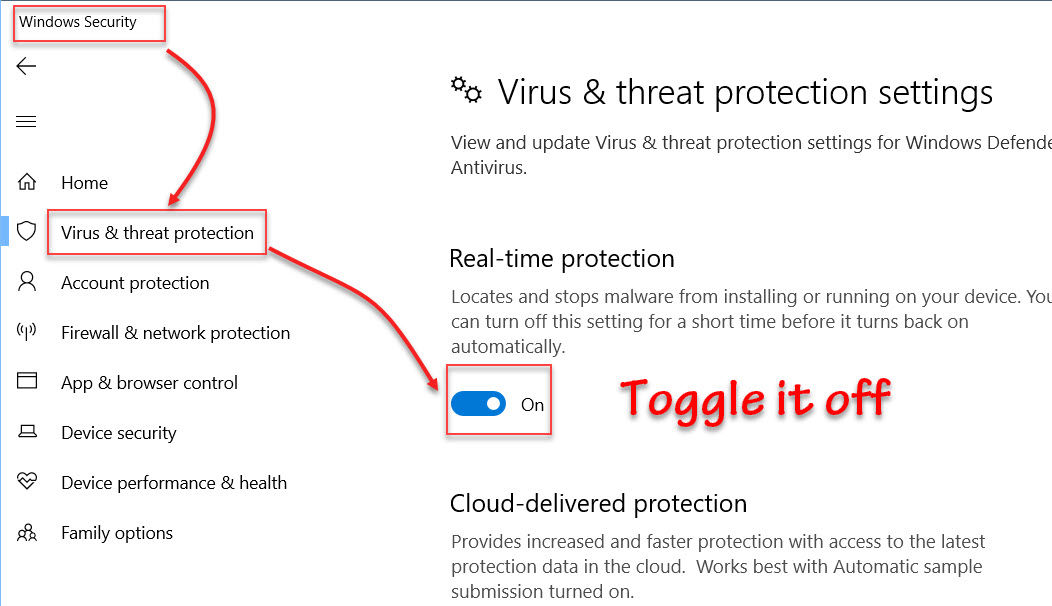
Solution: That’s suspicious — scan with Windows Security, as malware sometimes mimics the name.
Problem: Can’t disable via Startup.
Solution: Use Microsoft’s Autoruns tool to find and remove every startup entry for it.
Conclusion
AcroTray is a harmless Adobe Acrobat helper, but you don’t need it running all the time. Disable it from Task Manager’s Startup tab for the simplest fix — and verify the file lives in Adobe’s folder to rule out an imposter.
</w:pBdr><w:spacing w:before="220" w:after="40"/></w:pPr><w:r><w:rPr><w:b/><w:bCs/><w:color w:val="0B5394"/><w:sz w:val="21"/><w:szCs w:val="21"/><w:rFonts w:ascii="Calibri" w:cs="Calibri" w:eastAsia="Calibri" w:hAnsi="Calibri"/></w:rPr><w:t xml:space="preserve">About TechHub
This guide is part of the TechHub Knowledge Base. For more step-by-step IT guides and support, visit techhub.com.lk.