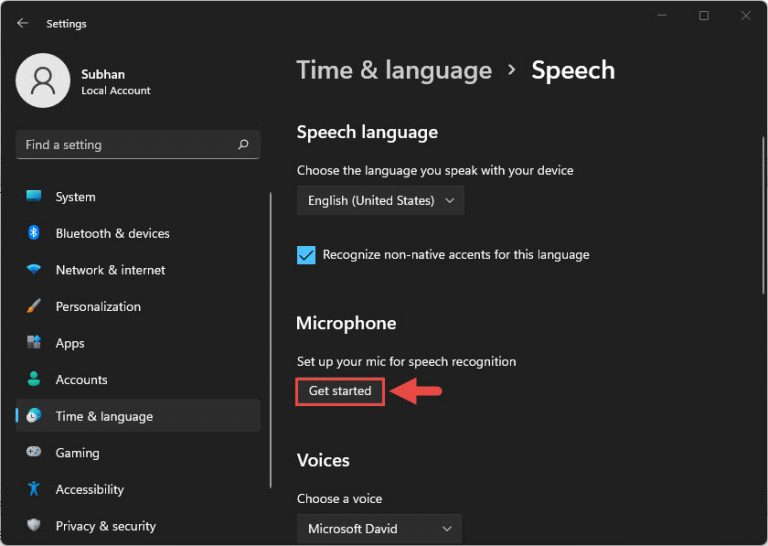
Overview
Windows 11 එකේ accessibility tools ටික group කරලා තියෙන්නේ Settings > Accessibility (කලින් Ease of Access) එක යටතේ. ඒවා PC එක බලන්න, අහන්න, සහ interact වෙන්න පහසු කරනවා — disabilities තියෙන users ලාටත්, වඩාත් සුවපහසු setup එකක් ඕන ඕනම කෙනෙකුටත් ප්රයෝජනවත්. මේ guide එකෙන් ප්රධාන features ටිකයි ඒවා enable කරන හැටියි පෙන්නනවා.
Windows 11 Accessibility settings වලින් vision, hearing, සහ interaction ආවරණය කරනවා.
Key Takeaways
- Accessibility settings තියෙන්නේ Settings > Accessibility එකේ.
- Vision tools වලට text size, Magnifier, color filters, සහ Narrator ඇතුළත් වෙනවා.
- Hearing tools වලට mono audio සහ live captions ඇතුළත් වෙනවා.
- Interaction tools වලට voice typing, sticky keys, සහ mouse adjustments ඇතුළත් වෙනවා.
How to Open Accessibility Settings
1. Settings open කරන්න Windows key + I press කරන්න.
2. වම් පැත්තේ sidebar එකේ Accessibility click කරන්න.
3. category එකක් තෝරන්න: Vision, Hearing, හෝ Interaction.
4. Quick tip: Accessibility එකට කෙලින්ම යන්න Windows key + U press කරන්න.
Vision
- Text size — Windows පුරාම on-screen text ලොකු කරන්න.
- Visual effects — animations, transparency, සහ notifications කොච්චර වෙලාවක් තියෙනවද කියන එක control කරන්න.
- Mouse pointer and text cursor — visibility වලට size, color, සහ thickness වෙනස් කරන්න.
- Magnifier — screen එකේ කොටසකට zoom කරන්න (පටන් ගන්න Windows key + Plus).
- Color filters — color blindness වලට හෝ strain අඩු කරන්න colors adjust කරන්න.
- Narrator — text හඬ නඟා කියවන built-in screen reader එකක්.
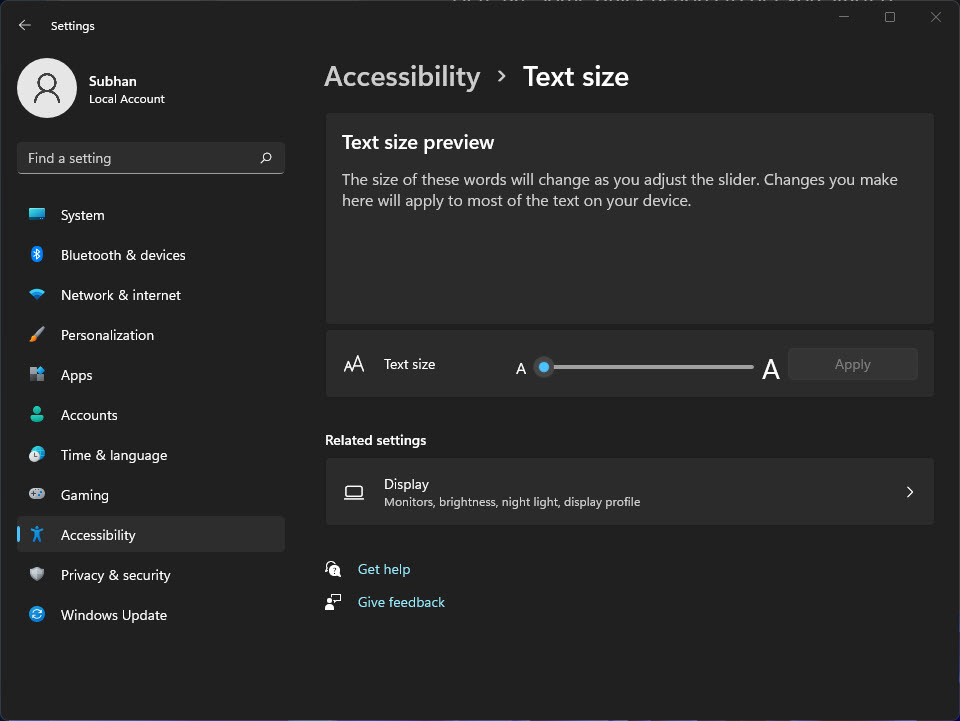
පහසුවෙන් කියවන්න text size adjust කරන්න.
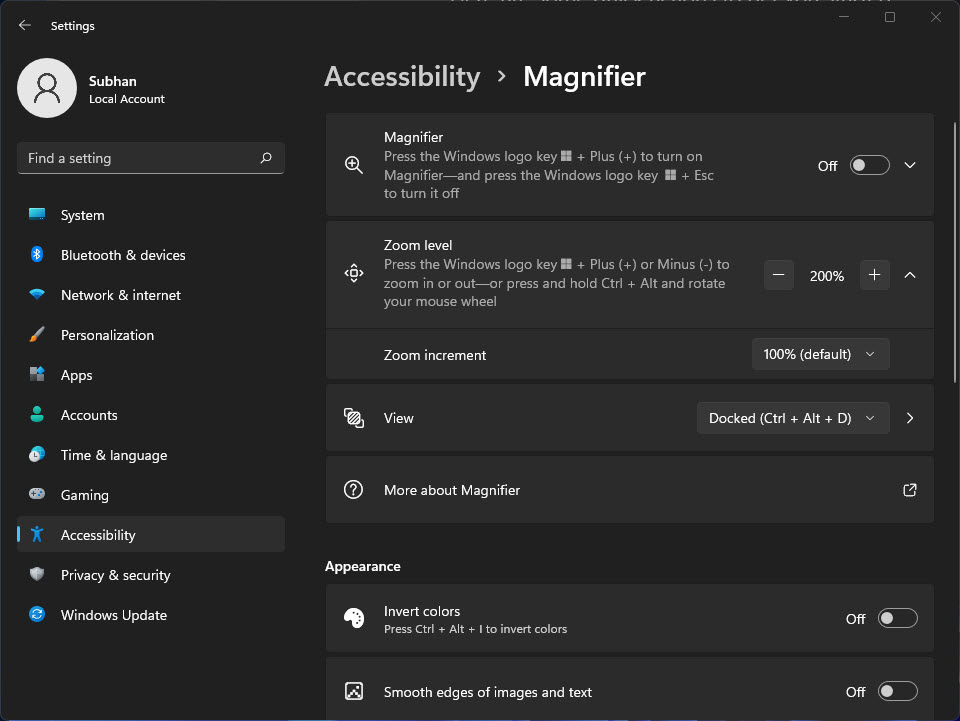
Magnifier එකෙන් screen එකට zoom කරනවා.
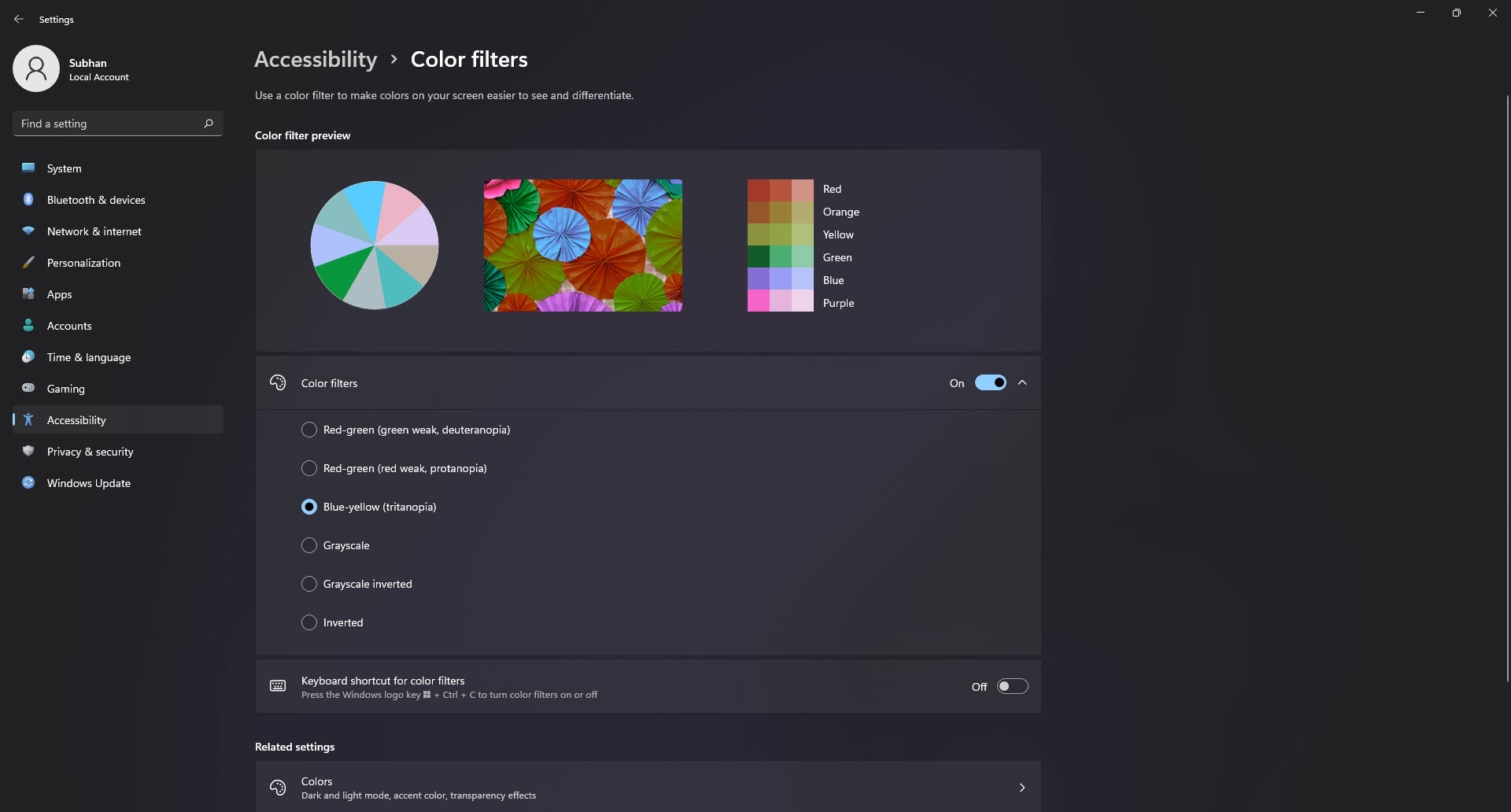
Color filters වලින් color blindness සහ eye strain වලට උදව් කරනවා.
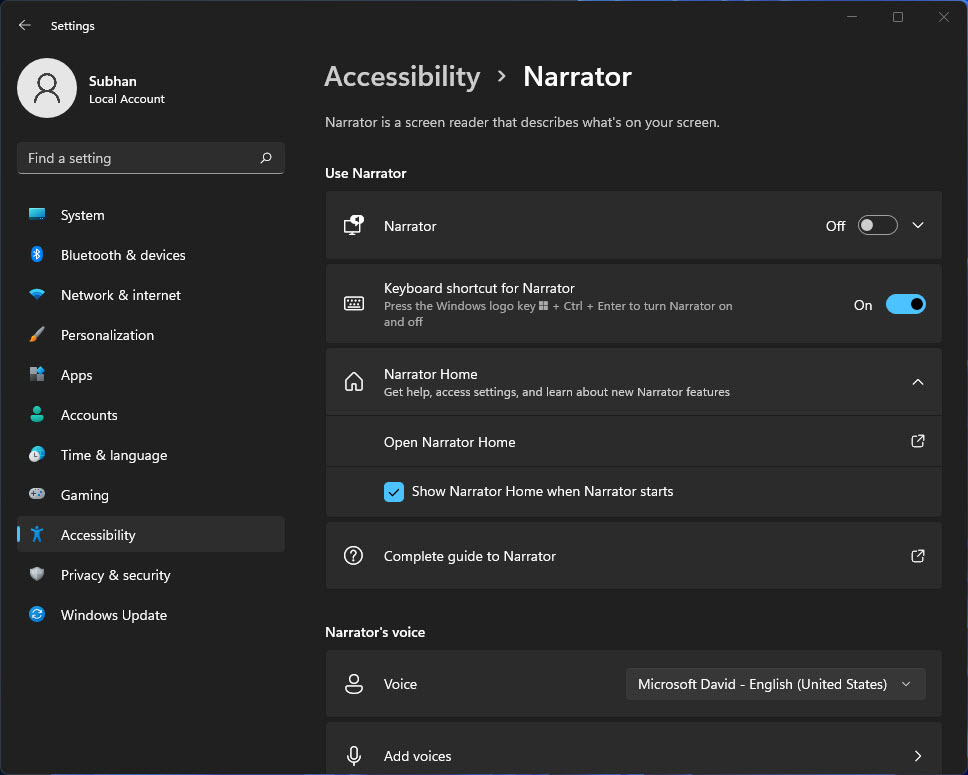
Narrator එකෙන් on-screen content හඬ නඟා කියවනවා.
Hearing
- Audio — channels දෙකම කන් දෙකේම වැයෙන්න mono audio on කරන්න, සහ system sounds adjust කරන්න.
- Captions — apps පුරාම කතා කරන audio එක text විදිහට display කරන්න live captions enable කරන්න.
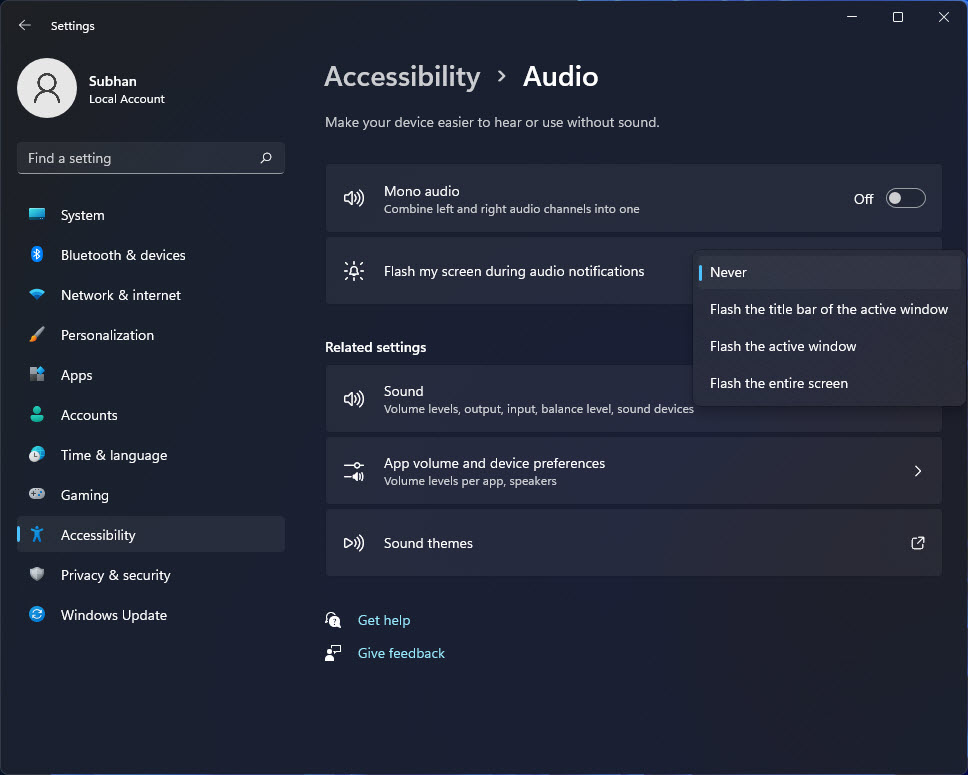
mono audio ඇතුළු Audio accessibility options.
Interaction
- Speech — voice typing (Windows key + H) සහ voice access පාවිච්චි කරලා PC එක හඬින් control කරන්න.
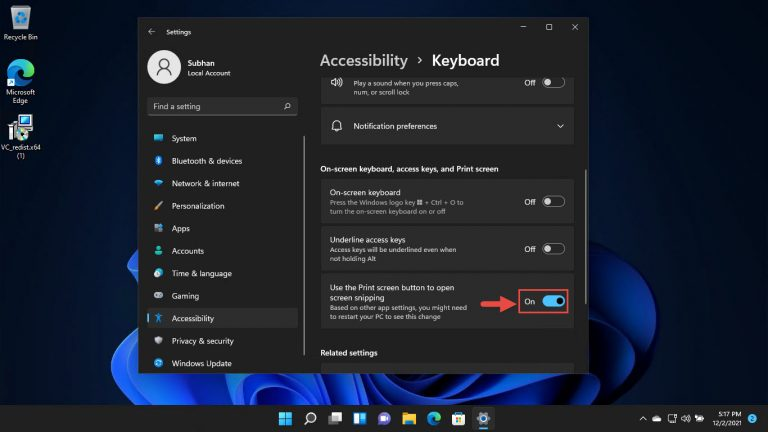
- Keyboard — Sticky Keys, Filter Keys, සහ on-screen keyboard enable කරන්න.
- Mouse — numeric keypad එකෙන් pointer එක control කරන්න (Mouse Keys) සහ pointer behavior adjust කරන්න.
- Eye control — support කරන eye-tracking device එකකින් PC එක operate කරන්න.
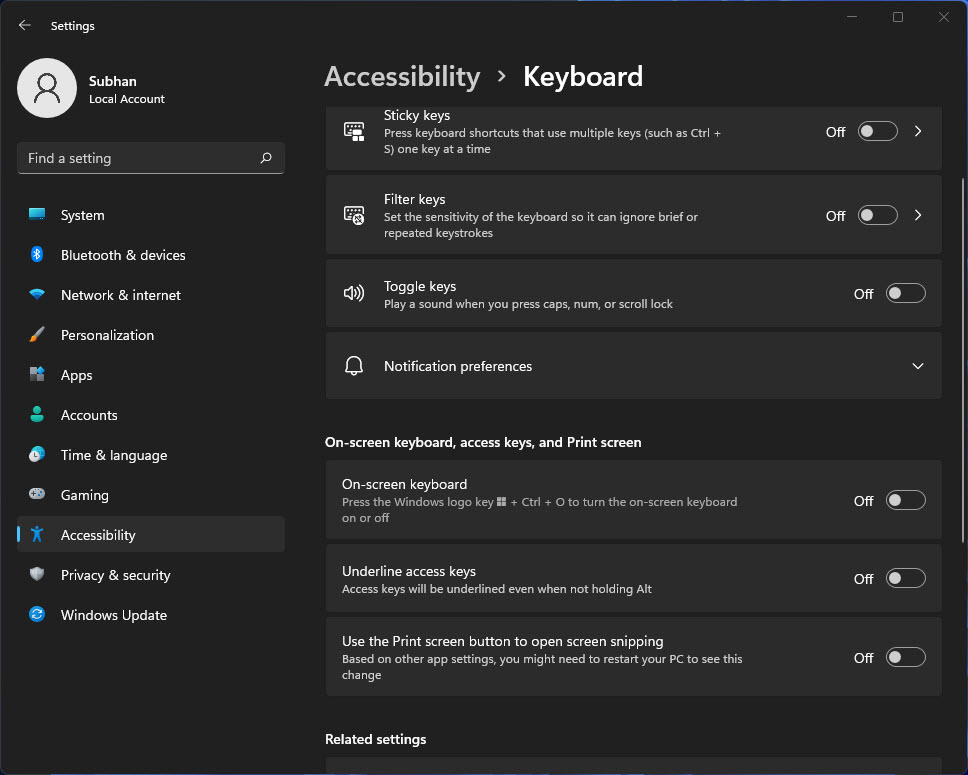
Sticky Keys වගේ Keyboard accessibility options.
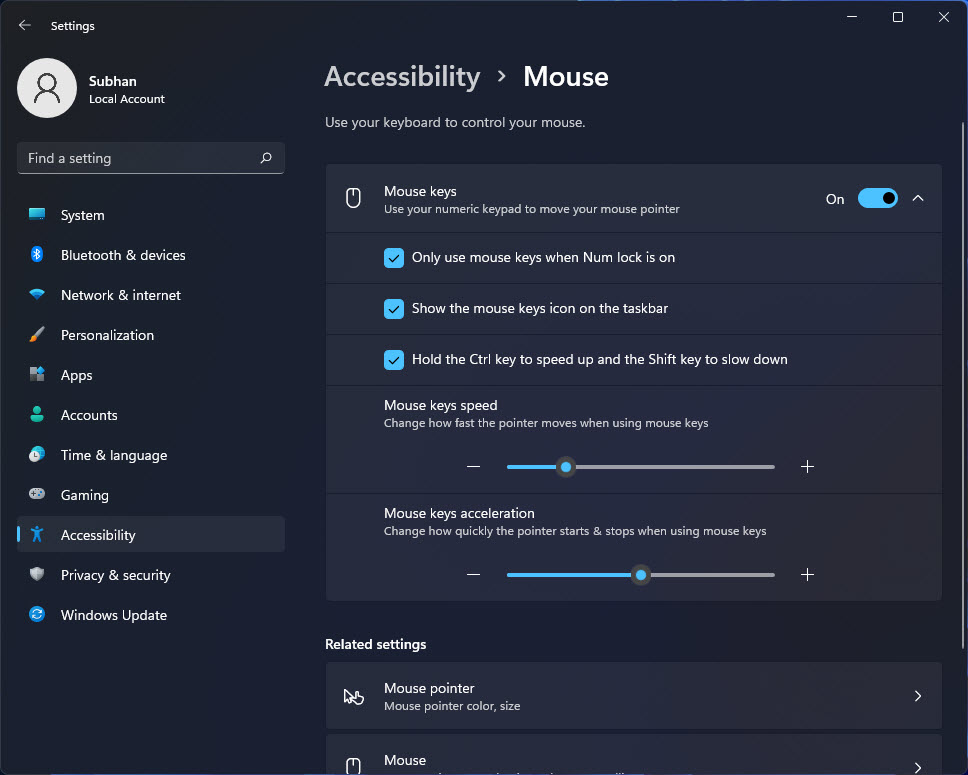
Mouse Keys ඇතුළු Mouse accessibility options.
Handy Accessibility Shortcuts
- Windows key + U — Accessibility settings open කරන්න.
- Windows key + Plus — Magnifier පටන් ගන්න (නවත්තන්න Windows key + Esc).
- Windows key + Ctrl + Enter — Narrator toggle කරන්න.
- Windows key + H — voice typing පටන් ගන්න.
Troubleshooting
Problem: Narrator හෝ Magnifier off වෙන්නේ නැහැ.
Solution: toggle shortcut එක ආයෙත් පාවිච්චි කරන්න (Narrator වලට Windows key + Ctrl + Enter; Magnifier වලට Windows key + Esc), නැත්නම් Settings > Accessibility එකේ off කරන්න.
Problem: Live captions පෙන්නන්නේ නැහැ.
Solution: ඒවා Accessibility > Captions එකේ enable කරන්න; පළමු වතාවට language pack එකක් download වෙන්න පුළුවන්, සහ audio play වෙන එකත් ඕන.
Problem: Text size වෙනස හැම තැනම apply වුණේ නැහැ.
Solution: සමහර legacy apps system text size එක නොසලකා හරිනවා. ඒවාට Magnifier හෝ per-app zoom පාවිච්චි කරන්න.
Problem: Voice typing වැඩ කරන්නේ නැහැ.
Solution: microphone එකක් connect කරලා Privacy settings වල allow කරලා තියෙනවා බවත්, speech service එකට online බවත් තහවුරු කරගන්න.
Conclusion
Windows 11 එකේ Accessibility settings වලින් PC එක බලන්න, අහන්න, සහ control කරන්න පහසු කරනවා. Vision, Hearing, සහ Interaction sections explore කරන්න, ඒවාට ඉක්මනින් යන්න Windows key + U කියන එක මතක තියාගන්න.
About TechHub
මේ guide එක TechHub Knowledge Base එකේ කොටසක්. තව step-by-step IT guides සහ support වලට techhub.com.lk එකට යන්න.