The Ultimate Guide to Keyboard Shortcuts for Windows 11 and 10
A handy reference of the most useful Windows, File Explorer, and browser keyboard shortcuts.
Overview
Keyboard shortcuts speed up everyday tasks in Windows. This reference collects the most useful shortcuts by category so you can work faster without reaching for the mouse.
Key Takeaways
- The Windows key powers many system shortcuts.
- General shortcuts (copy, paste, undo) work across apps.
- File Explorer and browser have their own shortcuts.
- Accessibility shortcuts help with Magnifier, Narrator, and more.
Most Useful Everyday Shortcuts
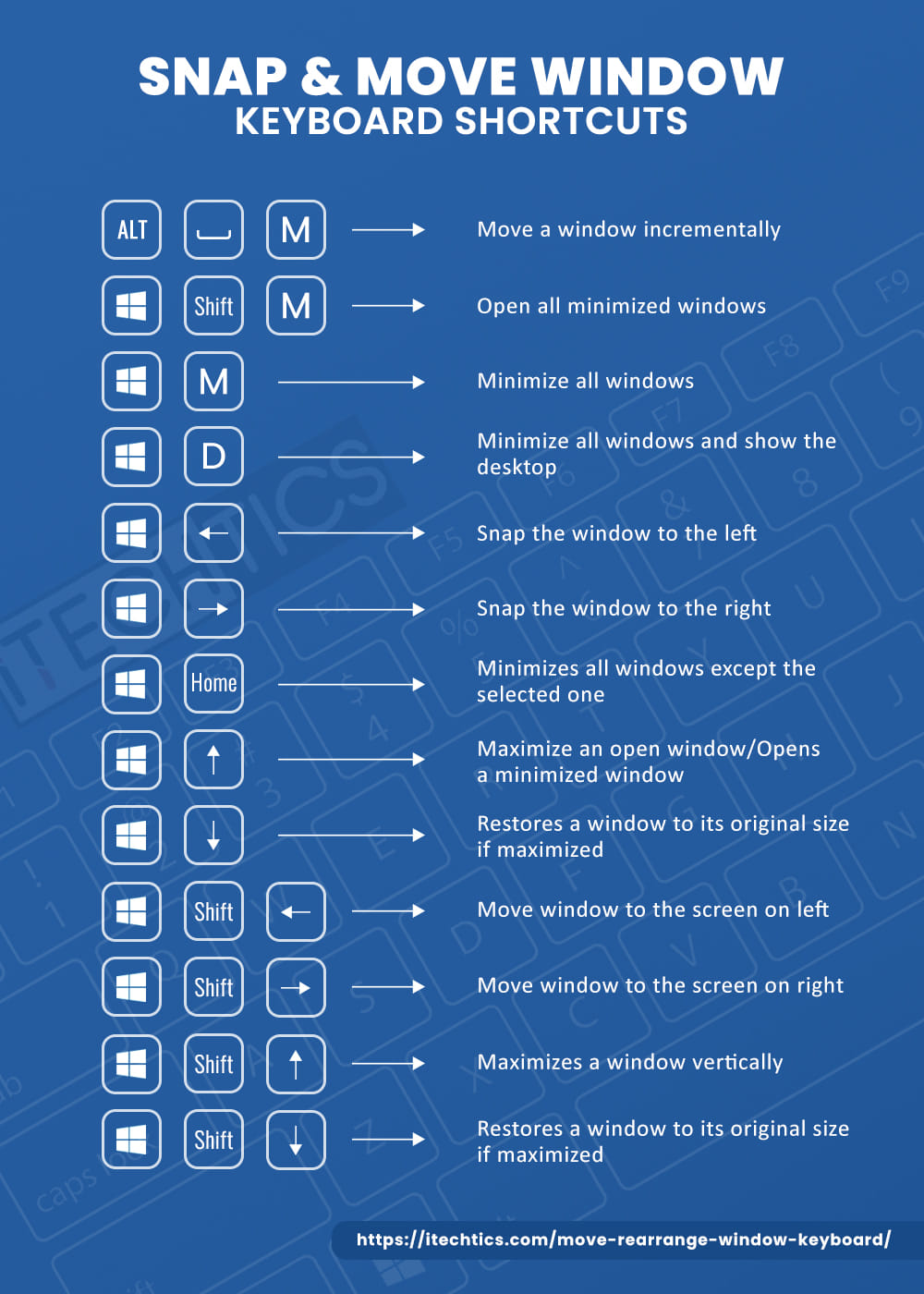
- Windows + D — show/hide the desktop.
- Windows + E — open File Explorer.
- Windows + L — lock the PC.
- Windows + I — open Settings.
- Alt + Tab — switch between open apps.
- Windows + Tab — open Task View.
General Shortcuts
- Ctrl + C / X / V — copy / cut / paste.
- Ctrl + Z / Ctrl + Y — undo / redo.
- Ctrl + A — select all.
- Ctrl + S — save.
- Ctrl + F — find.
- Alt + F4 — close the active app.
Windows Key Shortcuts
- Windows + number — open/switch to the pinned taskbar app in that position.
- Windows + Arrow keys — snap windows left/right/maximize/minimize.
- Windows + Shift + S — screenshot with Snipping Tool.
- Windows + V — clipboard history.
- Windows + . — emoji/symbol picker.
- Windows + Ctrl + D / Windows + Ctrl + Left/Right — create/switch virtual desktops.
File Explorer Shortcuts
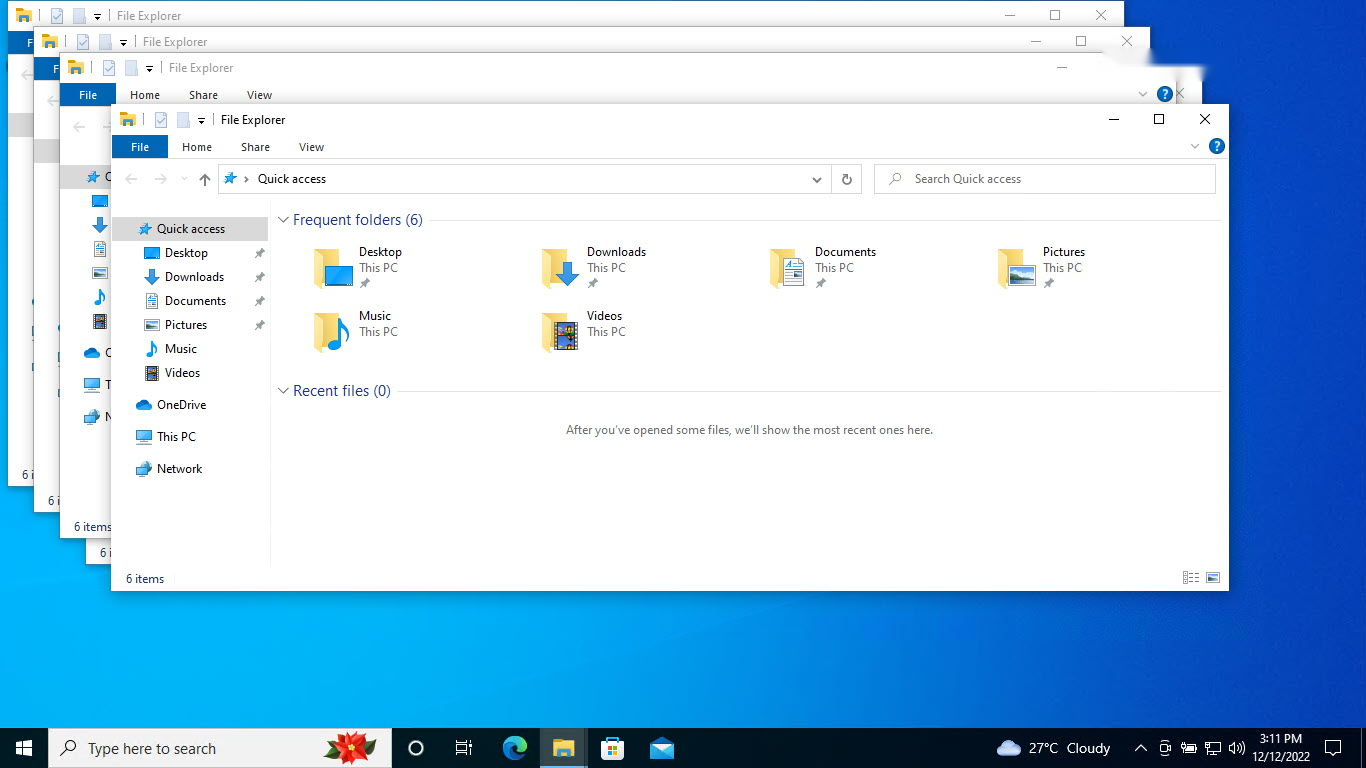
- Ctrl + N — open a new window.
- Ctrl + Shift + N — create a new folder.
- Alt + Up — go up one folder level.
- Alt + Left / Right — back / forward.
- F2 — rename the selected item.
- Ctrl + Shift + E — expand the folder tree to the current folder.
Command Prompt Shortcuts
- Ctrl + C — copy selection (or cancel a running command).
- Ctrl + V — paste.
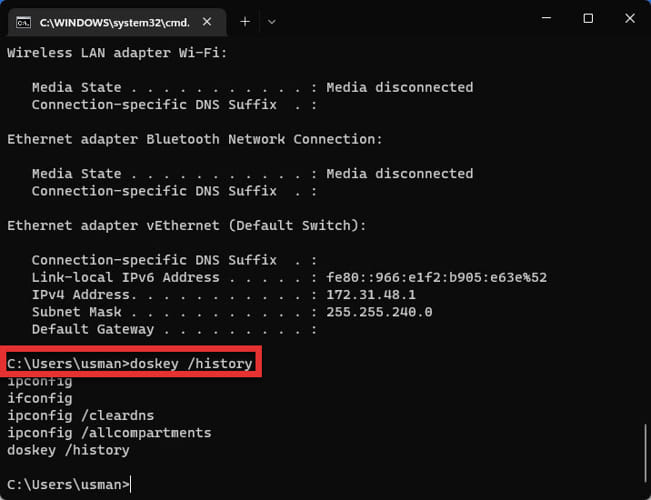
- Up / Down arrows — cycle command history.
- F7 — show the command history popup.
- Ctrl + M — enter mark mode for selecting text.
Browser (Microsoft Edge / Chrome) Shortcuts
- Ctrl + T / Ctrl + W — new tab / close tab.
- Ctrl + Shift + T — reopen the last closed tab.
- Ctrl + L — focus the address bar.
- Ctrl + Tab / Ctrl + Shift + Tab — next / previous tab.
- Ctrl + J — open Downloads.
- Ctrl + Shift + N — new InPrivate/Incognito window.
Accessibility Shortcuts
- Windows + Plus — open Magnifier / zoom in.
- Windows + Esc — close Magnifier.
- Windows + Ctrl + Enter — start Narrator.
- Windows + U — open Accessibility settings.
- Left Alt + Left Shift + Print Screen — toggle High Contrast.
Conclusion
Learning even a handful of these shortcuts — especially the Windows key combinations for window management and the general copy/paste/undo set — noticeably speeds up daily work. Keep this reference handy until they become second nature.