Overview
Adjusting screen brightness keeps your display comfortable and saves battery. Windows 11 offers several ways to change it, from keyboard keys to PowerShell, plus automatic options that adapt to battery level or on-screen content. This guide covers them all.
Windows 11 offers many ways to adjust screen brightness.
Key Takeaways
- The fastest way is the brightness slider in Quick Settings or the keyboard brightness keys.
- Desktop monitors use the monitor’s own OSD buttons, not the Windows slider.
- You can automate brightness for low battery and adaptive (content-based) modes.
- PowerShell can set brightness precisely, which is handy in scripts.
Method 1 — Keyboard Keys
1. Look for the brightness keys on your laptop keyboard (often on F-keys with a sun icon).
2. Press them directly, or hold the Fn key while pressing them, to raise or lower brightness.
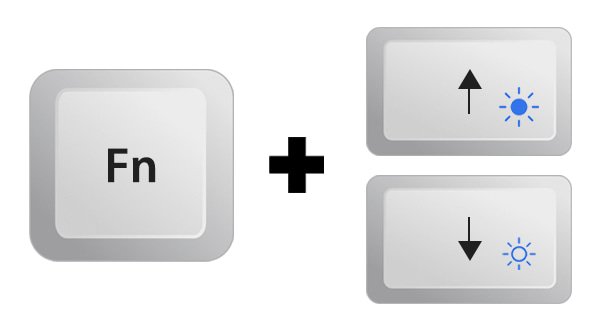
Most laptops have dedicated brightness keys.
Method 2 — Quick Settings
1. Click the network/volume/battery area in the taskbar to open Quick Settings.
2. Drag the brightness slider left or right.
Method 3 — Settings App
1. Open Settings > System > Display.
2. Under Brightness & color, drag the Brightness slider.
Method 4 — Windows Mobility Center
1. Press Windows key + X and choose Mobility Center (on laptops).
2. Use the Display brightness slider.
Method 5 — Monitor OSD (Desktops)
1. On a desktop monitor, use the physical buttons on the monitor to open its On-Screen Display (OSD) menu.
2. Find the Brightness setting and adjust it there — the Windows slider usually does not control external monitors.
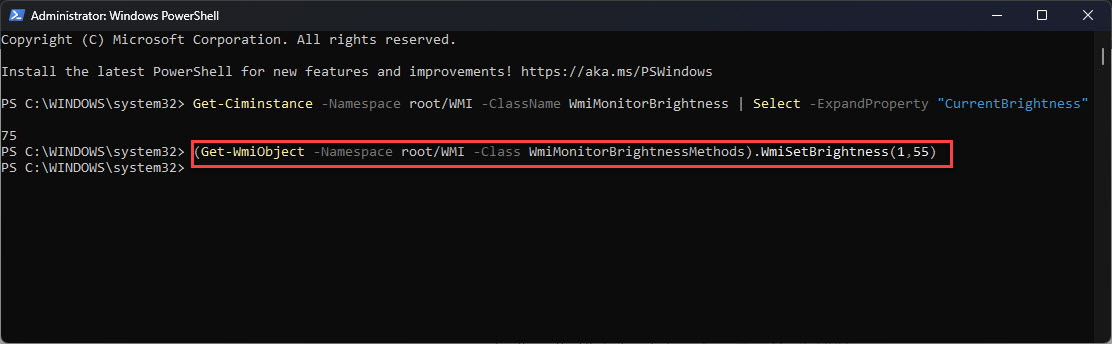
Method 6 — PowerShell
1. Open PowerShell.
2. Check the current level: (Get-WmiObject -Namespace root/WMI -Class WmiMonitorBrightness).CurrentBrightness
3. Set it (e.g. 50%): (Get-WmiObject -Namespace root/WMI -Class WmiMonitorBrightnessMethods).WmiSetBrightness(1,50)
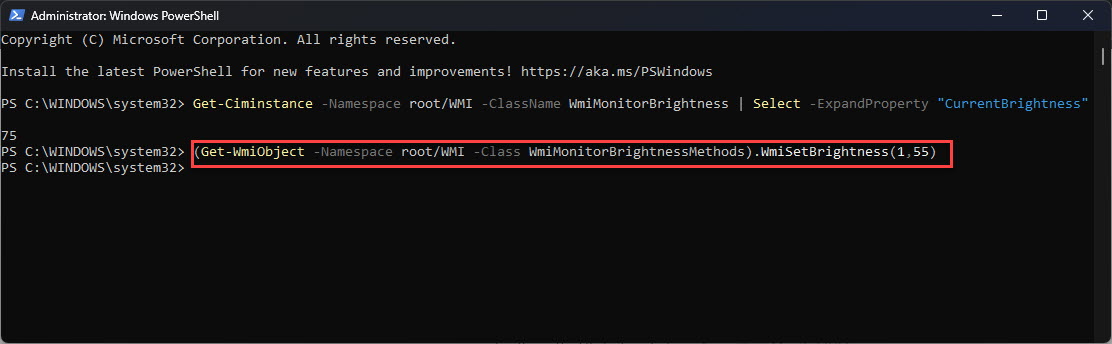
Set brightness precisely with PowerShell.
Automatic Brightness Options
- Lower brightness on battery — Settings > System > Power & battery > Battery saver can dim the screen when active.
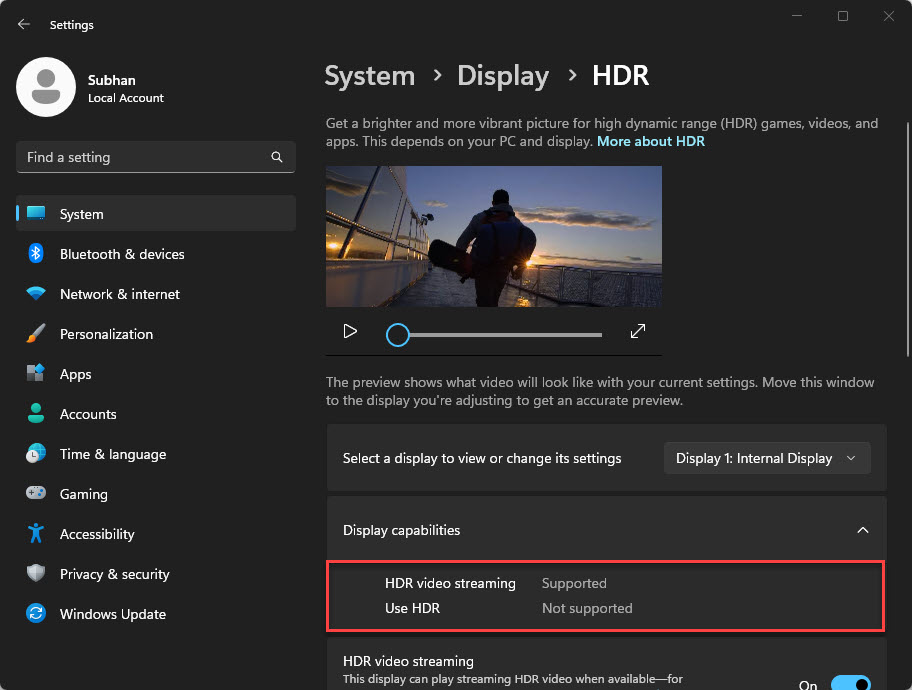
- Adaptive (content-based) brightness — Settings > System > Display > Brightness, enable "Change brightness based on content" if your display supports it.
- Ambient-light auto brightness — enable "Change brightness automatically when lighting changes" on devices with a light sensor.
Troubleshooting
Problem: The brightness slider is missing.
Solution: On desktops with external monitors, use the monitor’s OSD. On laptops, update the display driver in Device Manager if the slider is gone.
Problem: Brightness keys do not work.
Solution: Install your laptop’s keyboard/function-key software from the manufacturer, and update the display driver.
Problem: The screen dims on its own.
Solution: Turn off adaptive/content-based brightness and battery-saver dimming in Settings > System > Display and Power & battery.
Problem: PowerShell brightness command errors.
Solution: It works on laptops/integrated displays; many external monitors do not support WMI brightness control — use the OSD instead.
Conclusion
Windows 11 gives you plenty of ways to control brightness — Quick Settings and keyboard keys for speed, PowerShell for scripts, and automatic modes to balance comfort and battery. For external monitors, the monitor’s own OSD is the reliable control.
</w:pBdr><w:spacing w:before="220" w:after="40"/></w:pPr><w:r><w:rPr><w:b/><w:bCs/><w:color w:val="0B5394"/><w:sz w:val="21"/><w:szCs w:val="21"/><w:rFonts w:ascii="Calibri" w:cs="Calibri" w:eastAsia="Calibri" w:hAnsi="Calibri"/></w:rPr><w:t xml:space="preserve">About TechHub
This guide is part of the TechHub Knowledge Base. For more step-by-step IT guides and support, visit techhub.com.lk.