Overview
Reinstalling Windows or moving to a new PC means re-entering every Wi-Fi password — unless you back them up. This guide shows how to export and restore Wi-Fi profiles (including passwords) with the netsh command.
Backing up and restoring Wi-Fi profiles and passwords.
Warning: Exported profiles can contain Wi-Fi passwords in plain text. Store the backup files securely and delete them when no longer needed.
Key Takeaways
- netsh exports Wi-Fi profiles as XML (with keys).
- You can back up all profiles at once.
- Import them on another PC with a single command.
- Keep the exported files private — they hold passwords.
Back Up All Wi-Fi Profiles
1. Create a backup folder, e.g., C:\WiFiBackup.
2. Open Command Prompt as administrator.
3. Run: netsh wlan export profile key=clear folder="C:\WiFiBackup"
4. Each network is saved as an XML file (including the password).
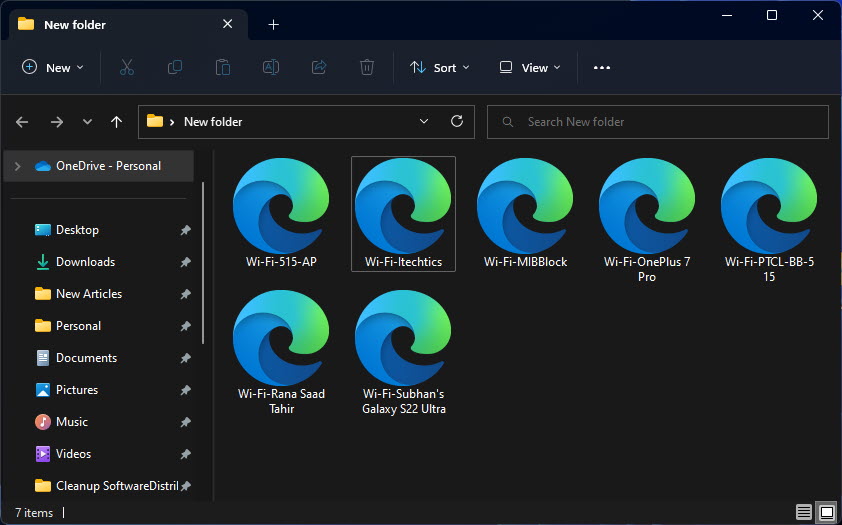
Exported XML files containing wireless profiles.
Back Up a Single Profile
1. List profiles: netsh wlan show profiles
2. Export one: netsh wlan export profile name="NetworkName" key=clear folder="C:\WiFiBackup"
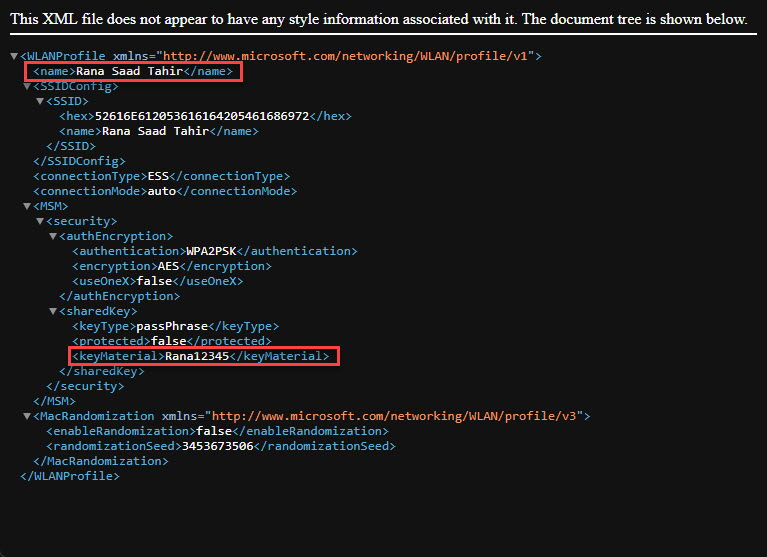
Wi-Fi details inside the exported XML file.
Restore Wi-Fi Profiles
1. Copy the XML files to the target PC.
2. Open Command Prompt as administrator.
3. Import one: netsh wlan add profile filename="C:\WiFiBackup\Wi-Fi-NetworkName.xml"
4. Repeat for each XML, or script a loop to import all.
Troubleshooting
Problem: Export says "no profiles".
Solution: Run the prompt as administrator and ensure the adapter has saved networks.
Problem: Password not in the XML.
Solution: Include key=clear during export to store the password in readable form.
Problem: Import fails.
Solution: Check the exact XML filename/path; add user=all to make the profile available to all users if needed.
Problem: Network not connecting after import.
Solution: Confirm the profile matches the SSID/security type and that the adapter is enabled.
Conclusion
The netsh wlan export/add commands make it easy to back up every saved Wi-Fi network (with passwords) and restore them on another PC. Just keep the exported XML files secure, since they contain your wireless passwords in plain text.
</w:pBdr><w:spacing w:before="220" w:after="40"/></w:pPr><w:r><w:rPr><w:b/><w:bCs/><w:color w:val="0B5394"/><w:sz w:val="21"/><w:szCs w:val="21"/><w:rFonts w:ascii="Calibri" w:cs="Calibri" w:eastAsia="Calibri" w:hAnsi="Calibri"/></w:rPr><w:t xml:space="preserve">About TechHub
This guide is part of the TechHub Knowledge Base. For more step-by-step IT guides and support, visit techhub.com.lk.