Overview
HDR (High Dynamic Range) delivers brighter highlights and richer colour, but it needs calibration to look its best. This guide shows how to confirm HDR support, enable it in Windows 11, and calibrate it with Microsoft’s HDR Calibration app.
Calibrate your HDR display for the best image.
Key Takeaways
- HDR needs a compatible display and Windows 11 support.
- Enable HDR in Settings > System > Display.
- The free Windows HDR Calibration app fine-tunes the image.
- Calibration sets black level, peak brightness, and colour saturation.
Check if HDR Is Supported
1. Open Settings > System > Display.
2. Click "HDR".
3. Select your monitor and review the "Display capabilities" section.
4. It will indicate whether HDR (and HDR video streaming) is supported.
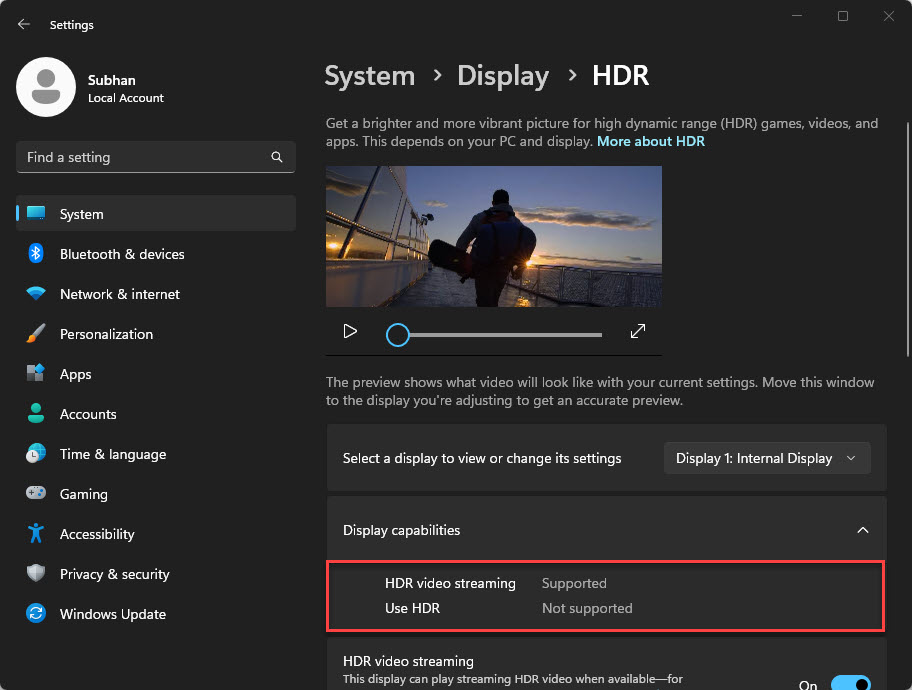
Check whether HDR is supported.
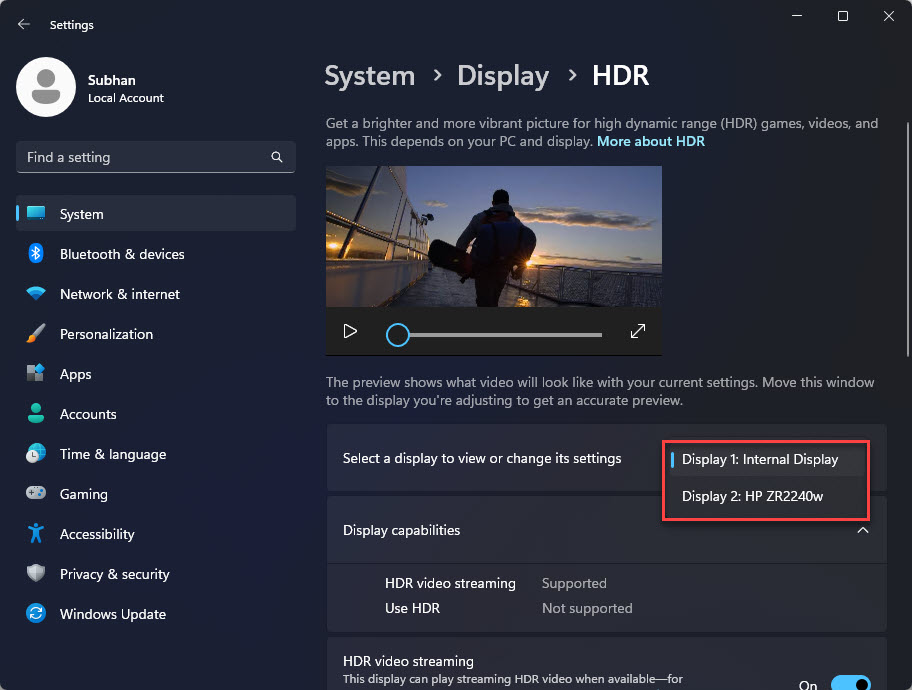
Select your monitor to view HDR capabilities.
Enable HDR
1. In Settings > System > Display > HDR, turn on "Use HDR".
2. Optionally enable "HDR video streaming".
3. Adjust the SDR content brightness slider so non-HDR content looks right.
Calibrate with the Windows HDR Calibration App
Note: Install the "Windows HDR Calibration" app only from the official Microsoft Store.
1. Install "Windows HDR Calibration" from the Microsoft Store and open it.
2. Move the window onto the HDR display and click Get started.
3. Follow the three test patterns: set the point where detail disappears in darks, in brights, and peak brightness.
4. Adjust the colour saturation slider to taste.
5. Save the calibration as a colour profile, which Windows applies automatically.
Calibrate with the Built-in Tool
1. Search for "Calibrate display colour" in the Start menu (dccw).
2. Follow the wizard for gamma, brightness, contrast, and colour balance.
3. Use this for SDR fine-tuning alongside the HDR app.
Troubleshooting
Problem: Can’t enable HDR.
Solution: Confirm the display, cable (HDMI 2.0/DisplayPort 1.4+), and GPU support HDR, and update the graphics driver.
Problem: HDR looks washed out.
Solution: Run the HDR Calibration app and adjust the SDR brightness slider; some content is SDR and appears flatter.
Problem: Colours look oversaturated.
Solution: Lower the saturation slider in the calibration app and reapply the profile.
Problem: HDR toggle is missing.
Solution: Your display or GPU likely doesn’t support HDR, or the driver needs updating.
Conclusion
Once you’ve confirmed support and enabled HDR, the Windows HDR Calibration app is the quickest way to get accurate blacks, bright highlights, and balanced colour. Save the profile and Windows keeps your display looking its best.
</w:pBdr><w:spacing w:before="220" w:after="40"/></w:pPr><w:r><w:rPr><w:b/><w:bCs/><w:color w:val="0B5394"/><w:sz w:val="21"/><w:szCs w:val="21"/><w:rFonts w:ascii="Calibri" w:cs="Calibri" w:eastAsia="Calibri" w:hAnsi="Calibri"/></w:rPr><w:t xml:space="preserve">About TechHub
This guide is part of the TechHub Knowledge Base. For more step-by-step IT guides and support, visit techhub.com.lk.