Overview
Windows එකෙන් සෑම network එකකටම profile එකක් — Public, Private, නැත්නම් Domain — assign කරනවා. මේකෙන් තමයි ඒ network එකේ ඔබේ PC එක කොච්චර discoverable සහ shareable ද කියලා control කරන්නේ. නිවැරදි type එක set කරන එක security එකටත්, file sharing වගේ features වලටත් වැදගත්. මේ guide එකෙන් network types පැහැදිලි කරලා, ඒවා වෙනස් කරන ක්රම හතරක් පෙන්නනවා.
ඔබේ network type එක switch කරාම PC එක share වෙන සහ discover වෙන විදිහ වෙනස් වෙනවා.
Key Takeaways
- Public එකෙන් ඔබේ PC එක hide කරනවා, untrusted networks වල මේක ආරක්ෂිතම; Private එකෙන් home/work වල sharing සහ discovery ඉඩ දෙනවා.
- Domain එක organisation එකක domain එකට join වුණාම automatically assign වෙනවා.
- Public සහ Private අතර switch කරන්න ලේසිම ක්රමය Settings app එක.
- PowerShell, Local Security Policy, සහ Registry එකෙන් විකල්ප ක්රම ලබා දෙනවා.
Network Types Explained
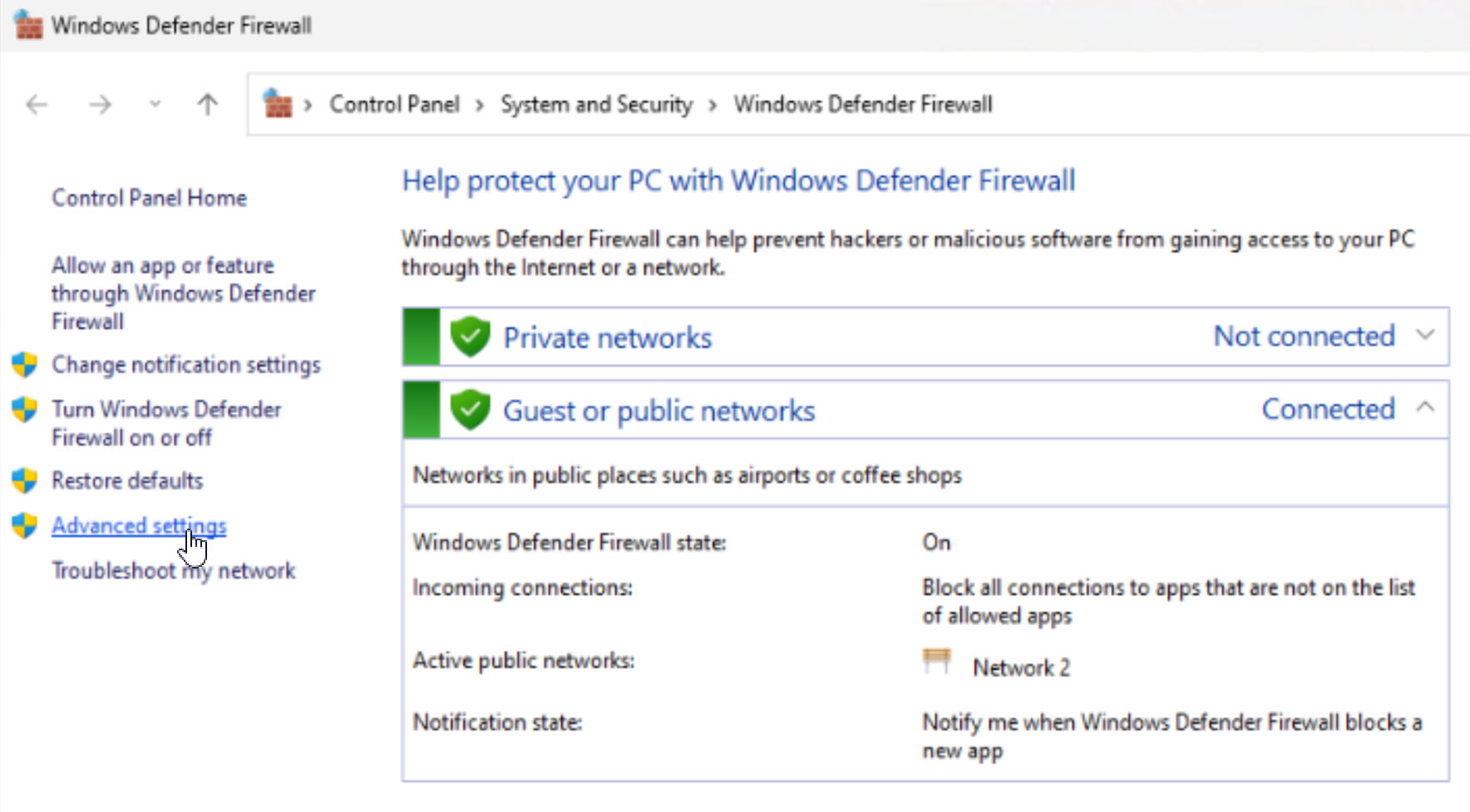
- Public — ඔබේ PC එක අනිත් devices වලින් hide වෙනවා; cafés, airports, සහ අනිත් untrusted networks වලට හොඳම.
- Private — ඔබේ PC එක discoverable වෙනවා සහ files/printers share කරන්න පුළුවන්; home එකේ නැත්නම් trusted office එකක පාවිච්චි කරන්න.
- Domain — PC එක corporate domain එකකට join වුණාම Windows එකෙන් automatically apply කරනවා.
Check Your Current Network Type
1. Settings > Network & Internet open කරන්න.
2. ඔබේ active connection එක (Wi-Fi නැත්නම් Ethernet) click කරන්න.
3. network profile එක (Public නැත්නම් Private) උඩින්ම පෙන්නනවා.
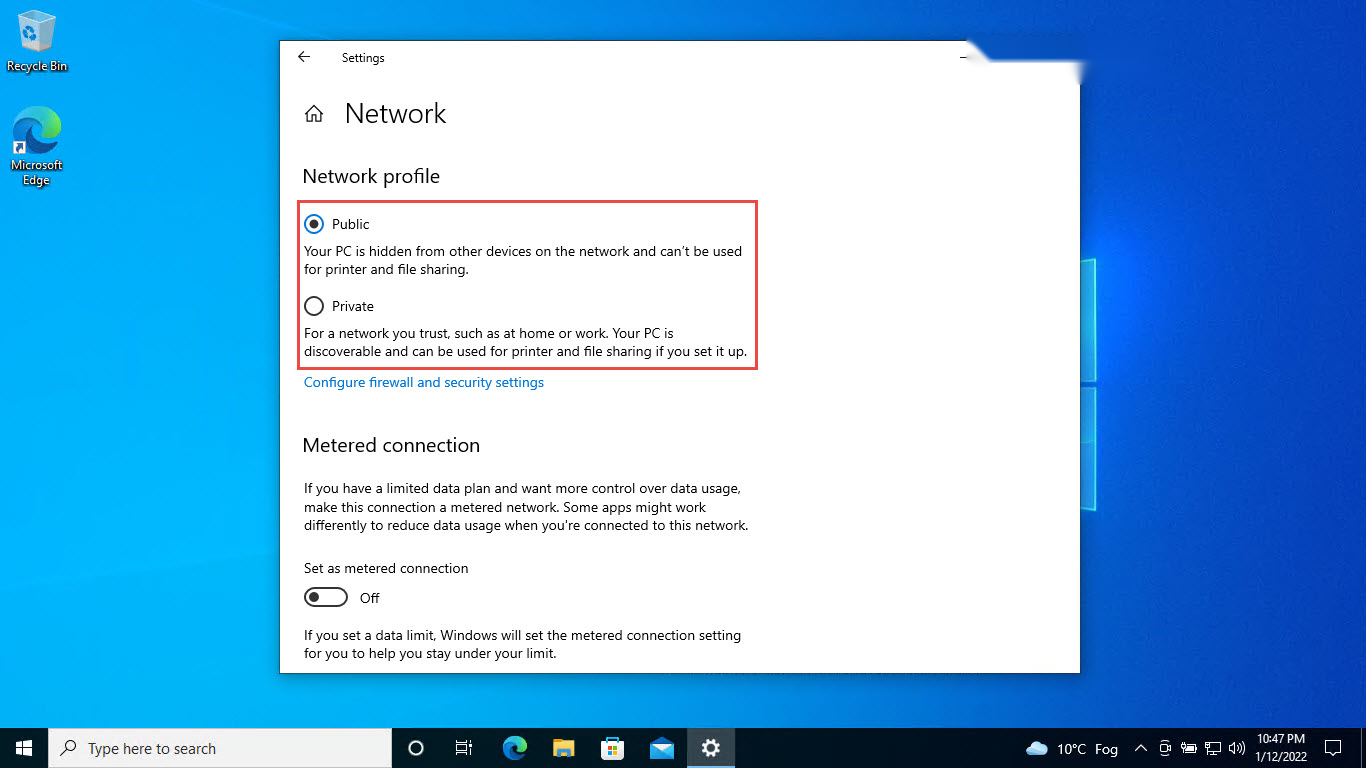
ඔබේ දැනට තියෙන network profile එක network settings වල පෙන්නනවා.
Method 1 — Settings App
1. Settings > Network & Internet open කරන්න.
2. ඔබේ active Wi-Fi නැත්නම් Ethernet connection එක තෝරන්න.
3. Network profile type එක යටතේ Public නැත්නම් Private තෝරන්න.
Method 2 — PowerShell
1. Start එක right-click කරලා Windows PowerShell (Admin) open කරන්න.
2. Get-NetConnectionProfile run කරලා ඔබේ connection එකේ name එකයි දැනට තියෙන category එකයි බලන්න.
3. මේක run කරන්න: Set-NetConnectionProfile -InterfaceAlias "Wi-Fi" -NetworkCategory Private (alias එකයි category එකයි අවශ්ය පරිදි replace කරන්න).
Method 3 — Local Security Policy
1. Windows key + R press කරලා, secpol.msc type කරලා, Enter press කරන්න (Pro/Enterprise editions).
2. Network List Manager Policies එකට යන්න.
3. ඔබේ network name එක double-click කරලා, Network Location tab එක open කරලා, Location type එක set කරලා, OK click කරන්න.
Method 4 — Windows Registry
Warning: edit කරන්න කලින් registry එක back up කරන්න (File > Export).
1. regedit open කරලා HKEY_LOCAL_MACHINE\SOFTWARE\Microsoft\Windows NT\CurrentVersion\NetworkList\Profiles එකට යන්න.
2. ඔබේ network එකේ profile subkey එක හොයාගන්න (ProfileName value එක බලන්න).
3. Category value එක set කරන්න: 0 = Public, 1 = Private, 2 = Domain.
4. apply වෙන්න restart කරන්න නැත්නම් ආයෙත් connect කරන්න.
Which Type Should You Use?
- home නැත්නම් trusted office networks වල, sharing සහ discovery enable කරන්න Private තෝරන්න.
- public නැත්නම් unknown networks වල, ශක්තිමත්ම protection එකට Public තෝරන්න.
- Domain එක Windows එකට තියන්න — managed networks වල ඒක automatically apply වෙනවා.
Troubleshooting
Problem: Settings වල profile option එක නැහැ.
Solution: ඔබ නිශ්චිත active connection එකට ඇතුළු වුණාද කියලා තහවුරු කරගන්න. layout එක මේ steps වලට වඩා වෙනස් නම් Windows update කරන්න.
Problem: File sharing වැඩ කරන්නේ නැහැ.
Solution: network එක Private කරලා, ඊට පස්සේ Advanced sharing settings වල Network discovery සහ File and printer sharing enable කරන්න.
Problem: PowerShell වල වැරදි interface එකක් පෙන්නනවා.
Solution: මුලින්ම Get-NetConnectionProfile run කරලා නිවැරදි InterfaceAlias එක ගන්න, ඊට පස්සේ ඒක Set command එකේ පාවිච්චි කරන්න.
Problem: ආයෙත් connect වුණාම type එක revert වෙනවා.
Solution: සමහර networks profile එක reset කරනවා. ආයෙත් set කරන්න, සහ managed network එකක නිතරම වෙනස් වෙනවා නම් Local Security Policy එක බලන්න.
Conclusion
නිවැරදි network type එක තෝරාගැනීමෙන් public networks වල ඔබ ආරක්ෂිතව තියාගන්නවා, සහ trusted ඒවා වල sharing enable කරනවා. බොහෝ අවස්ථා Settings app එකෙන් handle කරනවා; automation නැත්නම් central control ඕන වුණාම PowerShell සහ policy tools උදව් වෙනවා.
About TechHub
මේ guide එක TechHub Knowledge Base එකේ කොටසක්. තව step-by-step IT guides සහ support වලට techhub.com.lk එකට යන්න.