Overview
වැඩ ගොඩක් — software install කරන එක, system settings වෙනස් කරන එක, elevated commands run කරන එක — administrator rights ඕන කරනවා. action එකක් block වුණොත්, ඔයාගේ account එක administrator ද standard user ද කියලා confirm කරගන්න එක උදව් වෙනවා. මේ guide එකෙන් check කරන්න ක්රම පහක් පෙන්නනවා.
ඔයාගේ account එකට administrator rights තියෙනවද කියලා confirm කරගන්න.
Key Takeaways
- Administrators ට software install කරන්නත් ඕන system setting එකක් වෙනස් කරන්නත් පුළුවන්; standard users ට බැහැ.
- Settings සහ Control Panel එකෙන් ඔයාගේ account type එක එක බැල්මට පේනවා.
- Command Prompt සහ PowerShell වලින් Administrators group එකේ membership එක confirm කරන්න පුළුවන්.
- වෙන account එකකට admin rights දෙන්න ඔයාට admin account එකක් ඕන.
Method 1 — Settings App
1. Settings > Accounts > Your info open කරන්න.
2. ඔයාගේ නම යටතේ, account එකට admin rights තියෙනවා නම් "Administrator" කියලා පෙන්නනවා.
3. අනිත් accounts Settings > Accounts > Other users යටතේ බලන්න.
ඔයාගේ account type එක Settings > Accounts වල පෙන්නනවා.
Method 2 — Control Panel
1. Windows key + R press කරලා, control type කරලා, Enter press කරන්න.
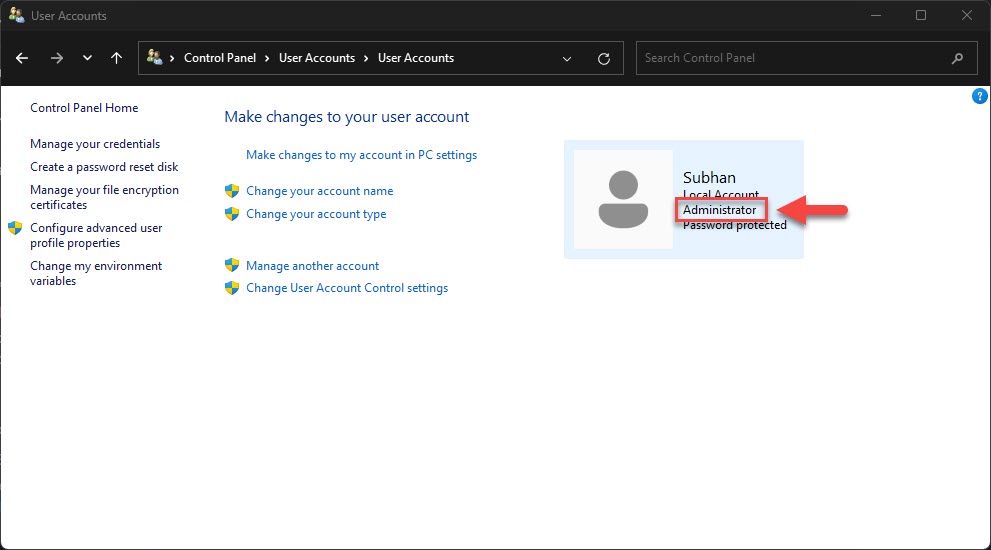
2. User Accounts > User Accounts වලට යන්න.
3. ඔයාගේ account type එක (Administrator හෝ Standard) ඔයාගේ නම ළඟ පෙන්නනවා.
Method 3 — Local Users and Groups
1. Windows key + R press කරලා, lusrmgr.msc type කරලා, Enter press කරන්න (Pro/Enterprise).
2. Groups open කරලා Administrators double-click කරන්න.
3. ඔයාගේ user name එක list වෙලා තියෙනවා නම්, account එකට admin rights තියෙනවා.
Local Users and Groups වල Administrators group membership එක check කරන්න.
Method 4 — Command Prompt
1. Command Prompt open කරන්න.
2. මේක run කරන්න: net localgroup administrators — මේකෙන් හැම admin account එකක්ම list කරනවා.
3. නැත්නම් ඔයාගේ account එක කෙලින්ම check කරන්න: net user "YourUserName" කරලා Local Group Memberships line එක බලන්න.
Method 5 — PowerShell
1. PowerShell open කරන්න.
2. මේක run කරන්න: Get-LocalGroupMember -Group "Administrators"
3. admin rights confirm කරගන්න list එකේ ඔයාගේ account එක හොයන්න.
Troubleshooting
Problem: lusrmgr.msc available නැහැ.
Solution: ඒක තියෙන්නේ Pro/Enterprise editions වල විතරයි. Home එකේ, ඒ වෙනුවට Command Prompt හෝ PowerShell method එක පාවිච්චි කරන්න.
Problem: admin වුණත් task එකක් block වෙනවා.
Solution: තවත් elevate කරන්න ඕන වෙන්න පුළුවන් — program එක right-click කරලා Run as administrator තෝරලා, UAC prompt එක approve කරන්න.
Problem: ඔයාට admin rights ඕන ඒත් නැහැ.
Solution: PC එකේ administrator කෙනෙකුගෙන් ඔයාගේ account type එක Administrator කරන්න කියන්න (Settings > Accounts > Other users).
Problem: net user වලින් වැදගත් දෙයක් පෙන්නන්නේ නැහැ.
Solution: කවුද admin කියලා හරියටම බලන්න net localgroup administrators හෝ Get-LocalGroupMember Administrators පාවිච්චි කරන්න.
Conclusion
ඔයාගේ account type එක confirm කරගන්න තත්පර කිහිපයයි යන්නේ. ඉක්මන් check එකකට Settings සහ Control Panel ලේසිම, Command Prompt සහ PowerShell වලින් Administrators group එකට අයිති කවුද කියලා විශ්වාසවන්තව පෙන්නනවා.
About TechHub
මේ guide එක TechHub Knowledge Base එකේ කොටසක්. තව step-by-step IT guides සහ support වලට techhub.com.lk එකට යන්න.