Overview
If your internet feels slow or your data is draining, a background download may be the cause. This guide shows how to find what’s downloading using Task Manager, Resource Monitor, Windows Update, and your browser.
Check what’s downloading in the background.
Key Takeaways
- Task Manager shows per-app network usage.
- Resource Monitor reveals exact connections and processes.
- Windows Update and the Store often download in the background.
- Browsers keep a Downloads page for active and recent transfers.
Method 1: Task Manager
1. Open Task Manager (Ctrl + Shift + Esc) and click the Processes tab.
2. Click the Network column to sort by network usage.
3. Identify which app is consuming bandwidth.
4. Use the App history tab for cumulative network use per app.
Method 2: Resource Monitor
1. Press Windows + R, type resmon, and press Enter.
2. Open the Network tab.
3. Expand "Processes with Network Activity" to see live send/receive rates.
4. Check "TCP Connections" to see remote addresses.
Method 3: Windows Update and Store
1. Open Settings > Windows Update to see if updates are downloading.
2. Open the Microsoft Store > Library > Get updates to check app downloads.
3. Pause updates temporarily if you need the bandwidth.
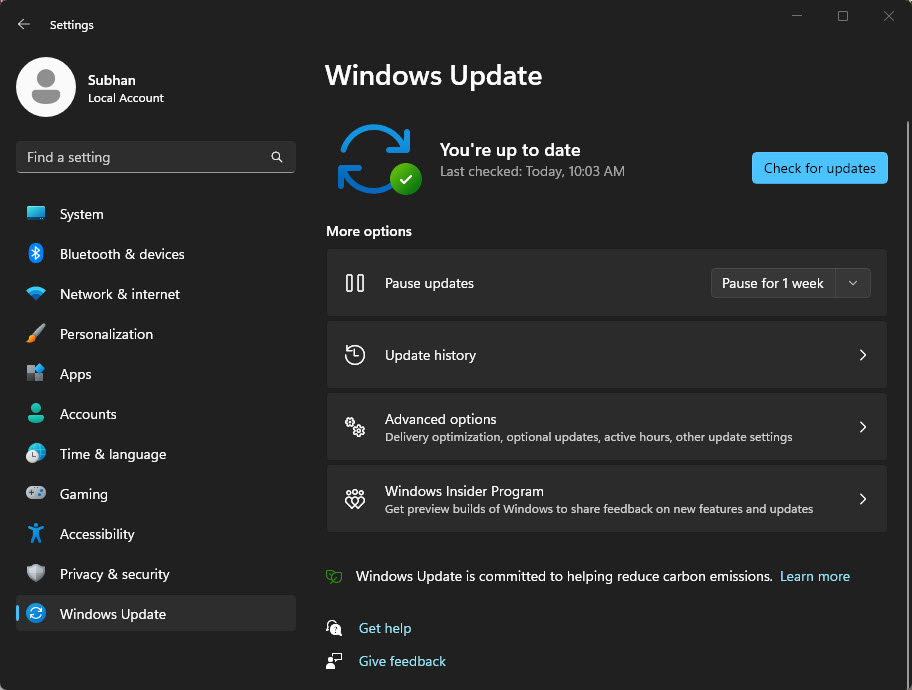
Check whether Windows Update is downloading.
Method 4: Browser Downloads
1. In your browser, press Ctrl + J to open the Downloads page.
2. Review active and recent downloads.
3. Cancel anything you didn’t start.
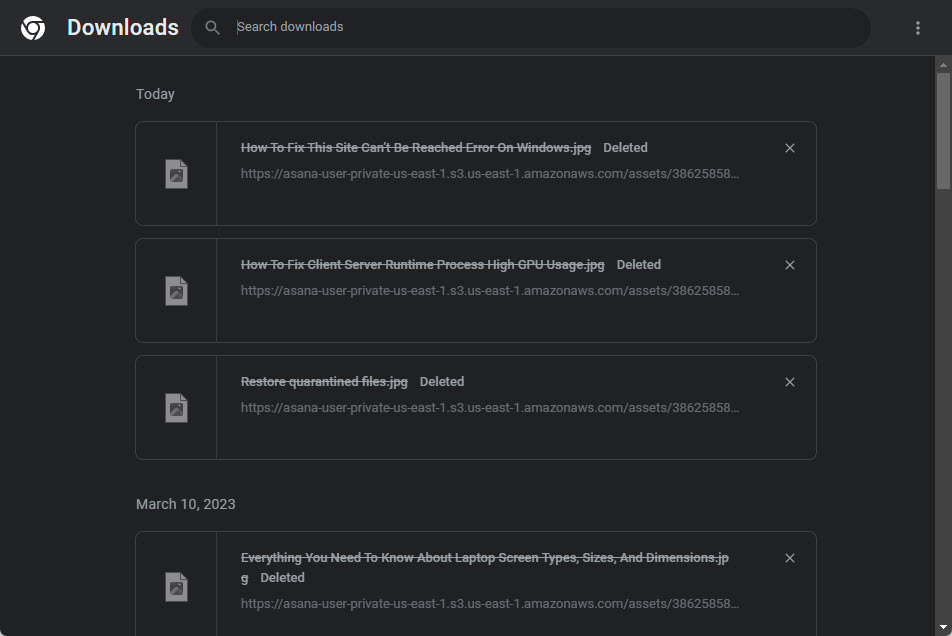
The Downloads page in a browser.
Troubleshooting
Problem: High usage but no obvious app.
Solution: Use Resource Monitor to match the process, then look it up; it’s often svchost (Windows Update/Delivery Optimization).
Problem: Delivery Optimization using bandwidth.
Solution: In Settings > Windows Update > Advanced > Delivery Optimization, limit or disable downloads from other PCs.
Problem: Unknown process downloading.
Solution: Note the process name and remote address; scan with Windows Security if it looks suspicious.
Problem: Browser keeps downloading.
Solution: Check for a stuck download or an extension; disable suspicious extensions.
Conclusion
Between Task Manager, Resource Monitor, Windows Update, and your browser’s Downloads page, you can quickly pinpoint what’s using your connection in the background — and pause or cancel it to reclaim bandwidth.
</w:pBdr><w:spacing w:before="220" w:after="40"/></w:pPr><w:r><w:rPr><w:b/><w:bCs/><w:color w:val="0B5394"/><w:sz w:val="21"/><w:szCs w:val="21"/><w:rFonts w:ascii="Calibri" w:cs="Calibri" w:eastAsia="Calibri" w:hAnsi="Calibri"/></w:rPr><w:t xml:space="preserve">About TechHub
This guide is part of the TechHub Knowledge Base. For more step-by-step IT guides and support, visit techhub.com.lk.