Overview
Windows 11 has stricter hardware requirements than Windows 10 — including TPM 2.0 and Secure Boot. This guide shows how to verify compatibility using Microsoft’s official PC Health Check app and how to check each requirement manually.
Windows 11 system requirements.
Key Takeaways
- PC Health Check is Microsoft’s official compatibility tool.
- Key requirements: TPM 2.0, Secure Boot, a supported 64-bit CPU, 4 GB RAM, 64 GB storage.
- You can verify each requirement manually in Windows.
- Prefer the official tool over third-party checkers for accuracy.
Use the Official PC Health Check App
Warning: Download PC Health Check only from Microsoft’s official website to avoid fake or bundled installers.
1. Download "PC Health Check" from Microsoft’s official site and install it.
2. Open the app and click "Check now" under the Windows 11 section.
3. Read the result — it shows whether your PC meets the requirements.
4. If it fails, click "See all results" to see which specific requirement is unmet.
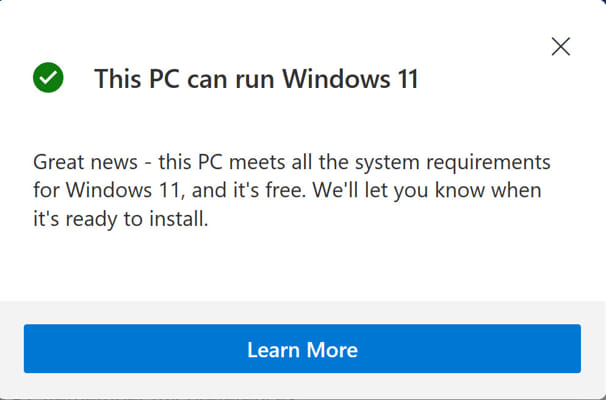
A compatible system passes the check.
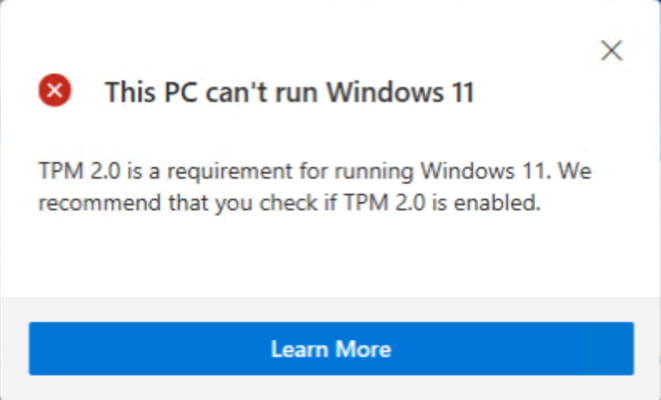
An incompatible system shows the failing requirement.
Verify Requirements Manually
Processor
1. Open Settings > System > About and note the CPU.
2. Confirm it’s 64-bit, 1 GHz+, 2+ cores, and on Microsoft’s supported CPU list.
TPM and Firmware (Secure Boot)
1. Press Windows + R, type tpm.msc, and press Enter to confirm TPM 2.0 is present and ready.
2. Run msinfo32 and check "Secure Boot State" is On and "BIOS Mode" is UEFI.
RAM and Storage
1. In Settings > System > About, confirm at least 4 GB RAM.
2. In Settings > System > Storage, confirm at least 64 GB total capacity.
Graphics and Display
1. Ensure the GPU supports DirectX 12 / WDDM 2.0.
2. Confirm the display is 720p or higher, 9"+ diagonal, 8 bits per colour channel.
Troubleshooting
Problem: TPM 2.0 not detected.
Solution: Enable it in UEFI/BIOS (often labelled PTT for Intel or fTPM for AMD); it’s frequently disabled by default.
Problem: Secure Boot is off.
Solution: Enable Secure Boot in UEFI; ensure the disk uses GPT/UEFI rather than legacy MBR.
Problem: CPU listed as unsupported.
Solution: Microsoft’s list excludes older CPUs; check for a firmware update, but unsupported CPUs may not officially qualify.
Problem: PC Health Check won’t install.
Solution: Download the latest version from Microsoft and run as administrator.
Conclusion
The fastest way to confirm Windows 11 compatibility is Microsoft’s PC Health Check app, backed up by manual checks of TPM, Secure Boot, CPU, RAM, and storage. If a check fails, the most common fix is enabling TPM and Secure Boot in your UEFI firmware.
</w:pBdr><w:spacing w:before="220" w:after="40"/></w:pPr><w:r><w:rPr><w:b/><w:bCs/><w:color w:val="0B5394"/><w:sz w:val="21"/><w:szCs w:val="21"/><w:rFonts w:ascii="Calibri" w:cs="Calibri" w:eastAsia="Calibri" w:hAnsi="Calibri"/></w:rPr><w:t xml:space="preserve">About TechHub
This guide is part of the TechHub Knowledge Base. For more step-by-step IT guides and support, visit techhub.com.lk.