Overview
Proxy server එකක් කියන්නේ ඔබේ internet traffic එක අතරමැදි server එකක් හරහා යවන දෙයක්. සමහර network වල මේක ප්රයෝජනවත් වුණත්, වැරදියට configure කරලා තිබුණොත් හෝ malware එකකින් ඉතුරු වෙලා තිබුණොත් sites block වෙන්න, browsing එක slow වෙන්න, නැත්නම් connection errors එන්න පුළුවන්. මේ guide එකෙන් Windows එකේ proxy එකක් disable කරලා ඔබේ device එක ආයෙත් කෙළින්ම internet එකට connect කරගන්න විශ්වාසනීය ක්රම කිහිපයක් පෙන්නනවා.
Key Takeaways
- Proxy settings තියෙන්නේ Settings > Network & Internet > Proxy යටතේ.
- Automatic (script) සහ manual proxy options දෙකම off කරන්න ඕන.
- Settings toggle එක lock වෙලා තියෙනකොට Registry සහ PowerShell ක්රම උදව් වෙනවා.
- අනපේක්ෂිත proxy එකක් කියන්නේ ඔබ set නොකළ software එකක ලකුණක් වෙන්න පුළුවන් — ඔබ එය set නොකළා නම් scan කරන්න.
Disable the Proxy in Windows Settings
1. Settings open කරන්න Windows + I press කරන්න.
2. Network & Internet එකට ගිහින්, Proxy select කරන්න.
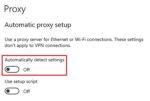
3. Automatic proxy setup යටතේ, Automatically detect settings සහ Use setup script off කරන්න.
4. Manual proxy setup යටතේ, Use a proxy server off කරලා Save click කරන්න.
5. වෙනස effect වුණාද කියලා confirm කරගන්න browser එක close කරලා ආයෙත් open කරන්න.
Windows එකේ Proxy settings page එක.
Disable the Proxy via Internet Options
1. Windows + R press කරලා, inetcpl.cpl type කරලා, Enter press කරන්න.
2. Connections tab එක open කරලා LAN settings click කරන්න.
3. Use a proxy server for your LAN checkbox එක clear කරන්න.
4. ඔබේ network එකට ඕන නම් Automatically detect settings check කරලා, ඊට පස්සේ OK click කරන්න.
Disable the Proxy with PowerShell
1. PowerShell එක Administrator විදිහට open කරන්න.
2. මේක run කරන්න: Set-ItemProperty -Path 'HKCU:\Software\Microsoft\Windows\CurrentVersion\Internet Settings' -Name ProxyEnable -Value 0.
3. මේක run කරන්න: Remove-ItemProperty -Path 'HKCU:\Software\Microsoft\Windows\CurrentVersion\Internet Settings' -Name ProxyServer -ErrorAction SilentlyContinue.
4. PowerShell close කරලා browser එක restart කරන්න.
Warning: Proxy එකක් නැවත නැවතත් තනියම on වෙනවා නම්, Windows Security හෝ Microsoft Defender එකෙන් full scan එකක් run කරන්න — දිගටම proxy වෙනස් වීම adware වල සුලභ රෝග ලක්ෂණයක්.
Troubleshooting
Problem: Proxy toggle එක greyed out වෙලා.
Solution: Group Policy එකක් හෝ workplace configuration එකක් ඒක control කරනවා වෙන්න පුළුවන්; ඔබේ administrator ට කතා කරන්න, නැත්නම් gpedit.msc එකේ Internet Explorer settings යටතේ බලන්න.
Problem: Reboot එකට පස්සේ proxy එක ආයෙත් enable වෙනවා.
Solution: Adware සඳහා scan කරන්න, ඊට පස්සේ registry එකේ ProxyServer value එක remove කරලා ProxyEnable ආයෙත් 0 කරන්න.
Problem: Proxy එක disable කළාට පස්සෙත් internet නෑ.
Solution: Elevated Command Prompt එකක netsh winsock reset සහ netsh int ip reset run කරලා, restart කරන්න.
Problem: Browser එක තාමත් proxy එකක් use කරනවා.
Solution: Browser එකේම network settings check කරන්න — සමහර browsers Windows එකෙන් වෙන් වුණ ස්වාධීන proxy configuration එකක් තියාගන්නවා.
Conclusion
Settings හැංගිලා තියෙන තැන දැනගත්තට පස්සේ proxy එකක් disable කරන එක සරලයි. Automatic සහ manual options දෙකම off කරන්න, ඕන නම් registry හෝ PowerShell ක්රමයෙන් backup එකක් දාන්න, proxy එක නොනවත්වා ආයෙත් එනවා නම් malware සඳහා scan කරන්න. ඊට පස්සේ ඔබේ connection එක කෙළින්ම විශ්වාසනීයව ගලා යනු ඇති.
About TechHub
මේ guide එක TechHub Knowledge Base එකේ කොටසක්. තව step-by-step IT guides සහ support වලට techhub.com.lk එකට යන්න.