Overview
User Account Control (UAC) කියන්නේ app එකක් system-level වෙනස්කම් කරන්න කලින් confirmation එකක් අහන core Windows security feature එකක්. සමහර වෙලාවට administrators ට ඒක අඩු කරන්න හෝ disable කරන්න වෙනවා — උදාහරණයක් විදිහට, UAC prompts එක්ක incompatible වෙන legacy line-of-business app එකක් run කරන්න. මේ guide එකෙන් මුලින්ම UAC වැදගත් වෙන්නේ ඇයි කියලා පැහැදිලි කරලා, disable කරනවාට වඩා adjust කරන්න නිර්දේශ කරනවා. ඊට පස්සේ ඔබ අයිති, ඔබ administer කරන computer එකක setting එක වෙනස් කරන supported ක්රම පෙන්වනවා.
Warning: UAC කියන්නේ malware සහ අනවසර වෙනස්කම් වලට එරෙහි වැදගත් defence එකක්. ඒක disable කරන එකෙන් PC එකේ හැම account එකකටම protection layer එකක් අයින් වෙනවා. Safe, නිර්දේශිත ක්රමය UAC level එක අඩු කරන එක හෝ ඒක on කරගෙන ඉන්න එක — නිශ්චිත, trusted application එකකට ඇත්තටම ඕන වුණාම විතරක් fully disable කරලා, ඊට පස්සේ නැවත enable කරන්න. ඔබ අයිති නැති හෝ administer නොකරන device එකක security features කවදාවත් disable කරන්න එපා.
Key Takeaways
- Software එකක් administrator rights ඕන වෙන වෙනස්කම් කරන්න කලින් UAC එකෙන් consent එකට prompt කරනවා.
- Safest option එක UAC slider එක adjust කරන එක — ඒක සම්පූර්ණයෙන් off කරනවාට වඩා.
- UAC එක Control Panel (නිර්දේශිත), Group Policy, හෝ registry එක හරහා වෙනස් කරන්න පුළුවන්.
- ඕනෑම වෙනසකට administrator rights ඕන වෙන අතර, බලපෑම් ඇති වෙන්න සාමාන්යයෙන් restart එකකුත් ඕන.
What Is User Account Control?
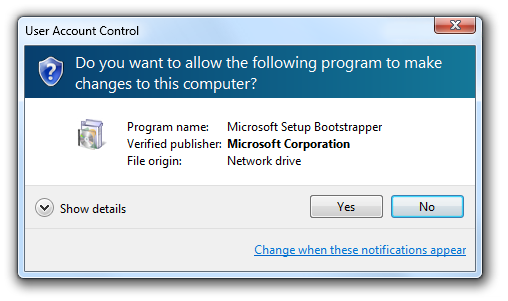
UAC එකෙන් සම්පූර්ණ system එකට බලපාන වෙනස්කම් — software install කිරීම, protected settings edit කිරීම, හෝ elevated privileges එක්ක app එකක් run කිරීම — සිද්ධ වෙන්නේ පැහැදිලි approval එකක් එක්ක විතරක් කියලා තහවුරු කරනවා. action එකකට administrator rights ඕන වුණාම, UAC එකෙන් screen එක dim කරලා consent prompt එකක් පෙන්වනවා. මේකෙන් malware සහ වැරදි විදිහට හැසිරෙන programs නිශ්ශබ්දව, system-wide වෙනස්කම් කරන එක නවත්තනවා.
සම්මත User Account Control consent prompt එකක්.
Is It Safe to Disable UAC?
UAC disable කරන එක සාමාන්යයෙන් නිර්දේශ කරන්නේ නෑ. UAC off එක්ක, programs වලට ඔබෙන් prompt නොකර administrator privileges ලබාගන්න පුළුවන් — ඒකෙන් malware ට හානිකර වෙනස්කම් කරන එක ලේසි වෙනවා. UAC prompts කරදරයක් වගේ දැනෙන බොහෝ අවස්ථා වලදී, level එක අඩු කරන එක (disable කරනවාට වඩා) හොඳ balance එකක් ගන්නවා. UAC enabled එක්ක function කරන්න බැරි නිශ්චිත app එකකට හෝ controlled environments වලට Full disabling එක reserve කරලා තියන්න — ඉවර වුණාම ඒක නැවත on කරන්න.
UAC Security Levels
Control Panel slider එකෙන් levels හතරක් දෙනවා: Always notify (වඩාත්ම secure), Notify only when apps try to make changes (default එක), ඒම එක ඒත් desktop එක dim නොකර, සහ Never notify (UAC effectively off). Slider එක move කරන එකයි UAC tune කරන්න වඩාත් සුදුසු ක්රමය — මොකද ඒකෙන් feature එක partially active විදිහට තියෙනවා.
Method 1: Adjust or Disable UAC from Control Panel (Recommended)
UAC වෙනස් කරන්න safest, officially supported ක්රමය Control Panel එකෙන් ලැබෙනවා.
1. Windows + R press කරලා, useraccountcontrolsettings type කරලා, Enter press කරන්න (නැත්නම් "Change User Account Control settings" search කරන්න).
2. Levels හතරක් තියෙන slider එකක් පෙන්වනවා. Prompts safe විදිහට අඩු කරන්න, ඒක බැහැලා තියෙන තැනට වෙනුවට එක notch එකක් පහළට move කරන්න.
3. UAC සම්පූර්ණයෙන් disable කරන්න, slider එක අඩුම position එකට, "Never notify" වලට move කරන්න.
4. OK click කරලා confirmation prompt එක approve කරන්න.
5. වෙනස සම්පූර්ණයෙන් බලපෑම් ඇති වෙන්න computer එක restart කරන්න.
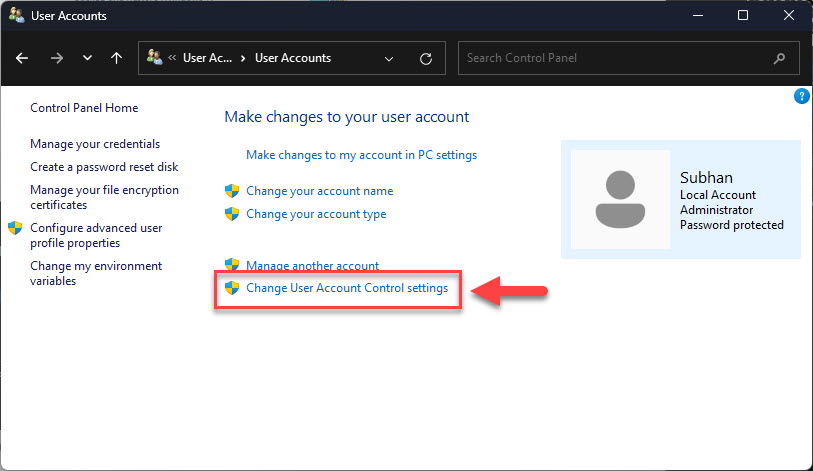
Control Panel slider එකෙන් UAC level එක adjust කරන එක.
Tip: පස්සේ protection එක restore කරන්න, මේ screen එකට ආපහු ඇවිත් slider එක default (උඩ ඉඳන් දෙවැනි) position එකට move කරලා restart කරන්න.
Method 2: Change UAC with Group Policy
Windows Pro, Enterprise, සහ Education editions වල, Group Policy එකෙන් centralized control එකක් දෙනවා — machines කිහිපයක් manage කරන administrators ට ප්රයෝජනවත්.
1. Windows + R press කරලා, gpedit.msc type කරලා, Enter press කරන්න.
2. Computer Configuration > Windows Settings > Security Settings > Local Policies > Security Options වලට navigate කරන්න.
3. "Run all administrators in Admin Approval Mode" වගේ "User Account Control" policies හොයන්න.
4. UAC disable කරන්න, ඒ policy එක Disabled කරන්න (UAC on තියාගන්න Enabled තියන්න).
5. Editor එක close කරලා computer එක restart කරන්න.
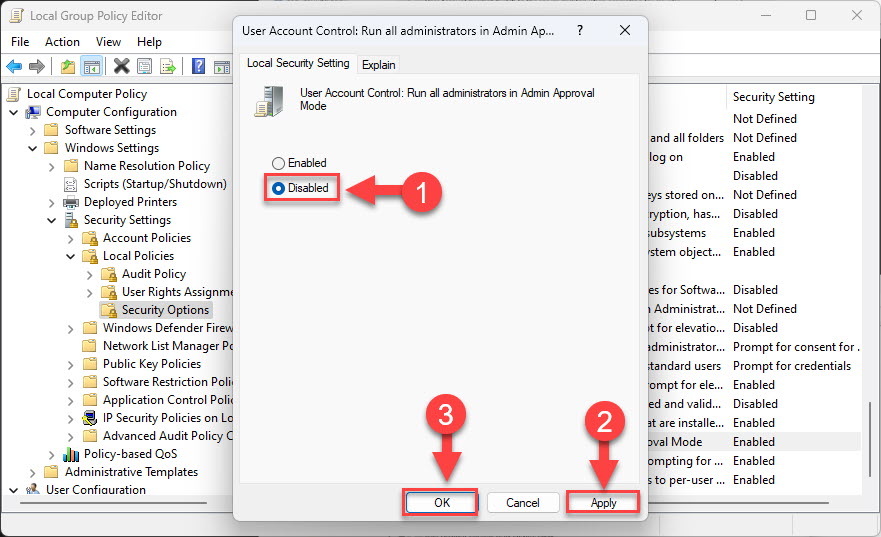
Group Policy Editor එකේ UAC policy එකක් configure කරන එක.
Note: Group Policy Editor එක Windows Home edition එකේ නෑ. Home වල, ඒ වෙනුවට Control Panel ක්රමය පාවිච්චි කරන්න.
Method 3: Change UAC in the Registry
Registry ක්රමයෙන් ඒම result එකම ලැබෙන අතර හැම edition එකකම වැඩ කරනවා, ඒත් පරිස්සමින් පාවිච්චි කරන්න ඕන.
Warning: Registry එක වැරදියට edit කරන එකෙන් බරපතළ ප්රශ්න ඇති වෙන්න පුළුවන්. මොනවහරි වෙනස් කරන්න කලින් registry එක backup කරලා (File > Export), මෙතන විස්තර කරලා තියෙන value එක විතරක් modify කරන්න.
1. Windows + R press කරලා, regedit type කරලා, Enter press කරන්න.
2. HKEY_LOCAL_MACHINE\SOFTWARE\Microsoft\Windows\CurrentVersion\Policies\System වලට navigate කරන්න.
3. "EnableLUA" DWORD value එක double-click කරන්න.
4. UAC disable කරන්න ඒක 0 කරන්න, නැත්නම් enabled තියාගන්න 1 කරලා, OK click කරන්න.
5. වෙනස apply කරන්න computer එක restart කරන්න.
Registry එකේ UAC control කරන EnableLUA value එක.
Troubleshooting
Problem: UAC වෙනස බලපෑම් ඇති කරන්නේ නෑ.
Solution: බොහෝ UAC වෙනස්කම් වලට restart එකක් ඕන. Computer එක reboot කරලා, ඊට පස්සේ setting එක නැවත verify කරන්න.
Problem: UAC slider එක හෝ settings greyed out වෙලා.
Solution: ඔබට administrator rights ඕන, සහ organization එකක් set කරපු Group Policy එකක් UAC enforce කරනවා වෙන්න පුළුවන්. Administrator විදිහට sign in වෙන්න, නැත්නම් device එක managed නම් ඔබේ IT administrator ට contact කරන්න.
Problem: UAC disable කළාට පස්සේ සමහර apps වැඩ කරන එක නැවතුණා.
Solution: Modern apps කිහිපයකට හරියට run වෙන්න UAC ඕන. Control Panel එකෙන් UAC නැවත enable කරන්න — එදිනෙදා පාවිච්චියට නිර්දේශිත state එක.
Problem: ඔබට prompts අඩුවෙන් ඕන ඒත් full exposure එක ඕන නෑ.
Solution: UAC සම්පූර්ණයෙන් disable කරන්න එපා. Control Panel slider එක එක level එකක් අඩු කරන්න — එතකොට routine prompts අඩු කරමින් protection එකත් තියාගන්න පුළුවන්.
Conclusion
UAC කියන්නේ වටිනා safeguard එකක්, ඒ නිසා best practice එක ඒක on තියාගන්න එක හෝ එහෙම නැත්නම් ඒකේ level එක අඩු කරන එක. ඔබේම PC එකේ නිශ්චිත, trusted task එකකට UAC off වෙන්න ඕන වුණාම, ඒක වෙනස් කරන්න safest තැන Control Panel එක, Group Policy සහ registry alternatives විදිහට තියෙනවා. ඔබ මොන ක්රමය පාවිච්චි කළත්, disable කරලා තියෙන්න ඕන නැති වුණාම UAC නැවත enable කරන්න.
About TechHub
මේ guide එක TechHub Knowledge Base එකේ කොටසක්. තව step-by-step IT guides සහ support වලට techhub.com.lk එකට යන්න.