Overview
Appx and AppxBundle files are the installer packages behind Microsoft Store apps. Downloading them lets you install apps offline or on PCs without Store access. This guide shows how to obtain the packages and install them safely.
Downloading Appx/AppxBundle files from the Microsoft Store.
Key Takeaways
- Appx/AppxBundle are Store app installer packages.
- You can generate direct download links for offline installs.
- Install by double-clicking or via Add-AppxPackage in PowerShell.
- Sideloading must be allowed in Windows settings.
Warning: Only install Appx packages from trusted sources. Sideloaded apps bypass the Store’s vetting, so a malicious package can harm your PC.
Enable Sideloading
1. Open Settings > Privacy & security > For developers.
2. Ensure app installation from outside the Store is allowed (Developer Mode not usually required for signed packages).
Get the Package
1. Find the app’s Microsoft Store URL (or its product ID).
2. Use a reputable Store-link generator (e.g., the widely used rg-adguard Store link service) to produce a direct .appx/.appxbundle download link.
3. Download the package and its dependencies.
Install by Running the File
1. Double-click the downloaded .appx or .appxbundle file.
2. In the App Installer window, click Install.
3. Wait for installation to complete, then launch the app.
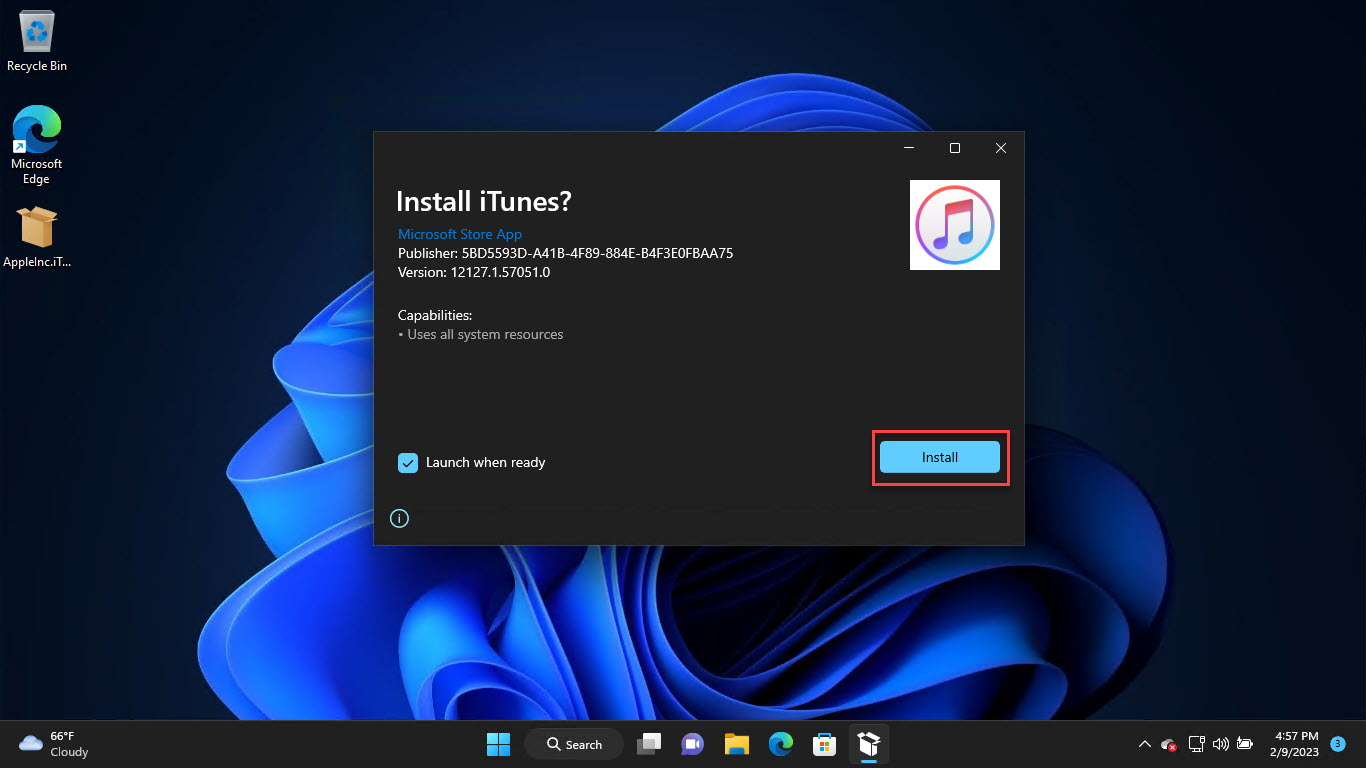
Install a Store app by running its package.
Install with PowerShell
1. Open PowerShell.
2. Run: Add-AppxPackage -Path "C:\Path\App.appxbundle"
3. If it needs dependencies, install those first with Add-AppxPackage.
4. Verify with: Get-AppxPackage *AppName*
Troubleshooting
Problem: "App installation failed" / not signed.
Solution: Ensure the package is properly signed and its dependencies are installed; sideloading must be enabled.
Problem: Missing dependency error.
Solution: Download and install the required framework packages (listed by the error) before the main app.
Problem: Add-AppxPackage access denied.
Solution: Run PowerShell as administrator and confirm the file path is correct.
Problem: Not sure a package is safe.
Solution: Only use trusted Store-link generators and verify the publisher; when in doubt, install from the Store directly.
Conclusion
Downloading Appx/AppxBundle packages enables offline installation of Store apps. Generate a direct link from a reputable source, enable sideloading, then install by double-clicking or with Add-AppxPackage — sticking to trusted packages to stay safe.
</w:pBdr><w:spacing w:before="220" w:after="40"/></w:pPr><w:r><w:rPr><w:b/><w:bCs/><w:color w:val="0B5394"/><w:sz w:val="21"/><w:szCs w:val="21"/><w:rFonts w:ascii="Calibri" w:cs="Calibri" w:eastAsia="Calibri" w:hAnsi="Calibri"/></w:rPr><w:t xml:space="preserve">About TechHub
This guide is part of the TechHub Knowledge Base. For more step-by-step IT guides and support, visit techhub.com.lk.