Overview
The Windows Assessment and Deployment Kit (ADK) provides tools for customizing, assessing, and deploying Windows images. This guide covers downloading the right version, installing it, and adding the WinPE add-on.
Downloading the Windows ADK.
Key Takeaways
- ADK includes deployment tools like DISM, USMT, and Sysprep support.
- Match the ADK version to your Windows version.
- WinPE is now a separate add-on you install alongside ADK.
- Download only from Microsoft’s official site.
Note: Always download the ADK and WinPE add-on from Microsoft’s official Learn/Docs site to ensure authentic installers.
Choose the Right Version
1. Identify your target Windows version (e.g., Windows 11 23H2/24H2 or Windows 10 22H2).
2. On Microsoft’s official ADK page, pick the ADK matching that version.
3. Note that a mismatched ADK can cause deployment issues.
Install the ADK
1. Uninstall any older ADK first if you’re upgrading.
2. Run the downloaded adksetup.exe.
3. Choose to install on this computer (or download for later).
4. Select the features you need (Deployment Tools, Imaging, USMT, etc.).
5. Click Install and wait for it to finish.
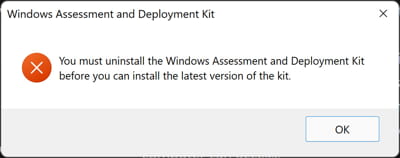
Uninstall an older ADK before installing a new one.
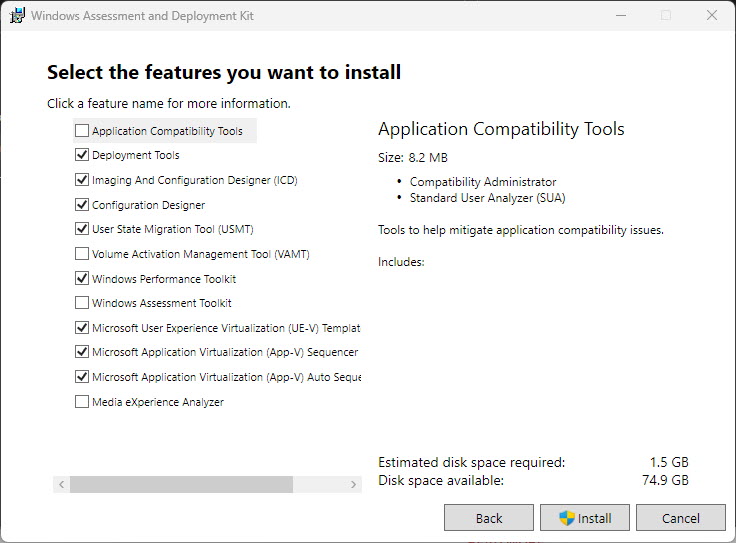
Select the ADK components to install.
Install the WinPE Add-On
1. Download the "Windows PE add-on for the ADK" (same version) from Microsoft.
2. Run adkwinpesetup.exe.
3. Install it after the main ADK so WinPE tools are available.
Validate the Installation
1. Open the "Deployment and Imaging Tools Environment" from the Start menu.
2. Run a tool such as dism /? or copype to confirm it works.
3. Check installed features in Settings > Apps if needed.
Troubleshooting
Problem: Install fails or hangs.
Solution: Uninstall previous ADK versions, ensure internet access for the downloader, and run setup as administrator.
Problem: WinPE tools missing.
Solution: Install the separate WinPE add-on that matches your ADK version.
Problem: Version mismatch errors.
Solution: Use the ADK/WinPE version that corresponds to your Windows release.
Problem: copype not found.
Solution: Open the "Deployment and Imaging Tools Environment" shortcut, which sets the correct paths.
Conclusion
The Windows ADK equips you with Microsoft’s deployment and imaging tools. Download the version matching your Windows release from the official site, install the components you need, and add the WinPE add-on to complete your deployment toolkit.
</w:pBdr><w:spacing w:before="220" w:after="40"/></w:pPr><w:r><w:rPr><w:b/><w:bCs/><w:color w:val="0B5394"/><w:sz w:val="21"/><w:szCs w:val="21"/><w:rFonts w:ascii="Calibri" w:cs="Calibri" w:eastAsia="Calibri" w:hAnsi="Calibri"/></w:rPr><w:t xml:space="preserve">About TechHub
This guide is part of the TechHub Knowledge Base. For more step-by-step IT guides and support, visit techhub.com.lk.