Overview
Intel කියන්නේ ඔවුන්ගේ graphics drivers, ඔබේ GPU එකට සහ processor generation එකට අනුව branches කිහිපයකින් publish කරන එකයි. නිවැරදි branch එක තෝරාගැනීමෙන් හොඳම stability එකයි performance එකයි ලැබෙනවා. මේ guide එකෙන් ප්රධාන Intel graphics driver branches පැහැදිලි කරලා, ඔබේ hardware එකට ගැලපෙන නිවැරදි driver එක හොයාගන්නෙ, download කරන්නෙ සහ install කරන්නෙ කොහොමද කියලා පෙන්නනවා.
Intel විවිධ GPUs සඳහා graphics driver branches කිහිපයක් maintain කරනවා.
Key Takeaways
- Intel graphics drivers branches වලට කඩනවා: Arc & Iris Xe, Arc Pro, සහ පරණ processors සඳහා legacy lines.
- Intel Driver & Support Assistant එක automatically නිවැරදි driver එක detect කරලා install කරනවා.
- Beta drivers අලුත්ම features එකතු කරනවා; stable drivers reliability එකට මුල් තැන දෙනවා.
- හැමවිටම download කරන්නෙ Intel ගේ official site එකෙන් හෝ Driver & Support Assistant එකෙන්.
Intel Graphics Driver Branches
- Arc & Iris Xe (current) — Intel Arc discrete GPUs සහ 11th Gen හෝ ඊට අලුත් Iris Xe integrated graphics සඳහා; stable සහ beta versions වලින් ලැබෙනවා.
- Arc Pro — Intel Arc Pro professional graphics සඳහා.
- Legacy 7th–10th Gen — එම processors සඳහා වෙනම maintenance branch එකක්.
- Legacy 6th–10th Gen — කලින් processors සඳහා පරණ maintenance branch එකක්.
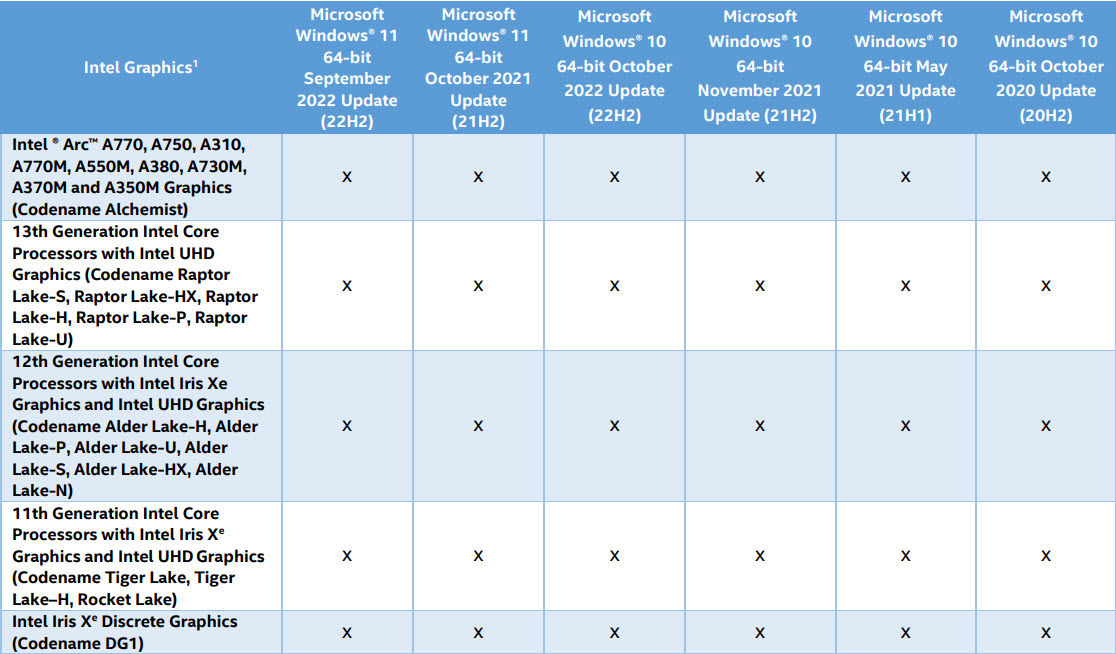
Arc & Iris Xe branch එක වර්තමාන Intel graphics cover කරනවා.
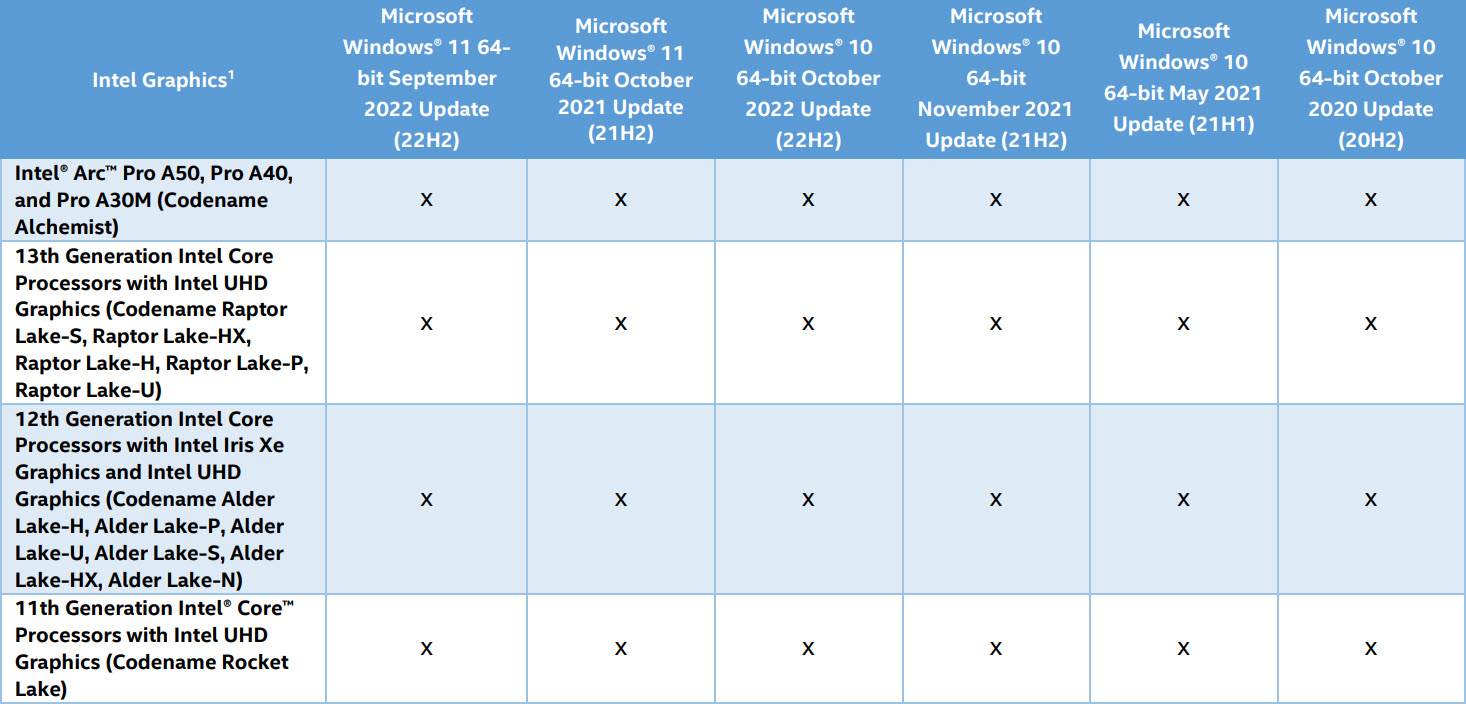
Intel Arc Pro එකට තමන්ගේම professional driver branch එකක් තියෙනවා.
Find Out Which GPU You Have
1. Start button එක right-click කරලා Device Manager තෝරන්න.
2. Display adapters expand කරලා ඔබේ Intel graphics model එක බලන්න.
3. තව detail ඕන නම්, Windows key + R press කරලා dxdiag type කරලා Display tab එක check කරන්න.
4. ඔබට තියෙන්නෙ Intel Arc ද, Iris Xe ද, නැත්නම් පරණ HD/UHD Graphics model එකක්ද කියලා සටහන් කරගන්න.
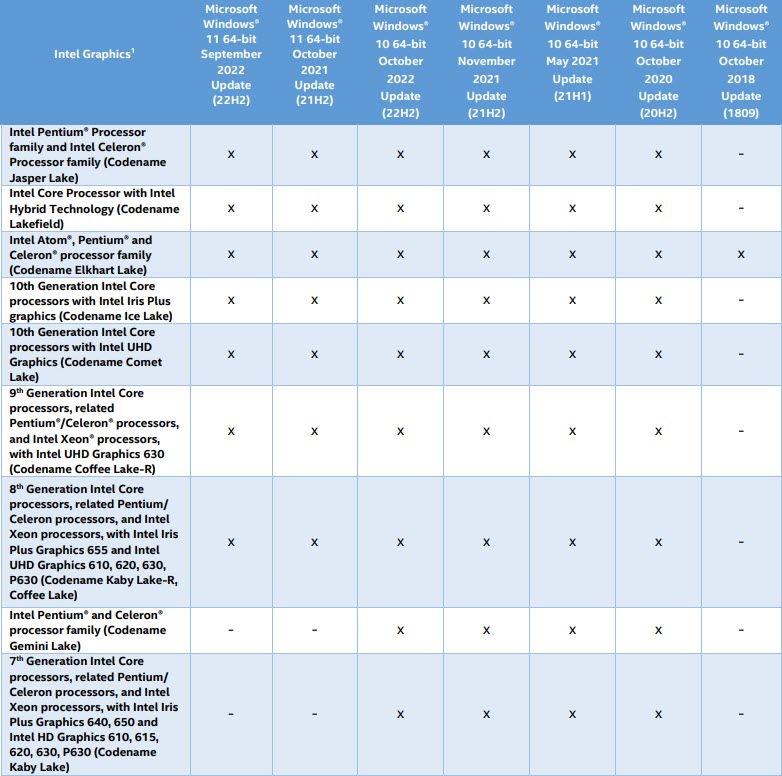
Legacy branches 7th–10th Gen processors support කරනවා.
How to Download and Install
1. Intel ගේ official site එකෙන් Intel Driver & Support Assistant install කරන්න, නැත්නම් Intel Download Center එක open කරන්න.
2. assistant එකට ඔබේ system එක scan කරලා නිවැරදි driver branch එක recommend කරන්න ඉඩ දෙන්න.
3. recommend කරපු driver එක download කරන්න (reliability එකට stable එක හෝ අලුත්ම features එකට beta එක තෝරන්න).
4. installer එක run කරලා, clean installation එකක් තෝරලා, prompt වුණොත් restart කරන්න.
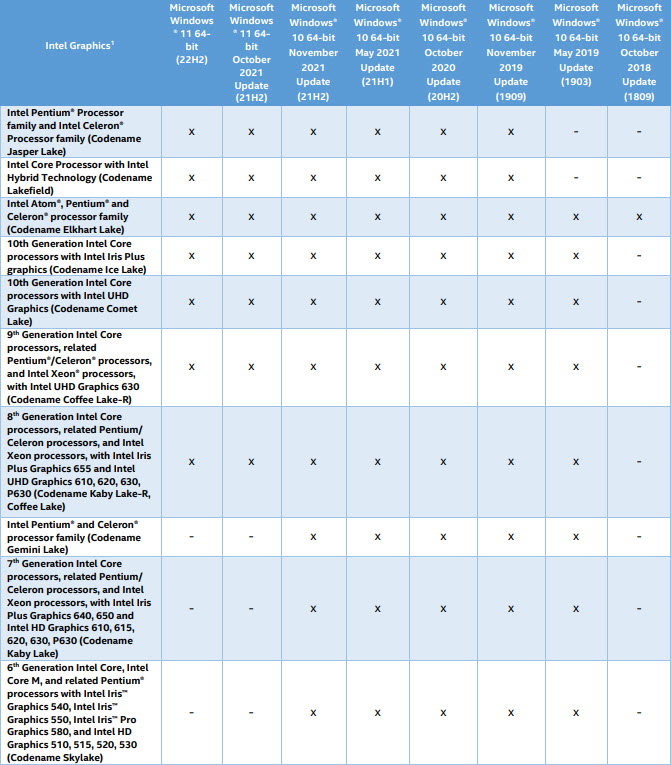
පරණ 6th–10th Gen processors වෙනම legacy driver එකක් පාවිච්චි කරනවා.
Warning: Intel graphics drivers download කරන්නෙ Intel ගේ official site එකෙන් හෝ Driver & Support Assistant එකෙන් විතරයි.
Tip: ඔබේ laptop maker එක customised Intel driver එකක් දෙනවා නම්, ඒක තෝරන්න — OEM drivers වල device-specific fixes තියෙන්න පුළුවන්.
Troubleshooting
Problem: කුමන branch එකද පාවිච්චි කරන්නෙ කියලා විශ්වාස නෑ.
Solution: Intel Driver & Support Assistant එක run කරන්න — ඒක ඔබේ GPU එක detect කරලා නිවැරදි driver එක automatically recommend කරනවා.
Problem: generic Intel installer එක laptop එකක block වෙනවා.
Solution: ඔබේ OEM එක driver එක control කරනවා. ගැලපෙන version එක ඔබේ laptop manufacturer ගේ support page එකෙන් download කරන්න.
Problem: beta driver එකක stability ප්රශ්න.
Solution: ඔබේ branch එකට අලුත්ම stable driver එකට මාරු වෙලා clean installation එකක් කරන්න.
Problem: update කරාට පස්සෙ display issues.
Solution: Device Manager > Display adapters > Properties > Driver > Roll Back Driver හරහා roll back කරන්න, නැත්නම් clean විදිහට reinstall කරන්න.
Conclusion
ඔබේ Intel graphics driver එක ඔබේ GPU branch එකට match කරන එක smooth performance එකට යතුරයි. නිවැරදි driver එක identify කරලා install කරන්න Intel Driver & Support Assistant එක පාවිච්චි කරන්න, සහ beta features විශේෂයෙන් ඕන නැත්නම් stable releases තෝරන්න.
About TechHub
මේ guide එක TechHub Knowledge Base එකේ කොටසක්. තව step-by-step IT guides සහ support වලට techhub.com.lk එකට යන්න.