Optional Windows Features Enable හෝ Disable කරන ක්රම 4ක්
Hyper-V, WSL සහ .NET 3.5 වගේ Windows features GUI, DISM සහ PowerShell හරහා on හෝ off කරන්න.
Overview
Windows එකත් එක්ක optional features ගොඩක් (Hyper-V, WSL, .NET 3.5, Telnet, IIS, තව) එනවා — ඒවා ඕන විදිහට on හෝ off කරන්න පුළුවන්. මේ guide එකෙන් ඒවා manage කරන්න ක්රම හතරක් — classic dialog එක, DISM සහ PowerShell — කවර් කරනවා.
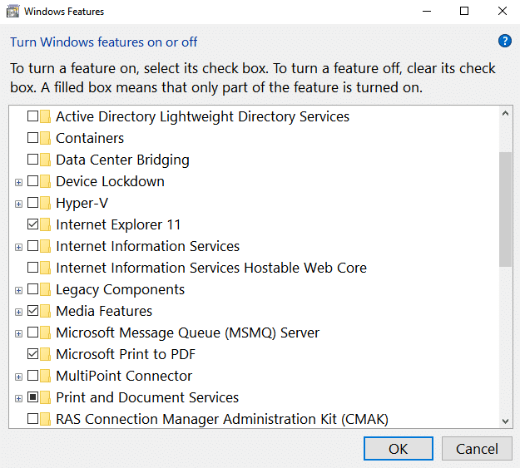
Optional Windows features enable සහ disable කිරීම.
Key Takeaways
- "Turn Windows features on or off" කියන්නේ GUI method එකයි.
- DISM එකෙන් command line එකෙන් features manage කරනවා.
- PowerShell වල Enable/Disable-WindowsOptionalFeature පාවිච්චි කරනවා.
- සමහර features වලට reboot එකක් හෝ installation source එකක් ඕන.
Method 1: The Features Dialog (GUI)
1. Windows + R press කරලා optionalfeatures type කරලා Enter press කරන්න.
2. Feature එකක් enable කරන්න tick කරන්න, නැත්නම් disable කරන්න untick කරන්න.
3. OK click කරලා prompt වුණොත් restart කරන්න.
Method 2: Command Prompt (DISM)
1. Command Prompt එක administrator විදිහට open කරන්න.
2. Features list කරන්න: DISM /Online /Get-Features
3. එකක් enable කරන්න: DISM /Online /Enable-Feature /FeatureName:Microsoft-Hyper-V /All
4. එකක් disable කරන්න: DISM /Online /Disable-Feature /FeatureName:Microsoft-Hyper-V
Method 3: PowerShell
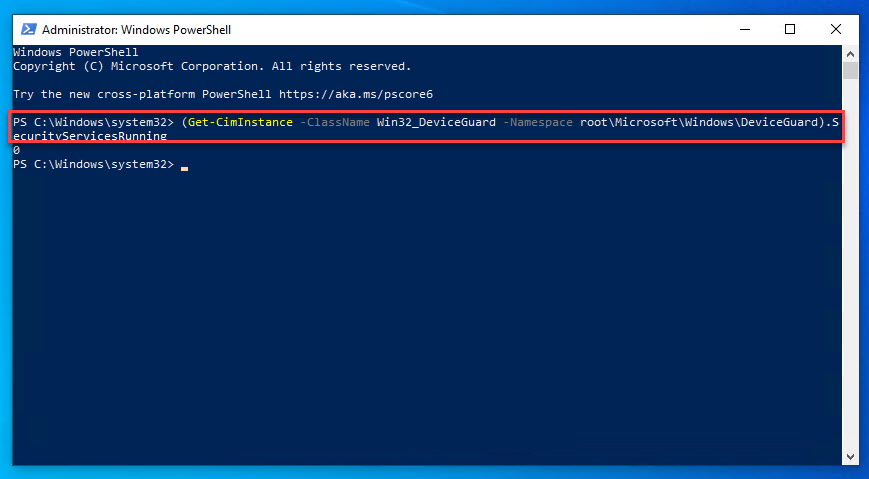
1. PowerShell එක administrator විදිහට open කරන්න.
2. List: Get-WindowsOptionalFeature -Online
3. Enable: Enable-WindowsOptionalFeature -Online -FeatureName Microsoft-Windows-Subsystem-Linux -All
4. Disable: Disable-WindowsOptionalFeature -Online -FeatureName Microsoft-Windows-Subsystem-Linux
Method 4: With an Installation Source
1. සමහර features (උදා: .NET 3.5) cache වෙලා නැත්නම් source files ඕන වෙන්න පුළුවන්.
2. Windows ISO එකක් mount කරලා DISM එක ඒකට point කරන්න: DISM /Online /Enable-Feature /FeatureName:NetFx3 /All /Source:D:\sources\sxs /LimitAccess
3. මේකෙන් Windows Update නැතුව offline features install කරනවා.
Troubleshooting
Problem: Feature එක enable වෙන්නේ නෑ ("source not found").
Solution: /Source එකෙන් installation source එකක් දෙන්න, නැත්නම් Windows Update access එක තියෙනවා කියලා තහවුරු කරගන්න.
Problem: Feature එක greyed out.
Solution: සමහර features වලට specific edition එකක් (උදා: Pro+ වල Hyper-V) හෝ hardware support ඕන.
Problem: වෙනස apply වුණේ නෑ.
Solution: PC එක restart කරන්න; features ගොඩක් finalize වෙන්නේ reboot එකේදී.
Problem: Feature name එක දන්නේ නෑ.
Solution: නිශ්චිත names list කරගන්න DISM /Online /Get-Features හෝ Get-WindowsOptionalFeature -Online run කරන්න.
Conclusion
Optional Windows features manage කරන්න සරලකමට optionalfeatures dialog එක, නැත්නම් scripting වලට DISM/PowerShell පාවිච්චි කරන්න. ඕන වුණාම .NET 3.5 වගේ features වලට installation source එකක් දෙන්න, සහ වෙනස්කම් finalize කරන්න reboot කරන්න.
About TechHub
මේ guide එක TechHub Knowledge Base එකේ කොටසක්. තව step-by-step IT guides සහ support වලට techhub.com.lk එකට යන්න.