Overview
Windows Home editions include the Remote Desktop client (to connect out) but not the server (to accept incoming connections). This guide explains the difference, shows how a third-party tool can enable the host on Home, and lists safer official alternatives.
Windows Home can connect out but does not host Remote Desktop by default.
Key Takeaways
- Home can use the Remote Desktop client but cannot host RDP sessions.
- RDP Wrapper is a third-party tool that enables the host on Home (unofficial).
- Upgrading to Windows Pro adds official RDP hosting.
- Chrome Remote Desktop and similar tools are safe, supported alternatives.
Server vs Client
- RDP client (mstsc) — connects to other PCs; available on all editions including Home.
- RDP server/host — accepts incoming connections; only on Pro/Enterprise editions.
- To remote into a Home PC, you must add a host capability or use another tool.
Option 1 — Enable Hosting With RDP Wrapper (Unofficial)
Warning: RDP Wrapper is a third-party tool that modifies Windows behaviour. Use it at your own risk, download it only from its official source, and keep the PC secured.
1. Download RDP Wrapper Library from its official GitHub project.
2. Run the installer (install.bat) as administrator.
3. Run RDPConf to confirm the wrapper state shows as fully supported (update the .ini if needed).
4. Enable Remote Desktop in Settings and connect from another PC.
Option 2 — Upgrade to Windows Pro
1. Open Settings > System > Activation.
2. Choose to upgrade your edition and purchase/enter a Windows Pro key.
3. After upgrading, enable Remote Desktop in Settings > System > Remote Desktop.
Option 3 — Use a Remote-Access Alternative
- Chrome Remote Desktop — free, simple, works on any edition.
- Microsoft Quick Assist — built into Windows for assisted remote sessions.
- TeamViewer / AnyDesk — full-featured remote access for personal use.
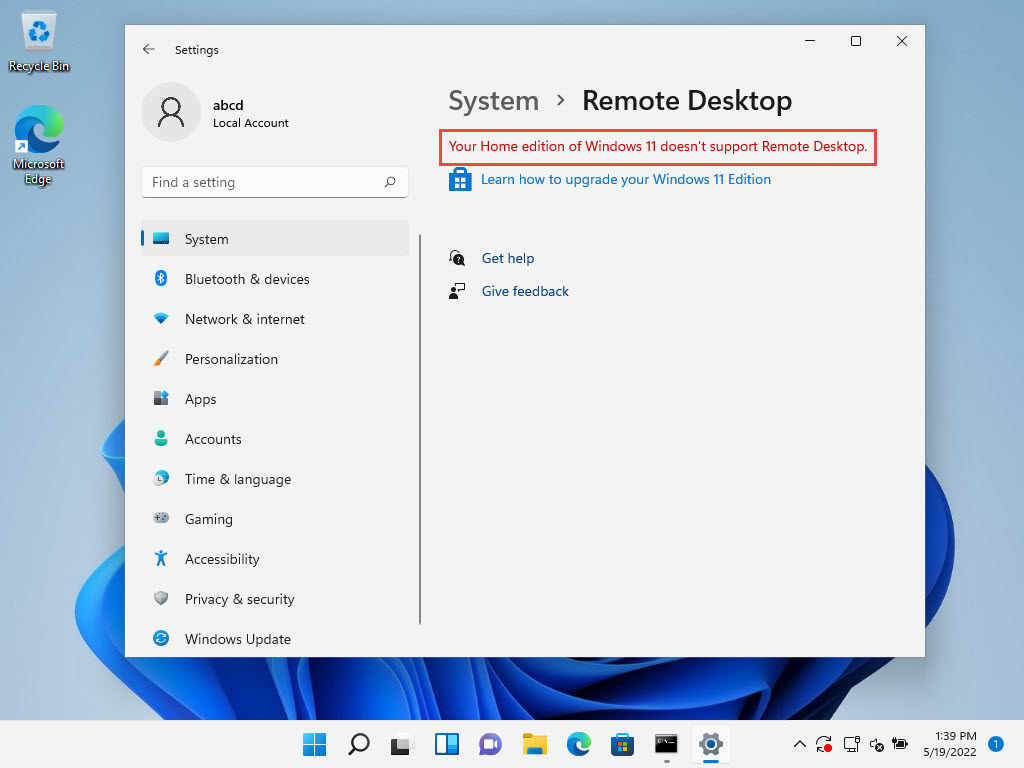
Windows Home does not officially support hosting RDP.
Troubleshooting
Problem: RDP Wrapper shows "not supported".
Solution: Update its rdpwrap.ini to match your Windows build, then restart the Remote Desktop Services.
Problem: You cannot connect after enabling.
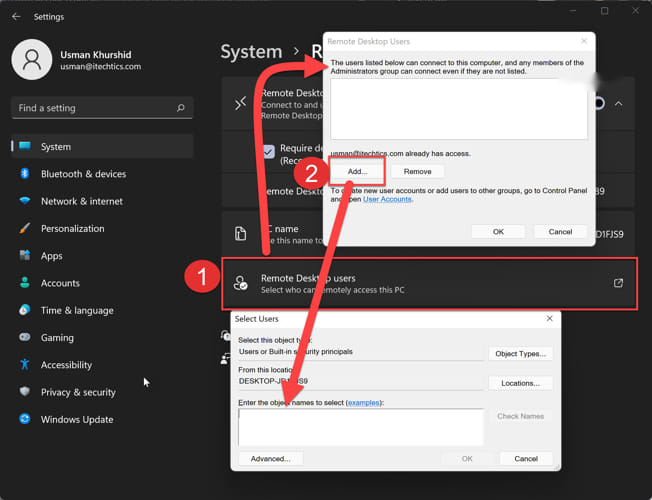
Solution: Allow Remote Desktop through the firewall, add your user to Remote Desktop Users, and ensure the account has a password.
Problem: You prefer not to use third-party tools.
Solution: Upgrade to Windows Pro for official RDP hosting, or use Chrome Remote Desktop/Quick Assist.
Problem: An update broke RDP Wrapper.
Solution: Reapply the latest wrapper and updated .ini after Windows feature updates, which can reset the host capability.
Conclusion
Windows Home can connect out but not host Remote Desktop. To accept incoming connections, upgrade to Pro for the official feature, use RDP Wrapper as an unofficial workaround, or pick a safe alternative like Chrome Remote Desktop.
</w:pBdr><w:spacing w:before="220" w:after="40"/></w:pPr><w:r><w:rPr><w:b/><w:bCs/><w:color w:val="0B5394"/><w:sz w:val="21"/><w:szCs w:val="21"/><w:rFonts w:ascii="Calibri" w:cs="Calibri" w:eastAsia="Calibri" w:hAnsi="Calibri"/></w:rPr><w:t xml:space="preserve">About TechHub
This guide is part of the TechHub Knowledge Base. For more step-by-step IT guides and support, visit techhub.com.lk.