How to Enable Windows Sandbox on Windows Home Edition
Run a disposable, isolated desktop for testing risky files — even on Windows Home.
Overview
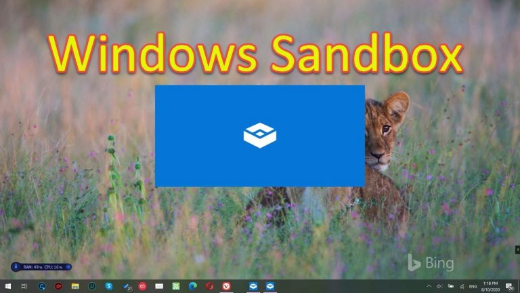
Windows Sandbox is a lightweight, throwaway virtual desktop for safely testing apps or suspicious files — anything done inside is discarded when you close it. It’s officially a Pro/Enterprise feature, but you can enable it on Windows Home with a script.
Enabling Windows Sandbox on Home.
Note: Use Sandbox to test untrusted files safely — nothing inside affects your real system. Still, don’t enter real credentials inside a sandbox you use for risky content.
Key Takeaways
- Windows Sandbox is a disposable, isolated desktop.
- It needs hardware virtualization enabled in BIOS.
- Officially Pro/Enterprise, but a script enables it on Home.
- Everything is wiped when you close the sandbox.
Requirements
- 64-bit Windows 10/11 with virtualization (VT-x/AMD-V) enabled in BIOS.
- At least 4 GB RAM (8 GB recommended).
- A few GB of free disk space.
Enable Sandbox on Windows Home
1. Enable virtualization in BIOS/UEFI if it’s off.
2. Create a .bat script that uses DISM to add the Containers-DisposableClientVM (Windows Sandbox) package and its dependencies.
3. Right-click the script and Run as administrator.
4. Reboot when prompted.
5. Launch "Windows Sandbox" from the Start menu.
Enable on Pro/Enterprise (Simpler)
1. Run optionalfeatures.
2. Tick "Windows Sandbox".
3. Click OK and restart.
4. Open Windows Sandbox from Start.
Uninstall Sandbox
1. Run optionalfeatures and untick "Windows Sandbox" (or use the disable DISM command).
2. Restart the PC.
Troubleshooting
Problem: Sandbox won’t start ("virtualization").
Solution: Enable VT-x/AMD-V in BIOS and ensure virtualization features are on.
Problem: Feature missing on Home.
Solution: Run the DISM enabler script as administrator and reboot; then it appears in Start.
Problem: Conflicts with another hypervisor.
Solution: Sandbox uses Hyper-V tech — some third-party hypervisors may need adjusting or nested settings.
Problem: Changes lost after closing.
Solution: That’s by design — Sandbox is disposable; save anything you need to the host before closing.
Conclusion
Windows Sandbox gives you a safe, disposable environment to test files and apps. On Pro/Enterprise, enable it in Optional Features; on Windows Home, a DISM script adds it — just enable virtualization in BIOS first. Everything inside vanishes when you close it.