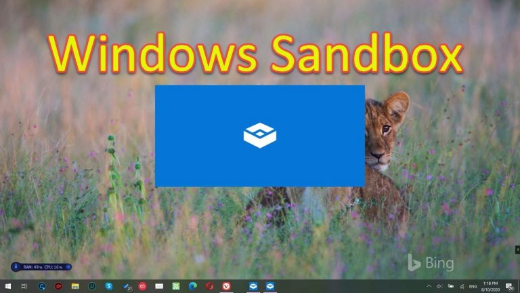
Windows Home Edition එකේ Windows Sandbox එක Enable කරන්නේ කොහොමද
Risky files test කරන්න disposable, isolated desktop එකක් run කරන්න — Windows Home එකේ වුණත්.
Overview
Windows Sandbox කියන්නේ apps හෝ සැක සහිත files ආරක්ෂිතව test කරන්න පුළුවන් lightweight, throwaway virtual desktop එකක් — ඇතුළේ කරන ඕනෑම දෙයක් ඔබ එය close කරන විට discard වෙනවා. මේක officially Pro/Enterprise feature එකක්, නමුත් script එකක් හරහා Windows Home එකේත් enable කරගන්න පුළුවන්.
Windows Home එකේ Windows Sandbox enable කිරීම.
Note: විශ්වාස කරන්න බැරි files ආරක්ෂිතව test කරන්න Sandbox එක පාවිච්චි කරන්න — ඇතුළේ කිසිවක් ඔබේ real system එකට බලපාන්නේ නෑ. නමුත් risky content සඳහා ඔබ පාවිච්චි කරන sandbox එකක් ඇතුළේ real credentials ඇතුළත් කරන්න එපා.
Key Takeaways
- Windows Sandbox කියන්නේ disposable, isolated desktop එකක්.
- මේකට BIOS එකේ hardware virtualization enable කරලා තියෙන්න ඕන.
- Officially Pro/Enterprise, නමුත් script එකක් හරහා Home එකේ enable කරගන්න පුළුවන්.
- ඔබ sandbox එක close කරන විට හැම දෙයක්ම wipe වෙනවා.
Requirements
- BIOS එකේ virtualization (VT-x/AMD-V) enable කරලා තියෙන 64-bit Windows 10/11.
- අඩුම තරමේ 4 GB RAM (8 GB recommended).
- Free disk space GB කිහිපයක්.
Enable Sandbox on Windows Home
1. Off නම් BIOS/UEFI එකේ virtualization enable කරන්න.
2. Containers-DisposableClientVM (Windows Sandbox) package එකයි එහි dependencies එකයි add කරන්න DISM පාවිච්චි කරන .bat script එකක් හදන්න.
3. Script එක right-click කරලා Run as administrator කරන්න.
4. Prompt කරන විට reboot කරන්න.
5. Start menu එකෙන් "Windows Sandbox" launch කරන්න.
Enable on Pro/Enterprise (Simpler)
1. optionalfeatures run කරන්න.
2. "Windows Sandbox" tick කරන්න.
3. OK click කරලා restart කරන්න.
4. Start එකෙන් Windows Sandbox open කරන්න.
Uninstall Sandbox
1. optionalfeatures run කරලා "Windows Sandbox" untick කරන්න (හෝ disable DISM command එක පාවිච්චි කරන්න).
2. PC එක restart කරන්න.
Troubleshooting
Problem: Sandbox එක start වෙන්නේ නෑ ("virtualization").
Solution: BIOS එකේ VT-x/AMD-V enable කරලා virtualization features on කරලා තියෙනවද කියලා confirm කරන්න.
Problem: Home එකේ feature එක නෑ.
Solution: DISM enabler script එක administrator විදිහට run කරලා reboot කරන්න; ඊට පස්සේ එය Start එකේ පේනවා.
Problem: තව hypervisor එකක් සමඟ conflicts.
Solution: Sandbox එක Hyper-V tech පාවිච්චි කරනවා — සමහර third-party hypervisors වලට adjust කරන්න හෝ nested settings ඕන වෙන්න පුළුවන්.
Problem: Close කරාට පස්සේ changes නැති වෙනවා.
Solution: ඒක by design එකක් — Sandbox එක disposable; close කරන්න කලින් ඔබට ඕන දෙයක් host එකට save කරගන්න.
Conclusion
Windows Sandbox එකෙන් files සහ apps test කරන්න ආරක්ෂිත, disposable environment එකක් ලැබෙනවා. Pro/Enterprise එකේ, Optional Features එකේ enable කරන්න; Windows Home එකේ, DISM script එකක් හරහා එය add වෙනවා — කලින් BIOS එකේ virtualization enable කරන්න විතරයි. ඇතුළේ තියෙන හැම දෙයක්ම ඔබ close කරන විට නැති වෙනවා.