Overview
"Access is denied" when running bootrec /fixboot usually happens on UEFI/GPT systems where the EFI System Partition isn’t accessible. This guide shows how to assign it a letter and repair the boot files from the Recovery Environment.
Warning: These steps modify boot configuration. Back up important data first if the system still boots, and proceed carefully in the Recovery Environment.
Key Takeaways
- The error is common on UEFI/GPT installs.
- Assign the EFI partition a drive letter to access it.
- Rebuild the EFI boot files with bcdboot.
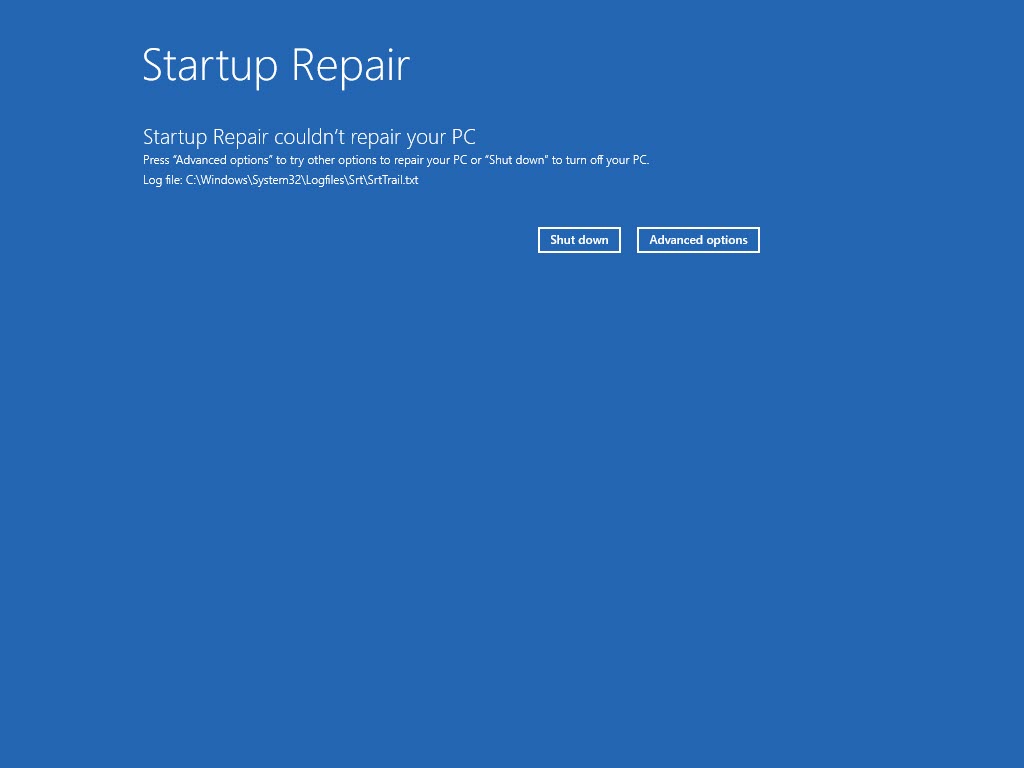
- Startup Repair and CHKDSK can help too.
Boot into the Recovery Environment
1. Boot from Windows installation media (or trigger WinRE).
2. Choose Repair your computer > Troubleshoot > Advanced options > Command Prompt.
Assign the EFI Partition and Repair Boot Files
1. Run: diskpart
2. list disk / select disk 0 / list volume — identify the EFI (FAT32, ~100–500MB) volume.
3. Select it: select volume <n>
4. Assign a letter: assign letter=V:
5. Exit: exit
6. Format the EFI (only if corrupt): format V: /FS:FAT32
7. Rebuild boot files: bcdboot C:\Windows /s V: /f UEFI
8. Retry: bootrec /fixboot (now targeting V:)
Additional Repairs
1. Run Startup Repair from Advanced options.
2. Check the disk: chkdsk C: /f /r
3. Rebuild BCD: bootrec /scanos then bootrec /rebuildbcd.
Troubleshooting
Problem: /fixboot still denied.
Solution: Use bcdboot to recreate the EFI files on the assigned partition instead; on GPT/UEFI, bcdboot is the reliable path.
Problem: No EFI partition visible.
Solution: The install may be Legacy/MBR — use bootrec /fixmbr and /fixboot on the system partition instead.
Problem: bcdboot fails.
Solution: Confirm C: is the Windows volume and V: is the EFI partition; adjust letters to match your layout.
Problem: Boot still fails.
Solution: Run chkdsk and Startup Repair; a failing disk can cause repeated boot issues.
Conclusion
The "Access is denied" fixboot error on UEFI systems is solved by assigning the EFI partition a letter and rebuilding its boot files with bcdboot. Combine that with Startup Repair, CHKDSK, and BCD rebuild to restore booting.
</w:pBdr><w:spacing w:before="220" w:after="40"/></w:pPr><w:r><w:rPr><w:b/><w:bCs/><w:color w:val="0B5394"/><w:sz w:val="21"/><w:szCs w:val="21"/><w:rFonts w:ascii="Calibri" w:cs="Calibri" w:eastAsia="Calibri" w:hAnsi="Calibri"/></w:rPr><w:t xml:space="preserve">About TechHub
This guide is part of the TechHub Knowledge Base. For more step-by-step IT guides and support, visit techhub.com.lk.