Overview
When Ctrl+C stops copying, the cause is usually a keyboard/driver glitch, a stuck key, corrupt system files, or a terminal setting. This guide covers the fixes from quickest to most thorough.
Fixing Ctrl+C not working.
Key Takeaways
- Rule out a hardware/stuck-key issue first.
- Update or reinstall the keyboard driver.
- Run the Keyboard troubleshooter and SFC.
- Command Prompt/PowerShell need Ctrl+C copy enabled in settings.
Fix 1: Restart and Test the Keyboard
1. Restart the PC to clear temporary glitches.
2. Test Ctrl+C in different apps to see if it’s app-specific.
3. Try another keyboard, or the on-screen keyboard, to rule out hardware.
4. Check that the Ctrl key isn’t physically stuck.
Fix 2: Run the Keyboard Troubleshooter
1. Open Settings > System > Troubleshoot > Other troubleshooters.
2. Run the Keyboard troubleshooter.
3. Apply any fixes it suggests.
Fix 3: Update or Reinstall the Keyboard Driver
1. Open Device Manager > Keyboards.
2. Right-click your keyboard > Update driver.
3. If that fails, Uninstall device and restart to reinstall it.
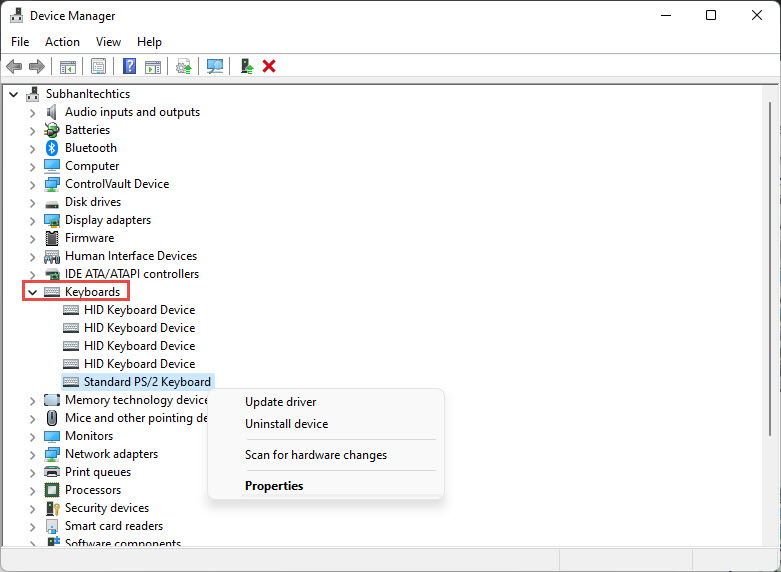
Update the keyboard driver in Device Manager.
Fix 4: Repair System Files
1. Open Command Prompt as administrator.
2. Run: sfc /scannow
3. Then: DISM /Online /Cleanup-Image /RestoreHealth
4. Restart.
Fix 5: Enable Ctrl+C in the Terminal
1. Open Command Prompt/PowerShell, right-click the title bar > Properties.
2. On the Options tab, tick "Enable Ctrl key shortcuts" / "Use Ctrl+Shift+C/V".
3. Click OK; now Ctrl+C copies (Ctrl+C may still send "break" during a running command).
Troubleshooting
Problem: Ctrl+C fails only in one app.
Solution: Check that app’s shortcut settings or an extension/macro remapping Ctrl+C.
Problem: Whole Ctrl key not working.
Solution: Likely hardware — test another keyboard; sticky/Filter Keys can also interfere (turn them off).
Problem: Works in apps, not the terminal.
Solution: Enable Ctrl shortcuts in the console Properties; in a running command Ctrl+C interrupts rather than copies.
Problem: Returned after an update.
Solution: Reinstall the keyboard driver and run SFC; a bad update can affect input.
Conclusion
Ctrl+C problems usually trace to hardware, drivers, or a terminal setting. Rule out the keyboard, update its driver, repair system files, and enable Ctrl shortcuts in the console — and your copy shortcut should work everywhere again.
</w:pBdr><w:spacing w:before="220" w:after="40"/></w:pPr><w:r><w:rPr><w:b/><w:bCs/><w:color w:val="0B5394"/><w:sz w:val="21"/><w:szCs w:val="21"/><w:rFonts w:ascii="Calibri" w:cs="Calibri" w:eastAsia="Calibri" w:hAnsi="Calibri"/></w:rPr><w:t xml:space="preserve">About TechHub
This guide is part of the TechHub Knowledge Base. For more step-by-step IT guides and support, visit techhub.com.lk.