Overview
Taskbar එක හේතු කිහිපයක් නිසා අතුරුදහන් වෙන්න පුළුවන්: වැරදීමකින් වෙච්ච auto-hide setting එකක්, stall වෙච්ච File Explorer process එකක්, display හෝ projection change එකක්, නැත්නම් corrupt වෙච්ච system component එකක්. මේ guide එකෙන් fixes ලෙ likelihood එකේ පිළිවෙළට වැඩ කරනවා, ඒ නිසා උඩින් පටන් අරගෙන ඔයාගේ taskbar එක ආපහු ආ ගමන් නවත්තන්න.
Key Takeaways
- Auto-hide තමයි වැඩිපුරම common cause එක — මුලින්ම එය check කරන්න.
- File Explorer restart කරාම බොහෝ තාවකාලික glitches විසඳෙනවා.
- වැරදි screen resolution එකක් හෝ projection mode එකක් නිසා taskbar එක off-screen යන්න පුළුවන්.
- ගැඹුරු ප්රශ්නවලට registry fix එකක් හෝ Windows එකේ in-place repair එකක් ඕන වෙන්න පුළුවන්.
Fix 1: Turn Off Auto-Hide
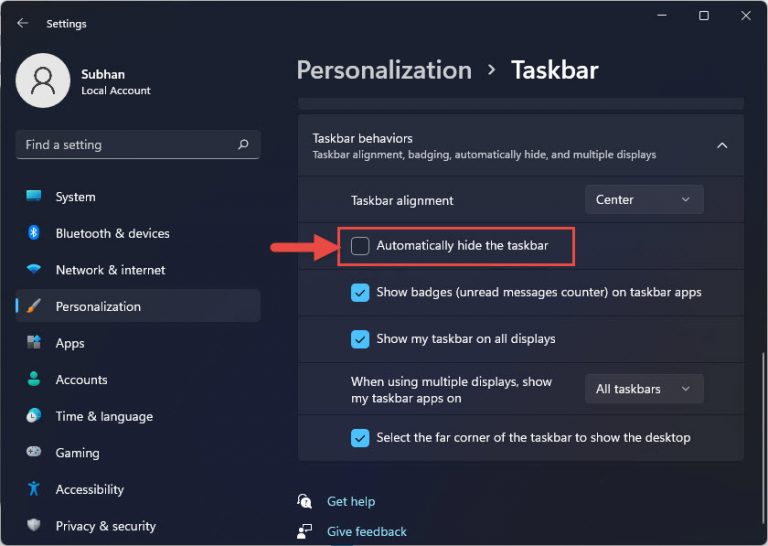
1. Desktop එකේ හිස් තැනක් right-click කරලා Personalize, ඊට පස්සේ Taskbar තෝරන්න (නැත්නම් Settings > Personalization > Taskbar open කරන්න).
2. Taskbar behaviors expand කරන්න.
3. "Automatically hide the taskbar" uncheck කරන්න.
Taskbar behaviors එකේ "Automatically hide the taskbar" disable කරන්න.
TIP: Auto-hide එක හිතලාම on කරලා නම්, mouse එක screen එකේ පහළම කෙළවරට ගෙනියන කොට taskbar එක ආපහු පෙනෙනවා.
Fix 2: Restart File Explorer
1. Task Manager එක open කරන්න Ctrl + Shift + Esc press කරන්න.
2. Processes list එකේ "Windows Explorer" හොයන්න.
3. එය select කරලා Restart click කරන්න. Taskbar එකයි desktop එකයි තත්පර කිහිපයකින් redraw වෙනවා.
NOTE: Windows Explorer list වෙලා නැත්නම්, Run new task click කරලා, explorer.exe type කරලා, Enter press කරලා එය relaunch කරන්න.
Fix 3: Correct Screen Resolution
1. Desktop එක right-click කරලා Display settings තෝරන්න.
2. Resolution එක ඔයාගේ monitor එකට "(Recommended)" කියලා mark කරලා තියෙන value එකට set කරන්න.
3. Change එක apply කරලා, taskbar එක හරි position එකට ආපහු ආවා නම් එය තියාගන්න.
Fix 4: Reset the Projection Mode
1. Projection panel එක open කරන්න Win + P press කරන්න.
2. "PC screen only" select කරන්න, එතකොට Windows එකෙන් external හෝ duplicated එකක් වෙනුවට ඔයාගේ primary display එක use කරනවා.
3. Taskbar එක main screen එකට ආපහු එනවද කියලා confirm කරන්න.
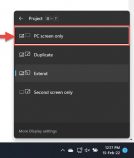
Win + P projection menu එකෙන් "PC screen only" තෝරන්න.
Fix 5: Repair System Files
1. Command Prompt එක administrator විදිහට open කරන්න.
2. sfc /scannow run කරලා එය ඉවර වෙනකම් ඉන්න.
3. ප්රශ්න තාම තියෙනවා නම්, DISM /Online /Cleanup-Image /RestoreHealth run කරලා, PC එක restart කරන්න.
WARNING: Registry එක edit කරන එකෙන් Windows එක destabilize වෙන්න පුළුවන්. Keys ඕනෑම එකක් වෙනස් කරන්න කලින් registry එක back up කරන්න (File > Export), ඔයාට faulty කියලා විශ්වාස වෙන entries විතරක් remove කරන්න.
Troubleshooting
Problem: Taskbar එක second monitor එකේ විතරක් missing.
Solution: Settings > Personalization > Taskbar > Taskbar behaviors open කරලා "Show my taskbar on all displays" enable කරන්න.
Problem: Taskbar එක ආපහු පෙනෙනවා ඒත් freeze වෙලා unclickable.
Solution: Task Manager එකෙන් File Explorer restart කරන්න; එය fail වුණොත්, sign out කරලා ආපහු sign in වෙලා shell එක reload කරන්න.
Problem: හැම restart එකකදිම taskbar එක ආපහු අතුරුදහන් වෙනවා.
Solution: Startup app එකක් හෝ corrupt වෙච්ච user profile එකක් වගකිව යුතු වෙන්න පුළුවන්. Clean boot එකකින් test කරලා, confirm කරන්න අලුත් user account එකක් හදන්න.
Problem: කිසිම දෙයකින් taskbar එක restore වෙන්නේ නෑ.
Solution: Windows Setup run කරලා "Keep personal files and apps" තෝරලා in-place repair එකක් use කරන්න, එයින් ඔයාගේ data මකන්නේ නැතුව system files reinstall කරනවා.
Conclusion
Missing taskbar එකක් සාමාන්යයෙන් බරපතළ හානියක් නෙවෙයි, settings හෝ Explorer glitch එකක්. Fixes පිළිවෙළට වැඩ කරන්න — auto-hide, Explorer restart, resolution, projection — system-file repairs හෝ reinstallation එක simple steps වලින් උදව් නොවෙන කලාතුරකින් අවස්ථා වලට reserve කරන්න.
About TechHub
මේ guide එක TechHub Knowledge Base එකේ කොටසක්. තව step-by-step IT guides සහ support වලට techhub.com.lk එකට යන්න.