Overview
Error code 0x80070666 සාමාන්යයෙන් පෙන්නන්නේ Microsoft Visual C++ Redistributable package එකක් install කරද්දී. ඒකෙන් අදහස් වෙන්නේ එම package එකේම conflicting හෝ අලුත් version එකක් දැනටමත් තියෙනවා, හෝ installation එක interrupt වුණා කියලයි. මේ guide එකෙන් මේ error එකට හේතුව මොකක්ද කියලා පැහැදිලි කරලා, ඔයාගේ Visual C++ install එක complete කරගන්න proven fixes පියවරෙන් පියවර පෙන්නනවා.
Key Takeaways
- Error 0x80070666 සාමාන්යයෙන් අදහස් වෙන්නේ conflicting Visual C++ version එකක් දැනටමත් install වෙලා තියෙනවා කියලයි.
- තියෙන Visual C++ packages අයින් කරලා reinstall කරන එකෙන් සාමාන්යයෙන් මේක resolve වෙනවා.
- pending Windows updates install කරන එක සහ package එක repair කරන එක effective alternatives.
- හැම විටම Visual C++ Redistributables official Microsoft website එකෙන් download කරන්න.
What Causes Error 0x80070666?
වඩාත්ම common හේතුව තමයි එම හෝ අලුත් Visual C++ Redistributable එකක් දැනටමත් install වෙලා තියෙන එක, ඒ නිසා installer එක proceed වෙන්න refuse කරනවා. Corrupted installation files, missing Windows updates, හෝ interrupt වුණු කලින් install එකකුත් මේ error එකට හේතු වෙන්න පුළුවන්.
0x80070666 installation error එක.
Fix 1: Repair the Existing Installation
මොනවත් අයින් කරන්න කලින්, install වෙලා තියෙන package එක repair කරන්න try කරන්න — මේකෙන් full reinstall එකක් නැතුව conflict එක බොහෝ විට fix වෙනවා.
1. Windows + R press කරලා, appwiz.cpl type කරලා, Enter press කරලා Programs and Features open කරන්න.
2. ඔයා install කරන version එකට match වෙන Microsoft Visual C++ Redistributable entry එක හොයාගන්න.
3. ඒක තෝරලා Change click කරලා, installer window එකේ Repair තෝරන්න.
4. repair එක complete වෙන්න දීලා PC එක restart කරලා, ආයෙත් installation එක try කරන්න.
Visual C++ package එක repair කිරීම.
Fix 2: Uninstall Conflicting Visual C++ Versions
Warning: Visual C++ Redistributables අයින් කරන එකෙන් ඒවා මත depend වෙන apps වලට තාවකාලිකව බලපෑ හැකියි. ඔයාගේ programs දිගටම වැඩ කරන්න පස්සේ correct versions reinstall කරන්න.
1. appwiz.cpl එකෙන් ආයෙත් Programs and Features open කරන්න.
2. ඔයාගේ installer එකට conflict වෙන Visual C++ Redistributable version එක හොයාගන්න (year සහ architecture, x86 හෝ x64 match වෙන).
3. ඒක තෝරලා Uninstall click කරලා, confirm කරන්න.
4. අයින් වුණාට පස්සේ, official Microsoft website එකෙන් latest matching redistributable එක download කරලා fresh install කරන්න.
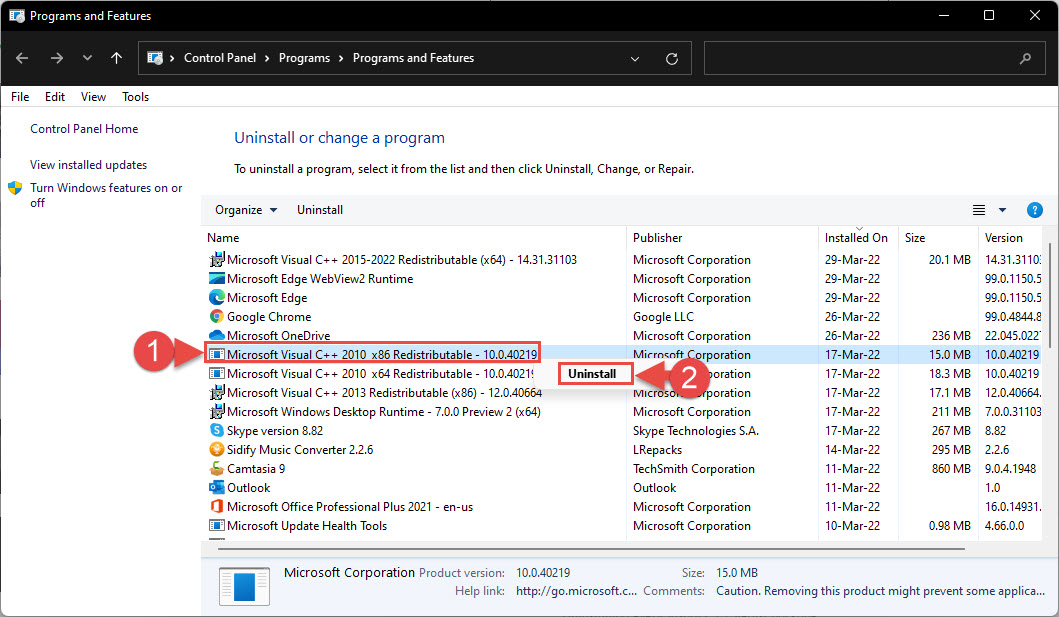
තියෙන Visual C++ installation එකක් uninstall කිරීම.
Fix 3: Install Pending Windows Updates
Missing system updates වලින් redistributable installations වලට interfere වෙන්න පුළුවන්.
1. Settings > Windows Update open කරන්න.
2. Check for updates click කරලා offer කරන හැම දෙයක්ම install කරන්න.
3. prompt කරොත් computer එක restart කරලා, ආයෙත් Visual C++ installation එක retry කරන්න.
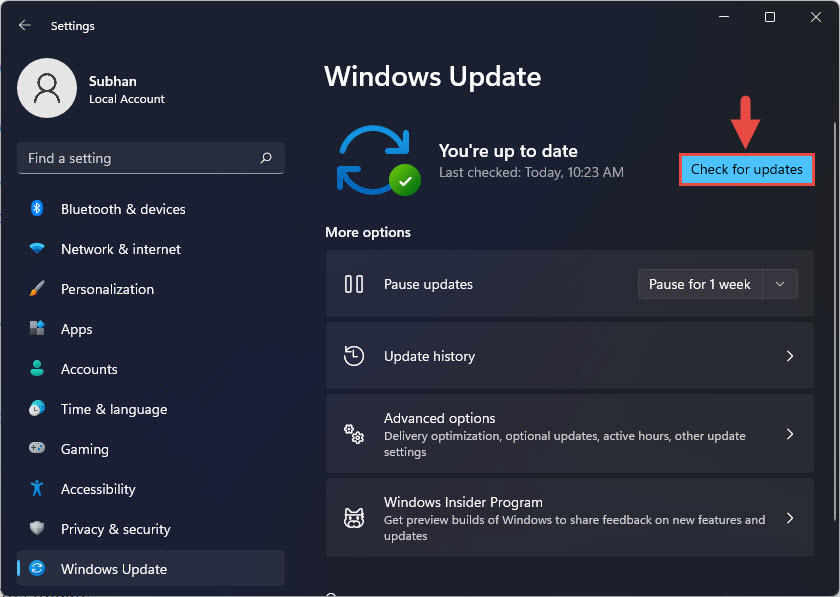
Windows updates check කිරීම.
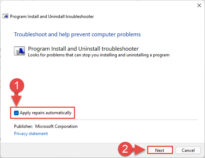
Fix 4: Run the Program Install and Uninstall Troubleshooter
Microsoft එකෙන් free troubleshooter එකක් දෙනවා. ඒකෙන් broken installs වල leftover registry entries clear කරනවා.
1. official Microsoft support site එකෙන් Program Install and Uninstall troubleshooter එක download කරන්න.
2. ඒක run කරලා Uninstalling තෝරන්න.
3. problematic Visual C++ entry එක තෝරලා tool එකට එහි leftover data අයින් කරන්න දෙන්න.
4. Restart කරලා redistributable එක ආයෙත් install කරන්න.
Tip: architecture එක ඔයාගේ program එකට match කරන්න. 64-bit application එකකට x64 redistributable එක ඕනේ, 32-bit application එකකට x86 version එක ඕනේ. Systems ගොඩකට දෙකම ඕනේ වෙනවා.
Troubleshooting
Problem: repair කරාට පස්සෙත් installer එක තවම fail වෙනවා.
Solution: conflicting version එක uninstall කරන එකට move වෙන්න, ඊට පස්සේ Microsoft එකෙන් latest package එක download කරලා install කරන්න.
Problem: Programs and Features එකේ conflicting version එක හොයාගන්න බෑ.
Solution: hidden හෝ corrupted redistributable entries detect කරලා අයින් කරන්න Program Install and Uninstall troubleshooter එක පාවිච්චි කරන්න.
Problem: reinstall කරාට පස්සේ error එක ආයෙත් එනවා.
Solution: වෙන installer එකක් හෝ එම setup එකම background එකේ run වෙන්නේ නෑ කියලා බලාගන්න, සහ ආයෙත් try කරන්න කලින් pending Windows updates install කරන්න.
Problem: uninstall කරාට පස්සේ apps වලින් missing Visual C++ DLL එකක් report කරනවා.
Solution: official Microsoft download page එකෙන් required Visual C++ Redistributable එකේ x86 සහ x64 versions දෙකම reinstall කරන්න.
Conclusion
Error 0x80070666 බොහෝ විටම එන්නේ version conflict එකක් නිසා. තියෙන package එක repair කරන එක තමයි අඩුම disruptive fix එක; ඒක fail වුණොත්, conflicting version එක uninstall කරලා, Windows updates apply කරලා, Microsoft එකෙන් correct redistributable එක reinstall කරන්න. මේ steps වලින් conflict එක clear කරලා installation එක success විදිහට complete වෙන්න ඉඩ දෙනවා.
About TechHub
මේ guide එක TechHub Knowledge Base එකේ කොටසක්. තව step-by-step IT guides සහ support වලට techhub.com.lk එකට යන්න.